We’re excited to announce several improvements designed to make managing deals, pricing, and content even smoother in our travel management and tour operator software.
For a complete list of updates, please check the overview below and the article with more details and screenshots.
Overview of Updates
Deal Updates
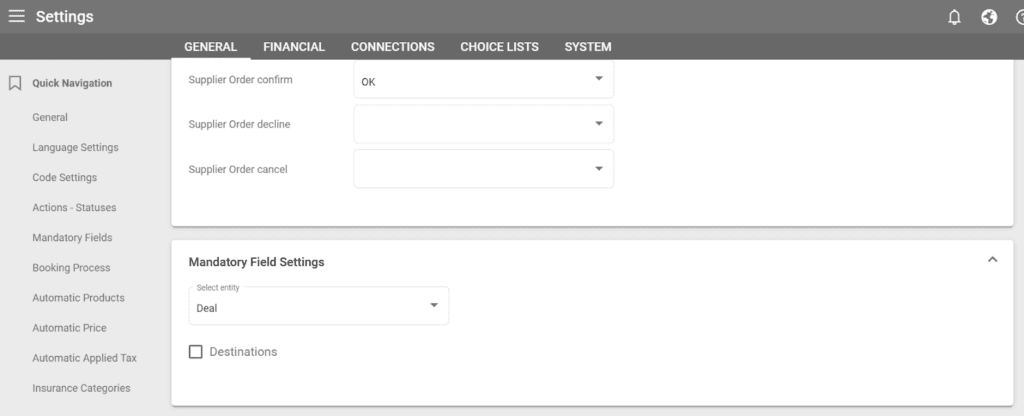
- Destination field can be set to mandatory in Settings / General / Mandatory Field Settings.
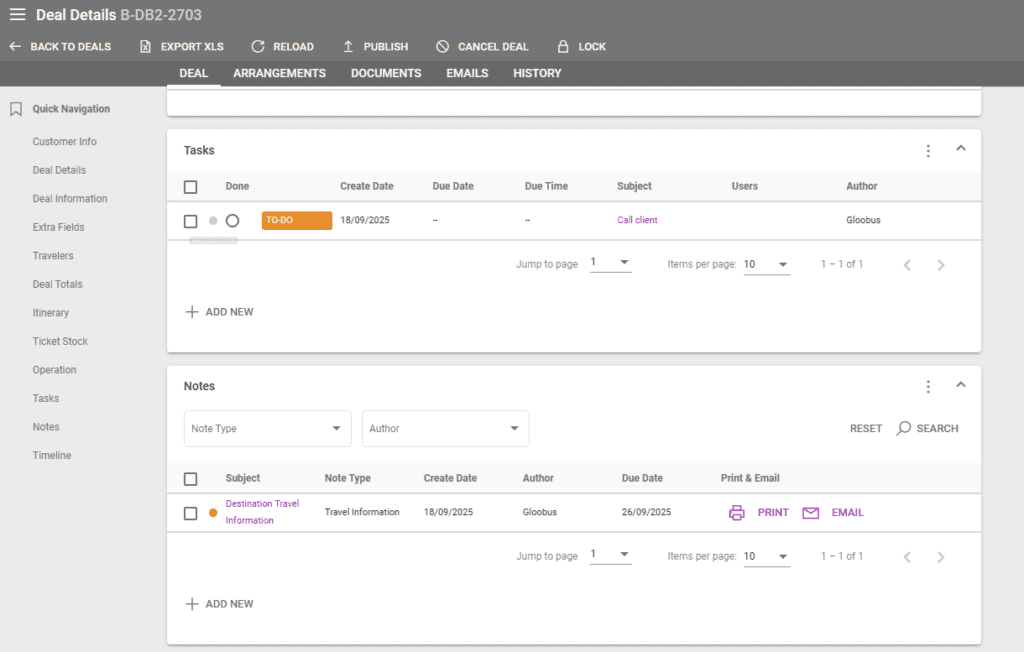
- In Deal Details / Notes, notes can be filtered and sorted, and a new column for due Date has been added.
- In Deal Details / Tasks, tasks can be sorted by columns and Task Details can be opened by clicking on the Subject text.
General Updates
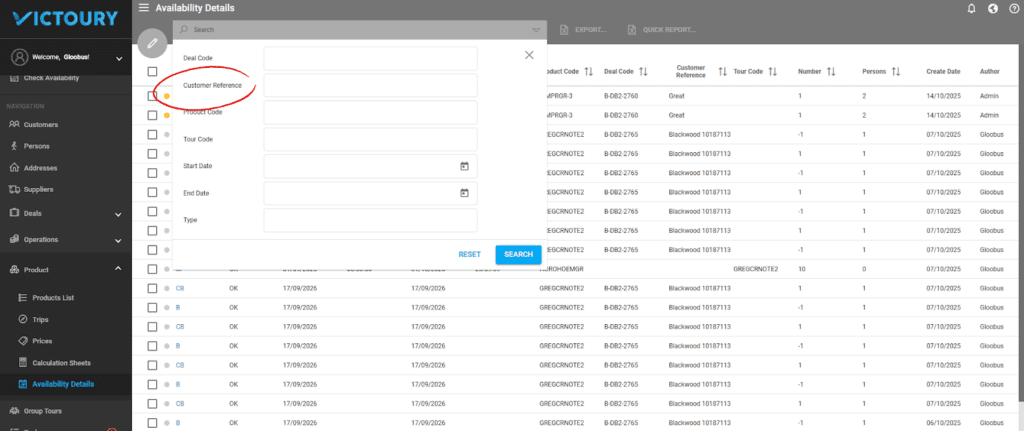
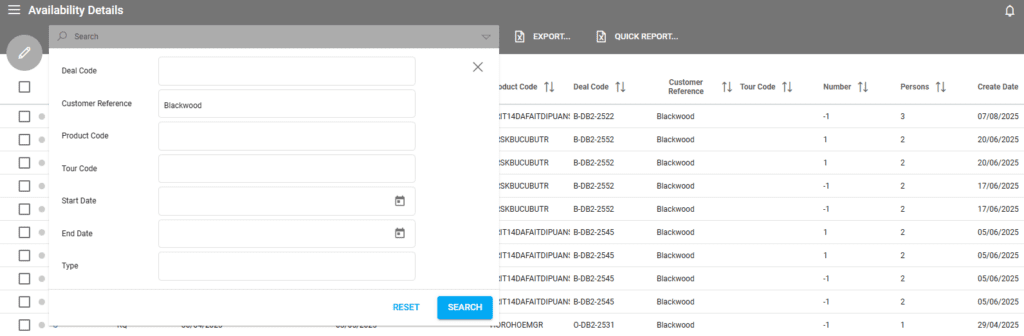
- A new column is available in Product / Availability Details for the Customer Reference field from Deals. A new search field has been added in Advanced Search as well.
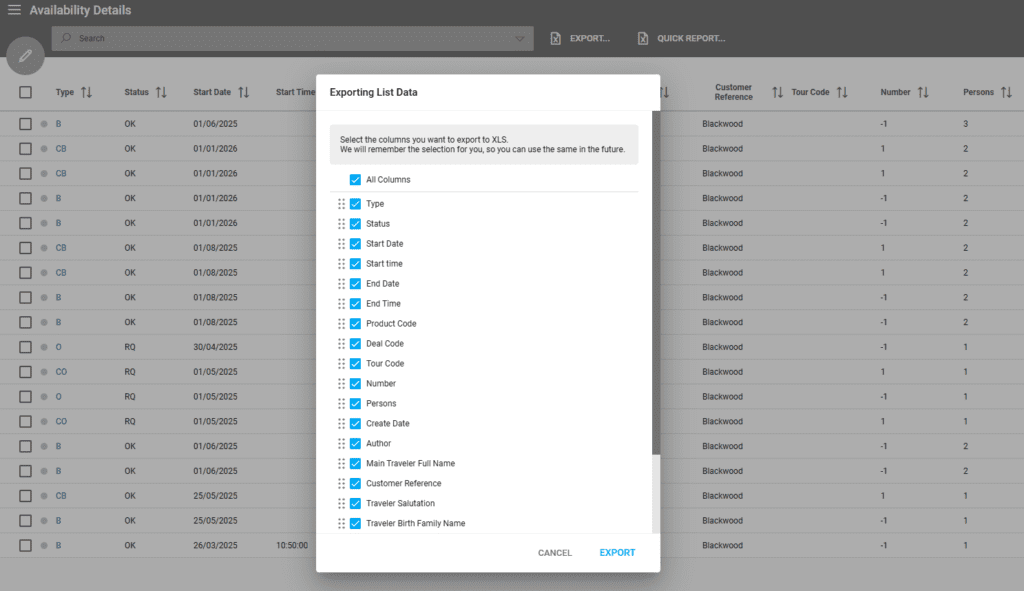
- After searching in Availability Details, operators can export to Excel or create a quick report.
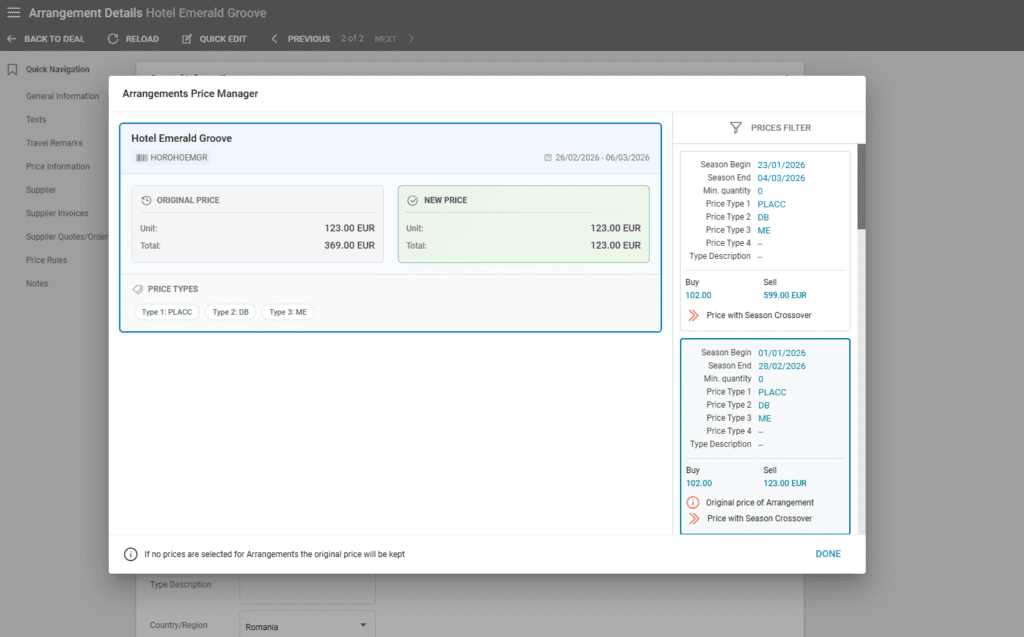
- When editing a Deal’s Start Date, a new window is displayed to review each Arrangement’s price changes.
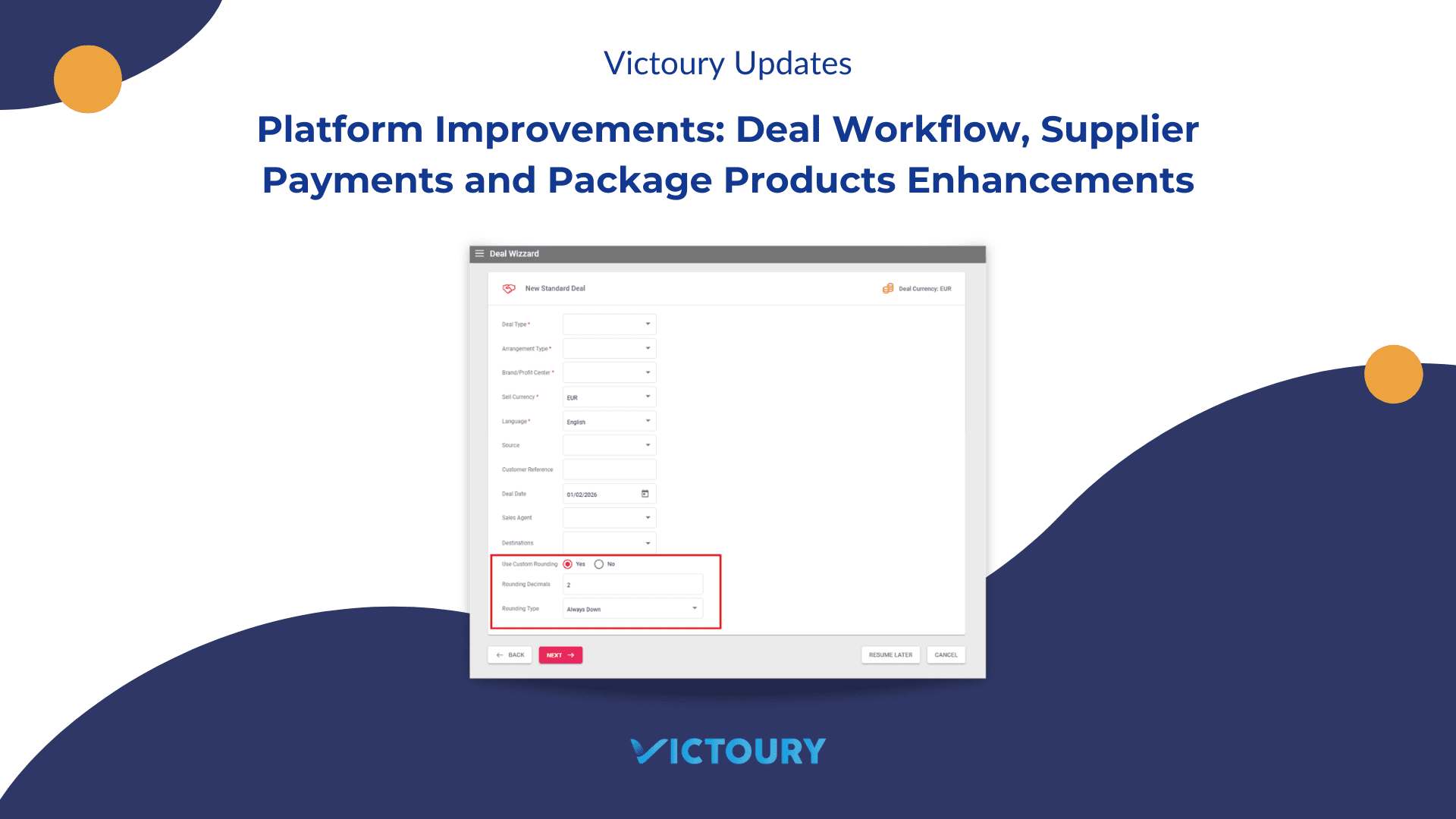
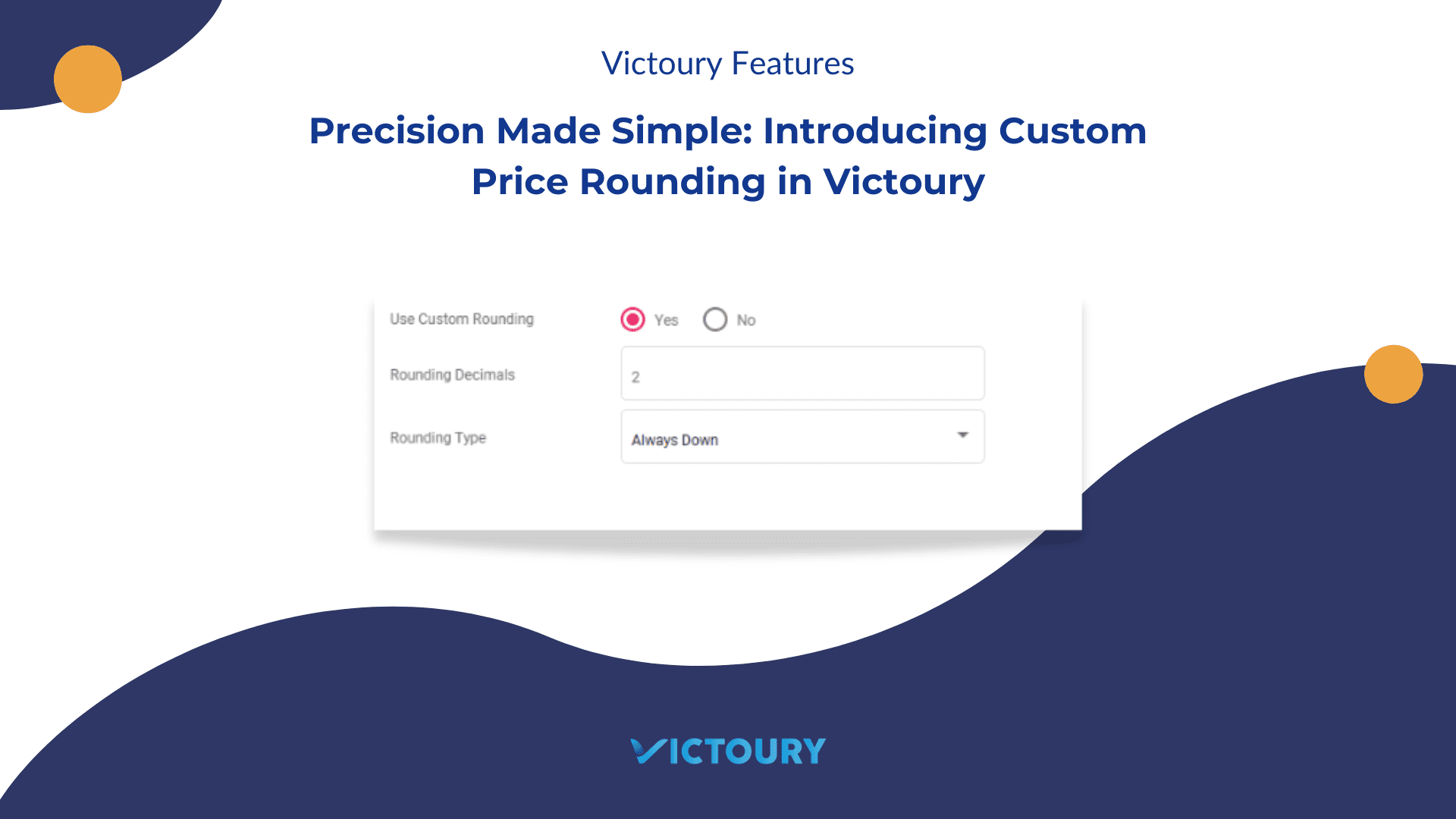
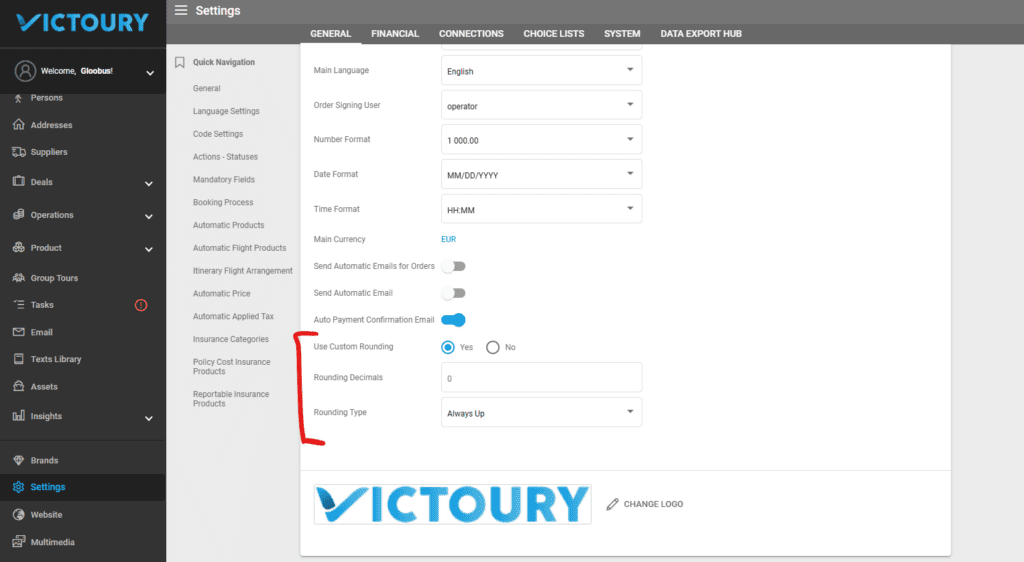
- Prices can now be rounded up, down or in the standard way with custom amounts of decimals.
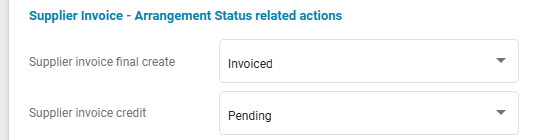
- Actions-Statuses has two new fields for Arrangement Statuses related to Supplier Invoices. These allow operators to select which status an Arrangement should have when its related Supplier Invoice is set to final or credited.
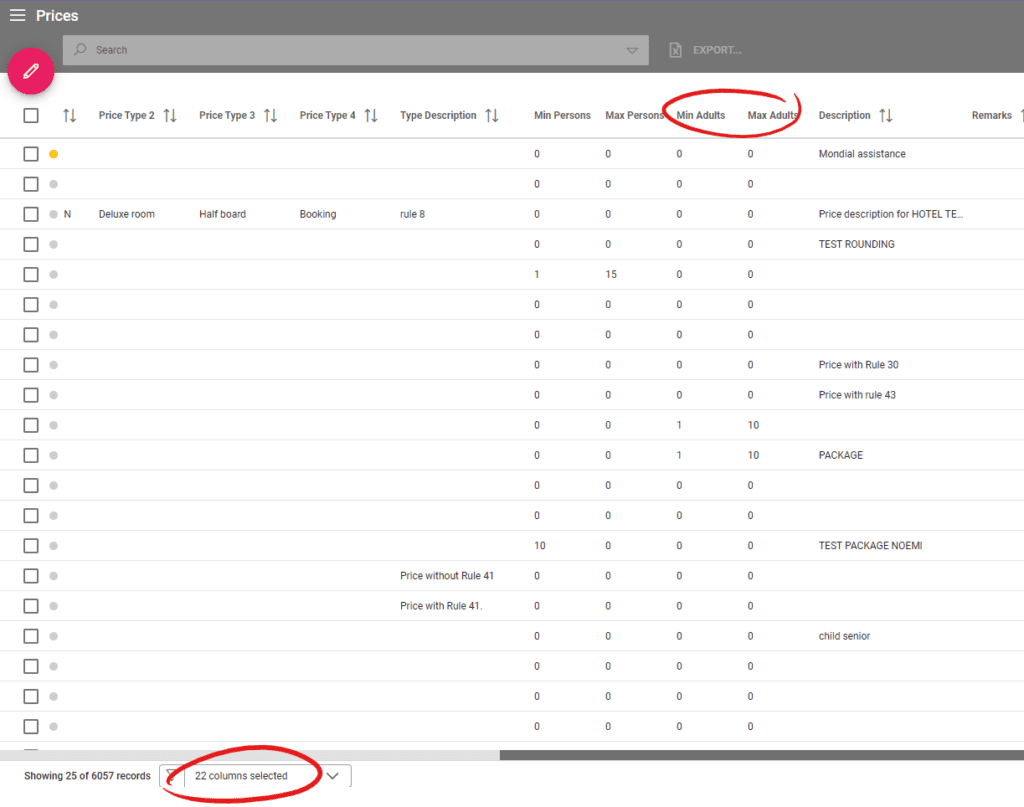
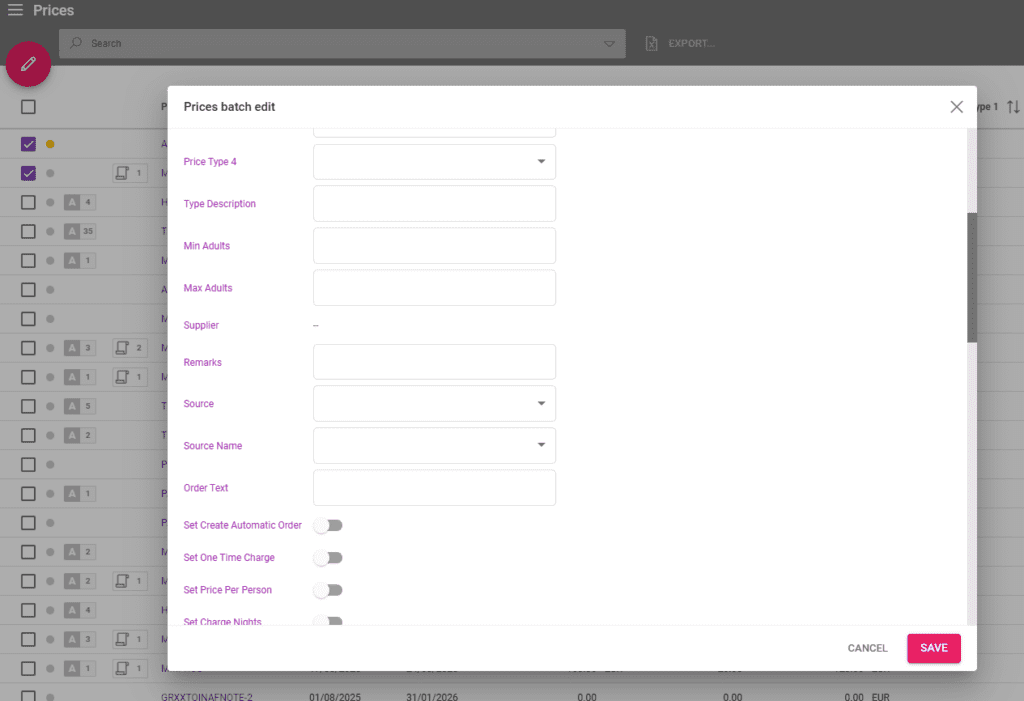
- Two new columns have been added in the Prices Listing for Max and Min Adults that can also be batch edited.
- Currencies are displayed in alphabetical order by Source Code, and then by Target Code in Settings / Financial / Currencies
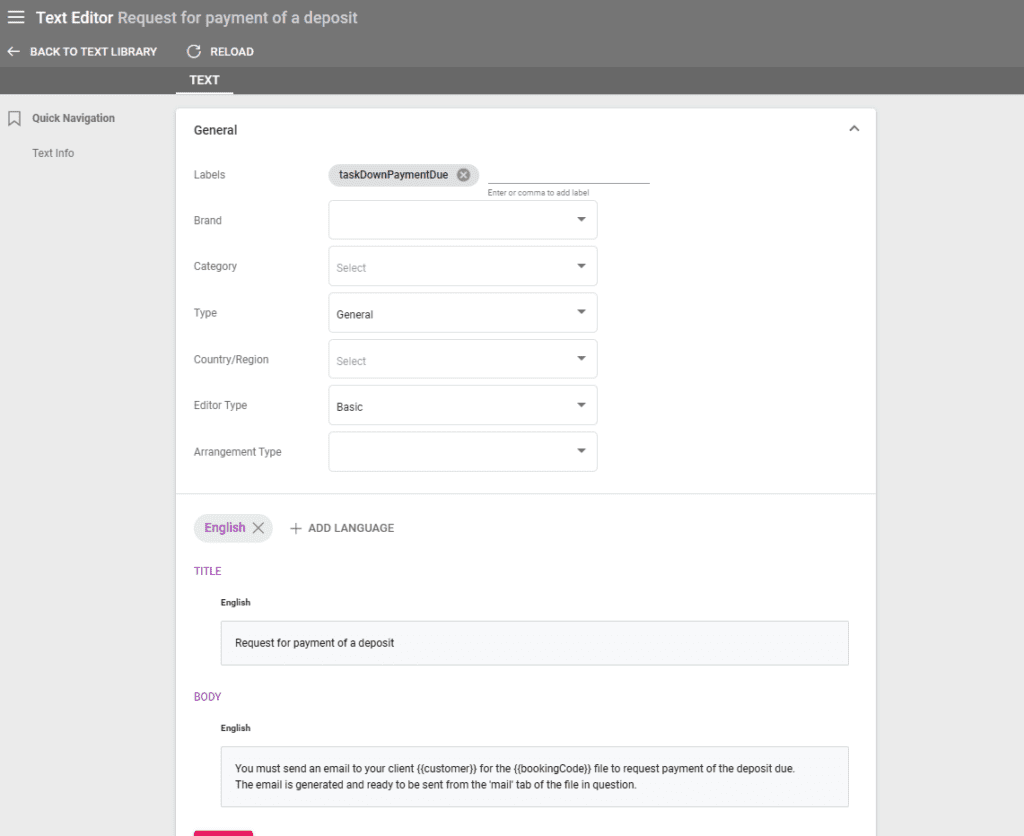
- In Text Library entries, multiple Arrangement Types can be selected.
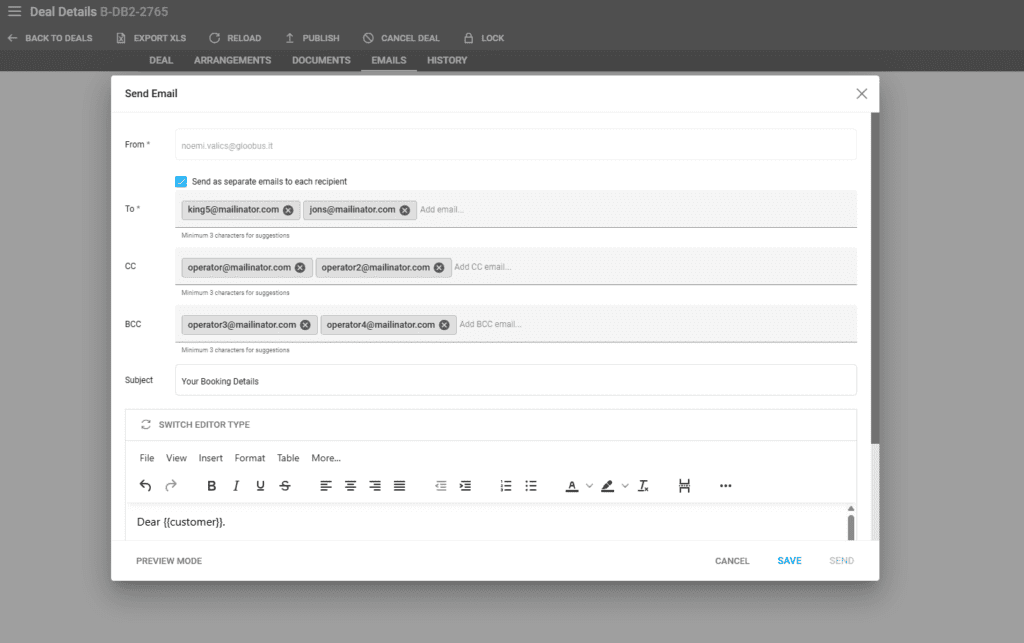
- In “Send Email”, operators can now add multiple email addresses in the To, CC, and BCC fields using a comma after each one.
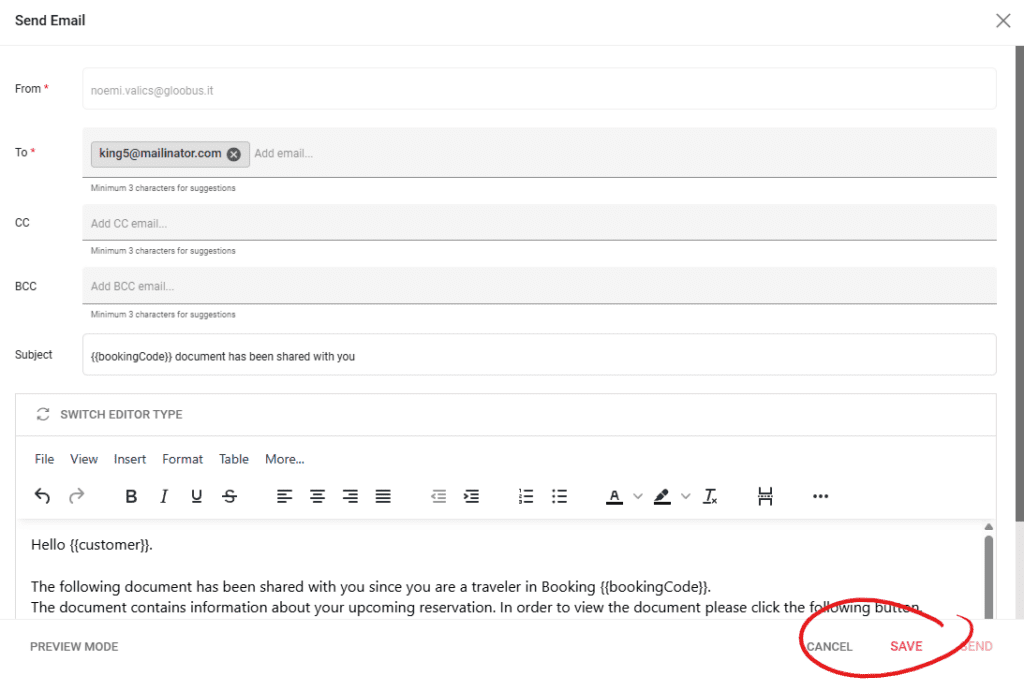
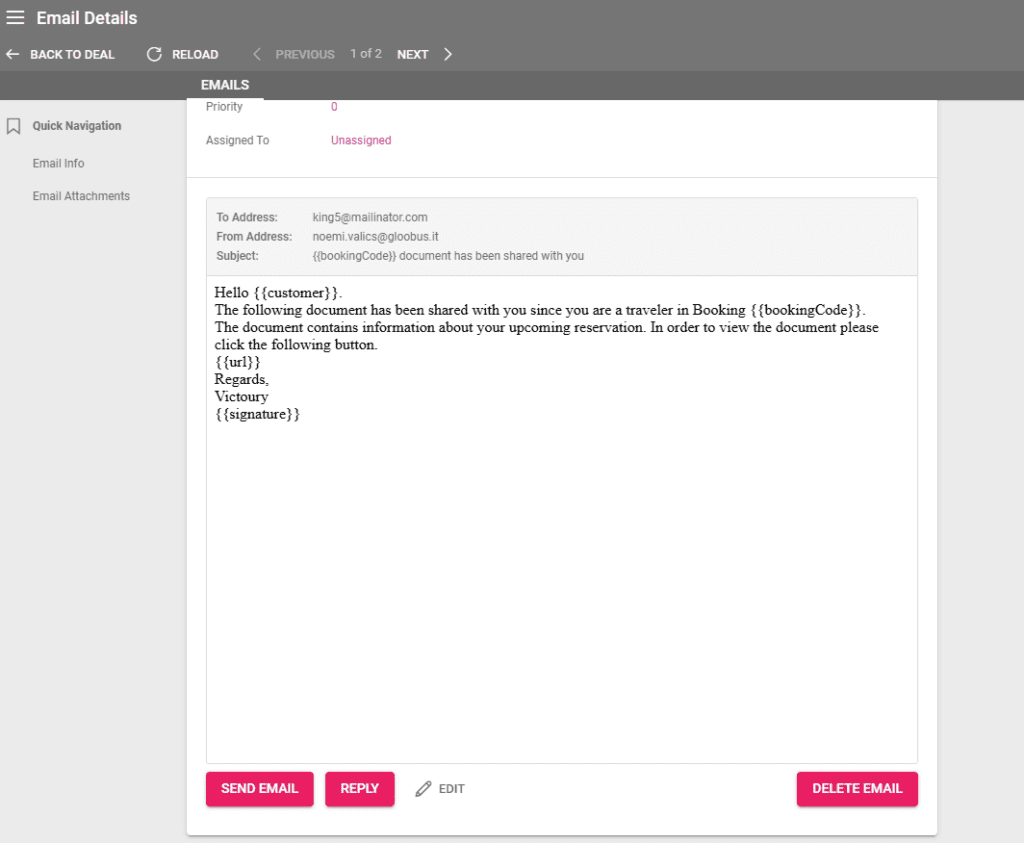
- Emails can be saved before sending for further edits and checks.
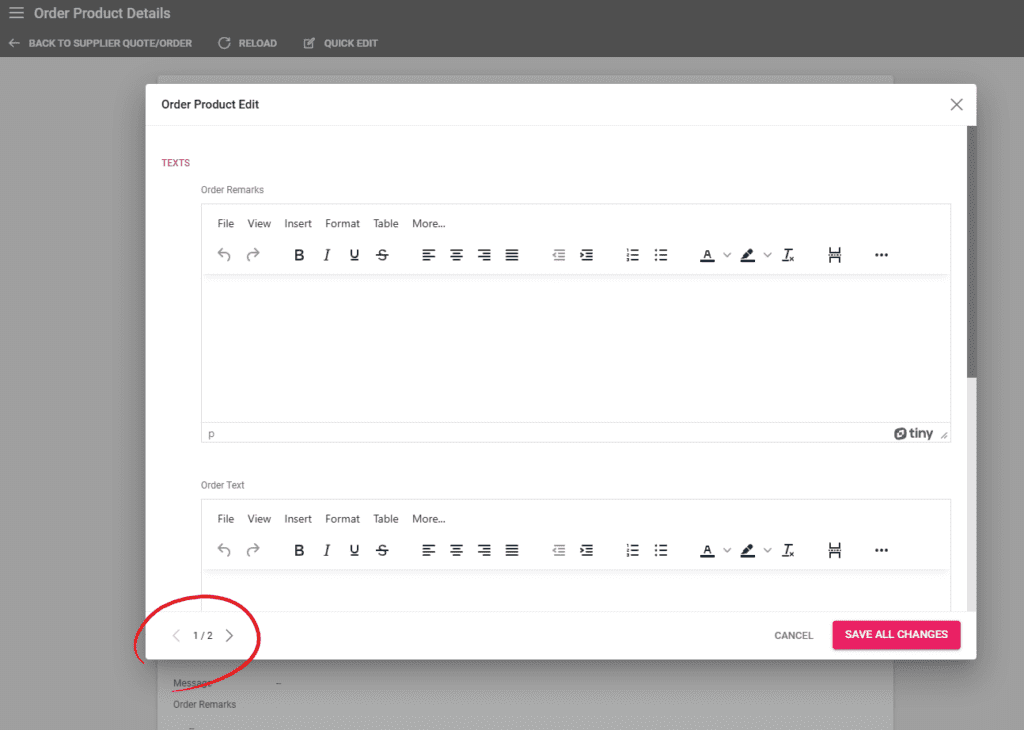
- In case of Supplier Quote/Order, the Order Product related texts can be quickly edited across multiple products.
- A new column is available in Deal Listing and related Excel exports for Customer Reference.
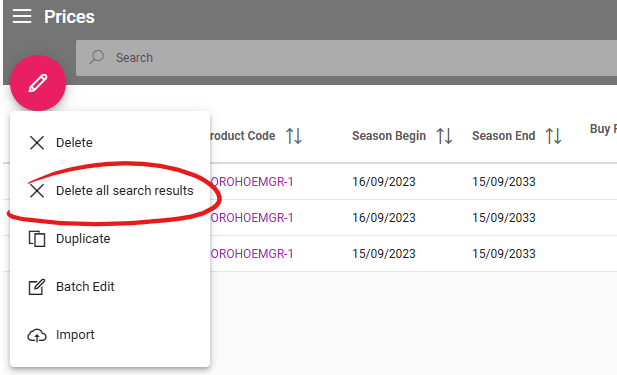
- Upon using the Product search in the Prices Listing advanced search filters, a new option is enabled under the Pencil sub-menu to “Delete all searched results”.
- If the Arrangement Start and End dates are changed, operators have the option to select and verify the price recalculation.
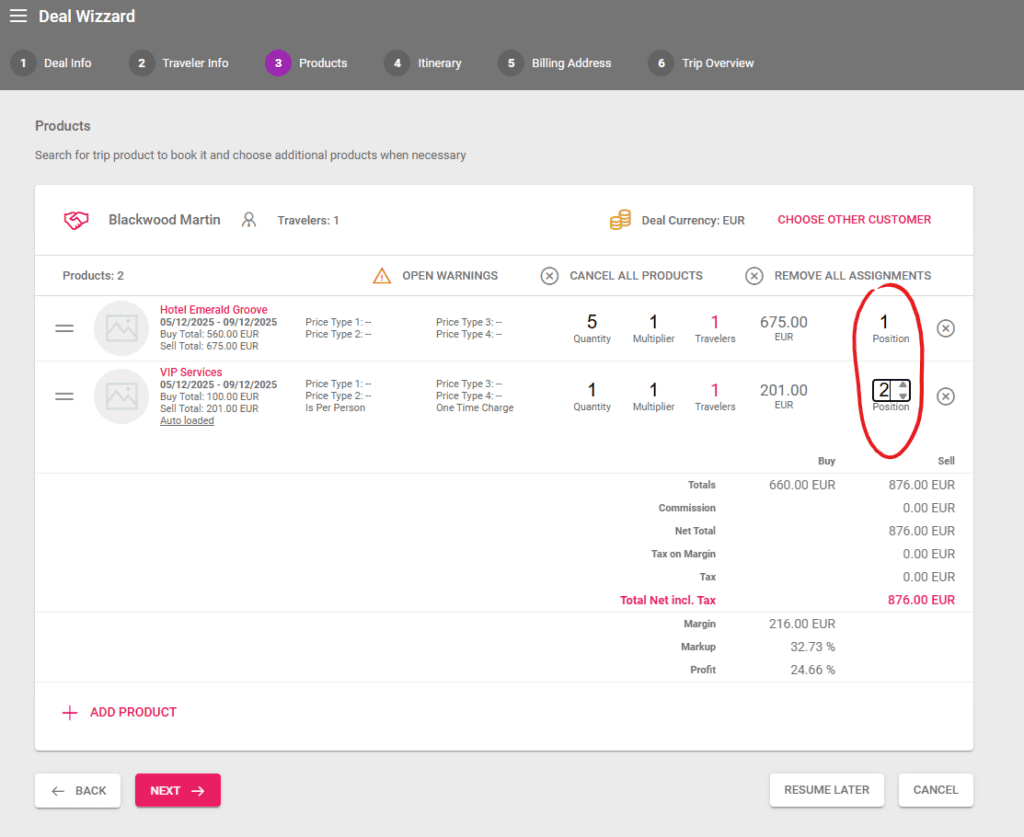
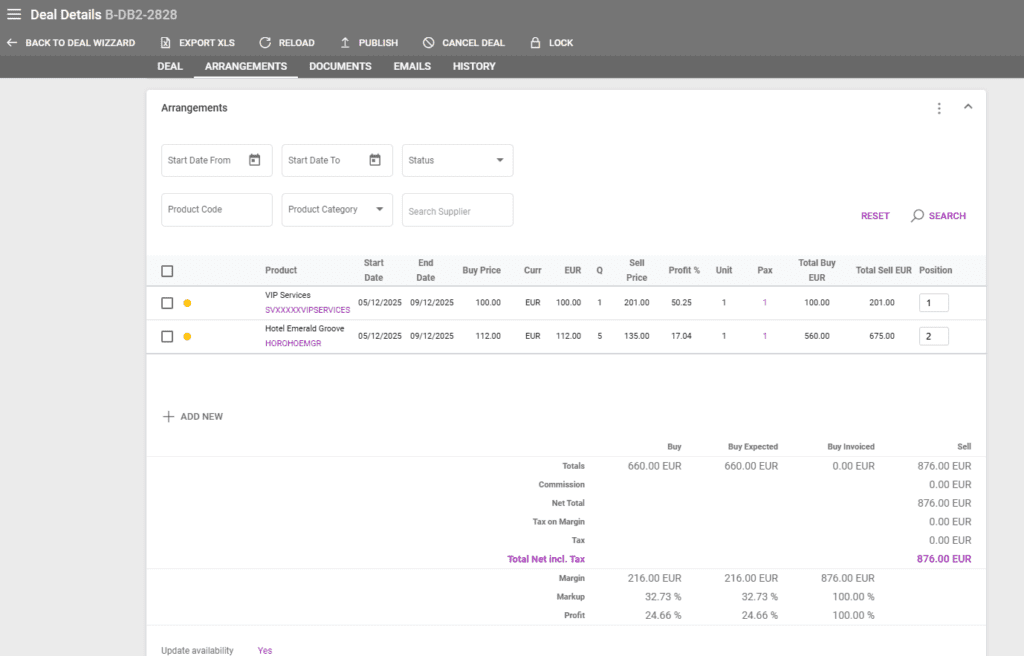
- Arrangements can be ordered using the Position number or by drag and drop.
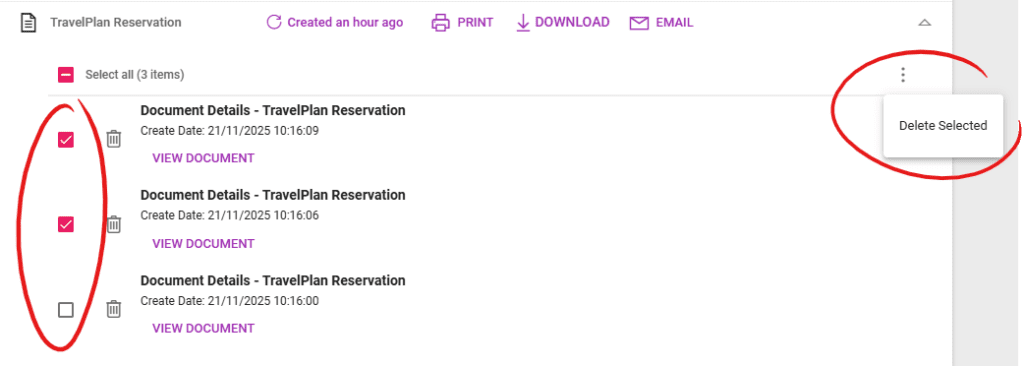
- In the Documents tab of a Deal, multiple Document versions can be selected and deleted at once.
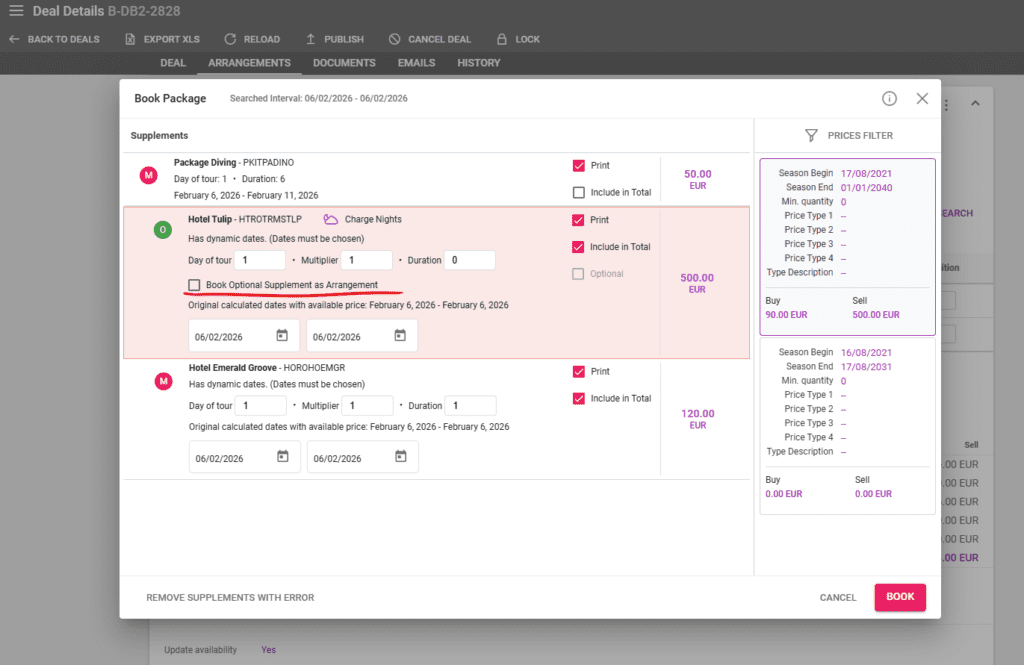
- In the Package booking process, a new checkmark is available to set supplements as Optional.
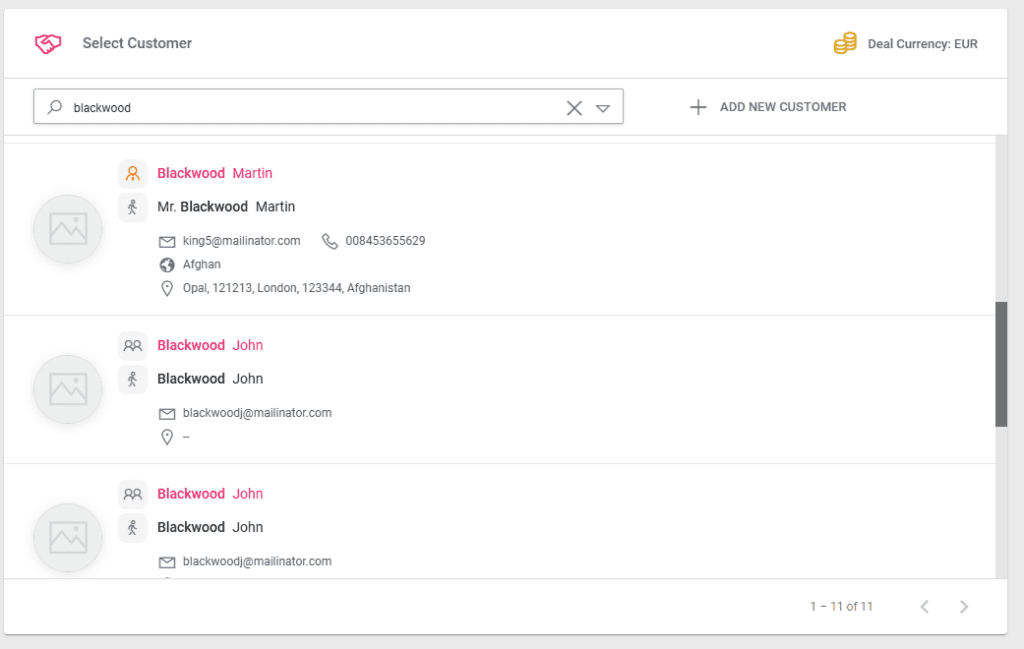
- In the Booking Process, the Customer search has been enhanced with icons and additional search options.
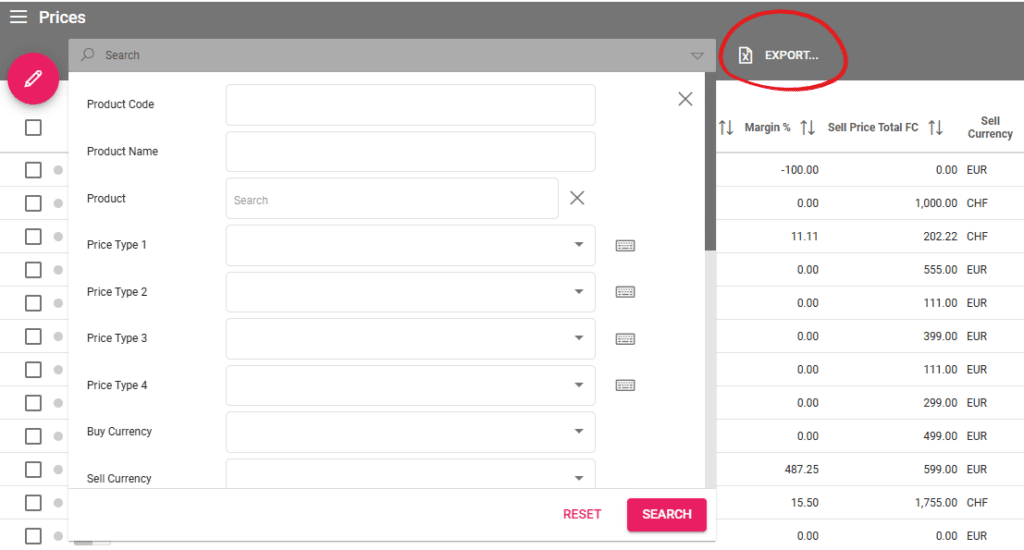
- A new column has been added in Prices Excel export for the “Product Start Date Defines Price” field.
Accounting
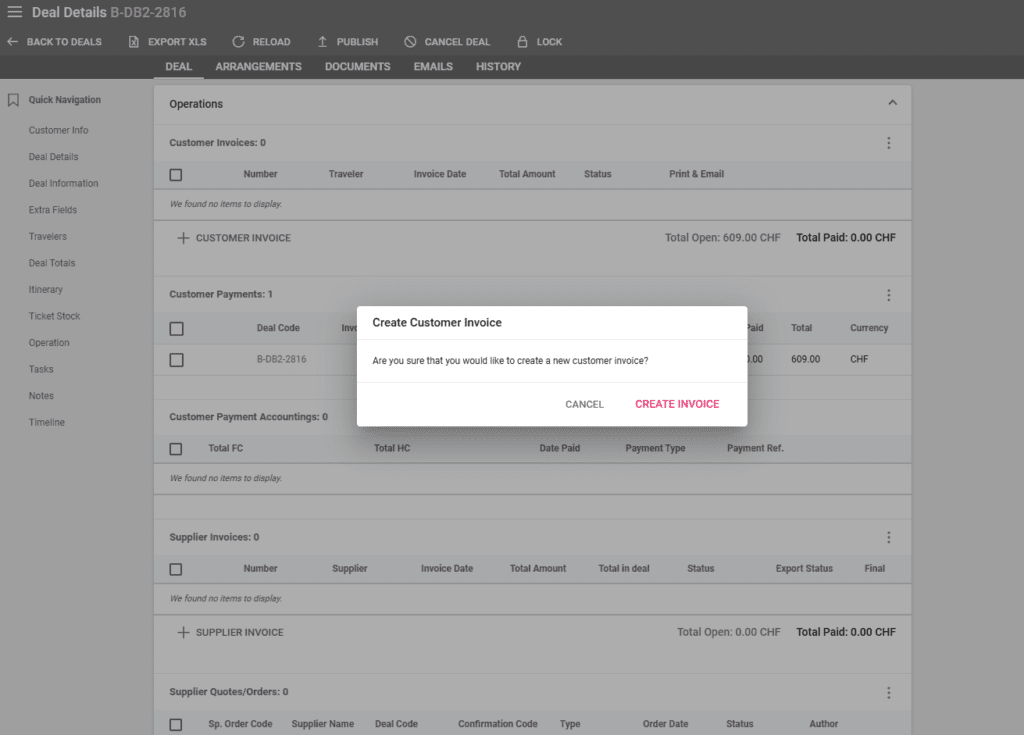
- When creating a Customer Invoice in a deal, a confirmation message is displayed before the system generated the actual invoice.
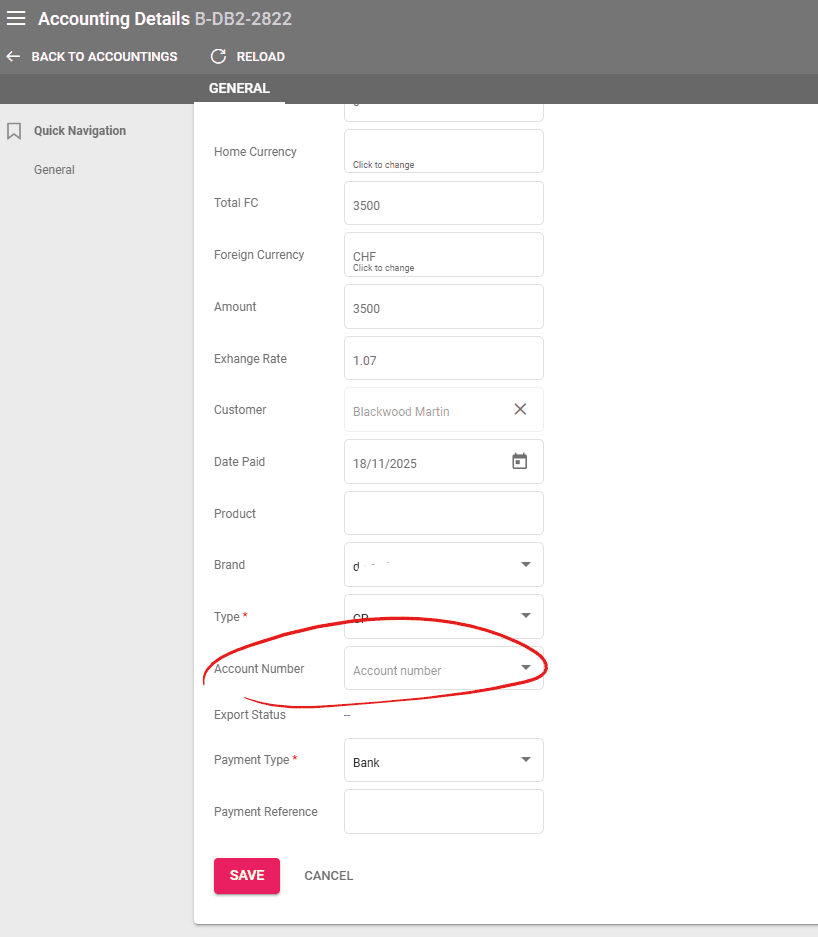
- The Account Number field is now related to a Choice List entry instead of being an input field.
Placeholder Changes
- New placeholder {{CustomerReference}} for displaying the Customer Reference field
- New placeholders for Price Rules in Arrangement level: {{appliedRules}} with information for Price Rules #43 Stay-Pay and #30 Reduce Product Price if Early Bird Booking
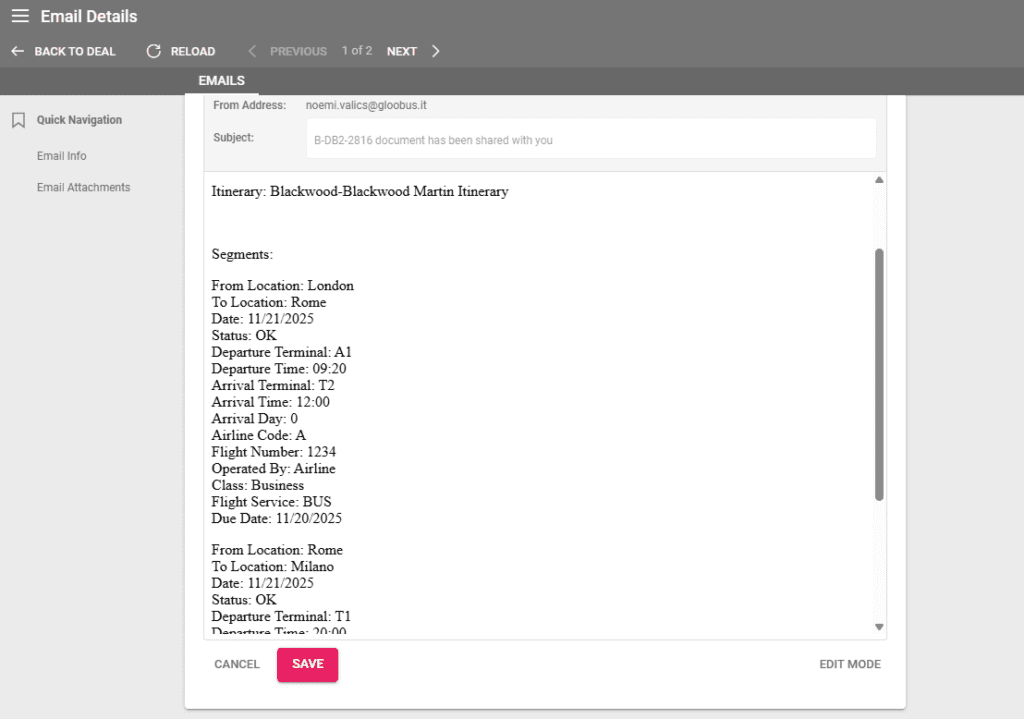
- The {{itinerary}} has been added to display the Itinerary Segments grouped by Itinerary.
Deal Updates
Set the Destination Field to Mandatory
In Settings / General / Mandatory Field, Deal related fields can be set to Mandatory. For now, the only field available is Destination.
Filtering and Sorting Notes
The Notes section in Deal Details has been updated to have filtering options, column sorting, and a new column for the Due Date.
Notes can be searched by Note Type and by Author by selecting the relevant information in the drop down lists, then clicking on the “Search” button. The search filters are cleared by clicking on the “Reset” button. Columns can be sorted ascending or descending by clicking on the column name. An upwards or downwards arrow will appear depending on the sort type. Clicking a column three times clears the sort.
In case there are no Notes created, the search filters are disabled.
Sorting Tasks
The Tasks section in Deal Details has two updates: sorting by columns and accessing Task Details by clicking on the Subject text. Columns can be sorted in a similar way as Notes: ascending or descending by clicking on the Column name. Clicking a column three times clears the sort.
General Updates
New Column in Product / Availability Details
Operators can now use a new column in Product / Availability Details for the Customer Reference details set on the Deal level. The listing can be filtered using this field in the advanced search filters when clicking on the arrow at the end of the Search bar.
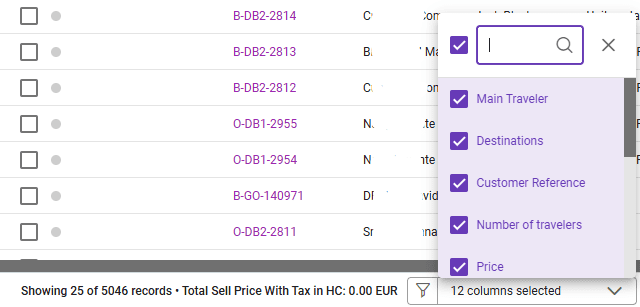
The displayed columns can be enabled or disabled by clicking on the dropdown list at the bottom of the screen.
Export to Excel or Quick Report from Availability Details
Using the basic or advanced search function in the Availability Details listing enables the Excel Export and Quick report options from the top menu.
Arrangement Price Selection When Editing Deal Start Date
When operators update a Deal’s Start Date from Deal Details, a window called “Arrangement Price Manager” is displayed to review the Arrangement price changes. This window allows the selection of the correct price for each of the Deal’s arrangements. Clicking on an Arrangement shows the available season prices along with a distinction for the original price. To select the rate, click on the respective price on the right side.
An icon and text is displayed in case of season crossover prices. A similar mention is displayed on the original price of the Arrangement as well.
Custom Price Rounding
A new section has been added in System Settings / General for Custom Rounding applied to Arrangement Sell prices. The system adjusts individual traveler prices in order to have correct values for Accounting
Custom Rounding has the following settings:
- The amount of decimals that the price should have
- The rounding type: always up, always down, and standard.
For examples and more information on Custom Rounding, please check the dedicated article here.
Actions-Statuses for Arrangement Status related to Supplier Invoices
Actions-Statuses has two new fields for Arrangement Statuses related to Supplier Invoices. These allow operators to select which status an Arrangement should have when its related Supplier Invoice is set to final or credited.
New Columns in Prices Listing – Min And Max Adults
In the Prices Listing (accessed from the left menu through Products) two new columns can be found for Min and Max Adults. The displayed columns can be edited from the bottom filters to suit the information relevant to you.
Prices Batch Edit – Min And Max Adults
With the addition of the Min and Max Adults columns in Prices Listing, operators can also edit these values in the Prices Batch Edit interface. To edit prices in batch, select the prices you wish to edit in the Prices Listing, click on the Pencil icon in the top left corner and edit the fields you need.
Currency Display in Alphabetical Order
Multiple currencies and their exchange rate can be added in Settings / Financial. Currencies have a Source Code and a Target Code for the exchange rates. Now the rates are ordered alphabetically, first by Source Code, then by Target Code.
For more information about Multicurrency, please check the article on Multicurrencies here.
Select Multiple Arrangement Types in Text Library Entries
Text Libraries are used to quickly add predefined texts in different parts of the system: in text fields such as Product Texts, Emails written in Victoury, generated documents and more.
Operators can now select multiple Arrangement Types in the Text Library drop down list to further categorize under which conditions the Text Library entry is available.
Send Emails to Multiple Recipients
When creating a new email in Victoury, multiple email addresses can be added as recipients in the To, CC, and BCC fields. Please add a comma after each email address for the system to recognize when the next one is starting.
Save Emails before Sending
Operators can now save emails before sending them. The email will be available to view and edit in the Emails tab where it was created. Clicking on the coloured text opens the detailed view of the email in which it can be previewed, edited, and sent.
Quickly Edit Order Product Related Texts
In case a Supplier Quote/Order is created and it has multiple products, the Quick Edit window now has quick navigation in the lower left corner. Operators can switch between the order products in just one click in order to edit or view the product related texts. Make sure to click on the “Save All Changes” button before closing the window.
Delete All Prices from a Search in Prices Listing
Searching using a specific product in the Price Listing enables a new option in the pencil sub-menu to delete all searched prices. The input in the Product search field can be a product code or a product name. A list of products will be displayed depending on the text input. Select the product and set other filters if needed, then click on Search. This will show all the prices related to that product.
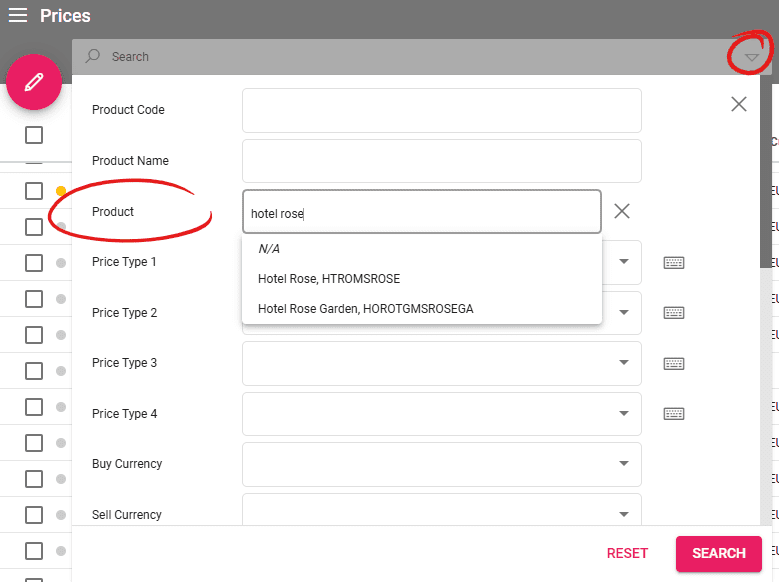
Click on the Pencil icon to see the new functionality that deletes all the search results. A window will be displayed in the lower right corner with information about the number of deleted prices, and the prices that couldn’t be deleted. The prices that have related Arrangements or Availabilities will be skipped.
Recalculation when Changing Arrangement Start and End Dates
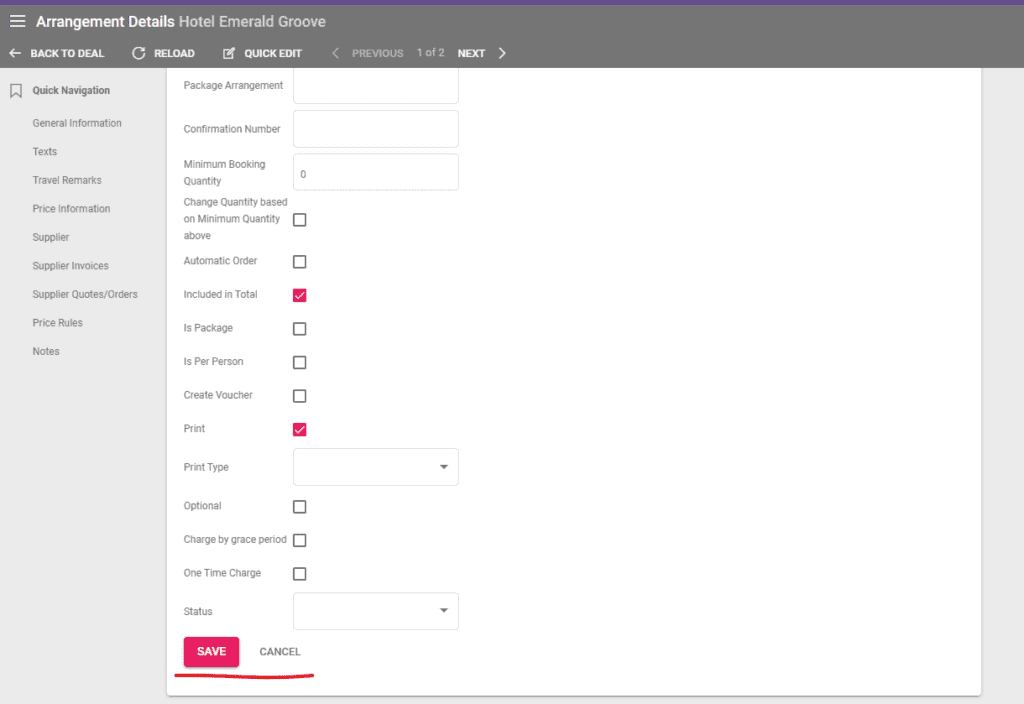
If operators modify the dates of an Arrangement in an existing deal, a couple of confirmation messages are displayed in case the Arrangement’s prices need to be changed.
In case of a set Duration, the system maintains the duration amount when recalculating dates. Similarly to editing a Deal’s start date, there is a dedicated season crossover window in case the new dates exceed the original price’s valid dates.
After selecting the price, the system recalculates the Arrangement prices that can be checked in the Price Information section. Operators have to click on the Save button for the changes to be saved.
Editing the Arrangement price to “One time charge” also triggers a confirmation window for the price recalculation.

Arrangement Repositioning in Deals
A new column has been added to reposition arrangements during the booking process and in a Deal’s Arrangements tab. The position can be edited by clicking on it and using the arrows or typing a number. The Arrangements can also be repositioned by drag and drop and the system will automatically update the corresponding numbers.
Select and Delete Multiple Document Versions
In the Documents section of a Deal, operators can access all the versions of a document by clicking on the downwards arrow. Checkboxes have been added for quickly selecting multiple document versions and deleting them.
Checkbox to set Arrangement as Optional when Booking a Package
A new checkbox has been added when booking Packages. This option is set to false by default. If the checkbox is clicked, the Package Supplement will be booked as Optional. This checkbox only appears in the case of supplements set as Optional in the Package Manager.
Enhanced Customer Search in Booking Process
The second step of the booking process has been improved with additional search options and icons related to the customer type. Pagination is displayed in the bottom right corner of the customer selection section along with the number of total search results.
To access the search options, click on the downwards arrow at the end of the customer search bar. Operators can search by
- Family Name/Company Name 1,
- Personal Name/Company Name 2
The new icons indicate whether the customer is also set as an agent (orange icon), or if they are a regular customer (icon with two persons).
New Column in Prices Excel Export
A new column has been added to the Prices Excel Export for the “Product Start Date Defined Price” field. The export options are enabled once a search is done in the Prices Listing either using the regular search bar or the advanced search filters.
Accounting
Confirmation Window for Creating Customer Invoice
A confirmation window has been added before creating a customer invoice as an added safety. Operators can now avoid creating customer invoices by mistake, allowing for a smoother workflow. The window automatically appears once the Create Customer Invoice button is clicked.
Account Number Field Choice List
A new Choice List option has been added for the Account Number field in Accounting Details. The drop down list options can be modified in Settings under the Choice Lists tab.
Placeholder Updates
New Placeholder for Supplier Orders
When creating Supplier Orders for Arrangements, a new Placeholders can be used:
- {{CustomerReference}} – for Displaying the Deal’s Customer Reference field (in Deal Details)
Price Rule Related Placeholder
Operators can use a new Placeholder can be used on the Arrangement level:
- {{appliedRules}} – retrieves information for Price Rules #43 Stay-Pay and #30 Reduce Product Price if Early Bird Booking and displays information about the applied rules based on dedicated text library entries
New Placeholder for Itinerary and Related Segments
A new placeholder was added that can be used by operators to display the Itinerary title and Segments grouped by their respective Itinerary.
Not using Victoury yet?
Contact us for a personalized demo by filling in the form on our website: https://victoury.be/request-demo/
A representative will get in touch with you to chat about ways to streamline your workflow using Victoury.