We’re excited to announce several improvements designed to make managing deals, pricing, and packages even smoother in our travel management and tour operator software.
For a complete list of updates, please check the overview below and the article with more details and screenshots.
Overview of Updates
General Updates
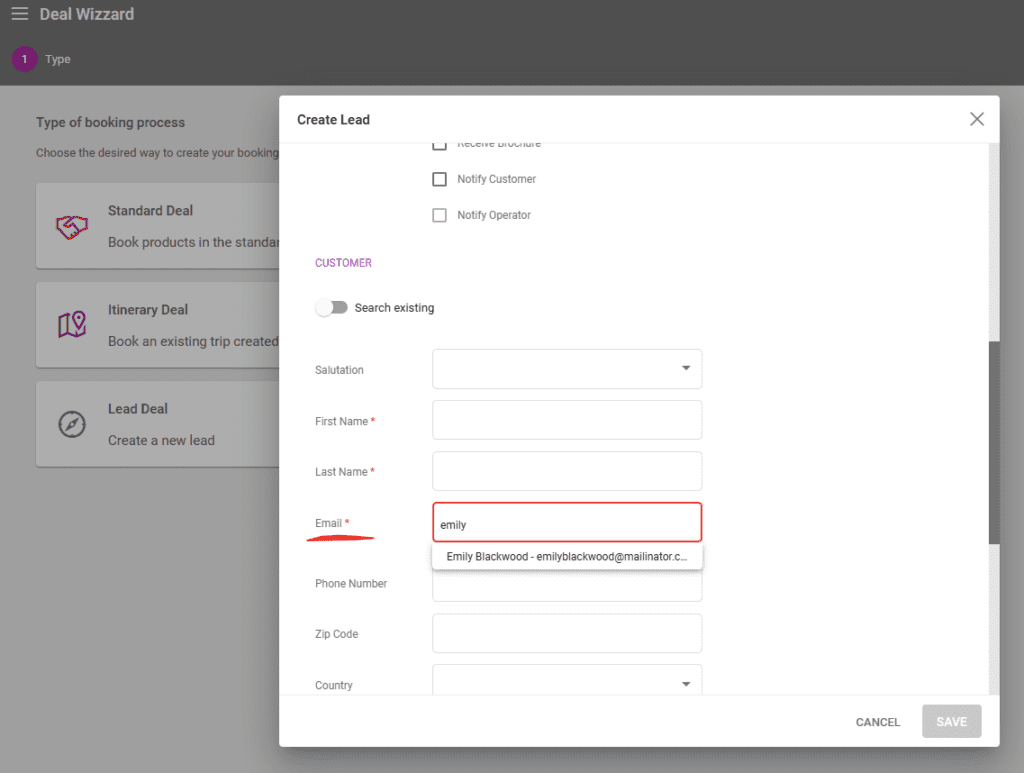
- While creating a Lead type deal, operators can input a name or email address to receive suggestions for existing customers
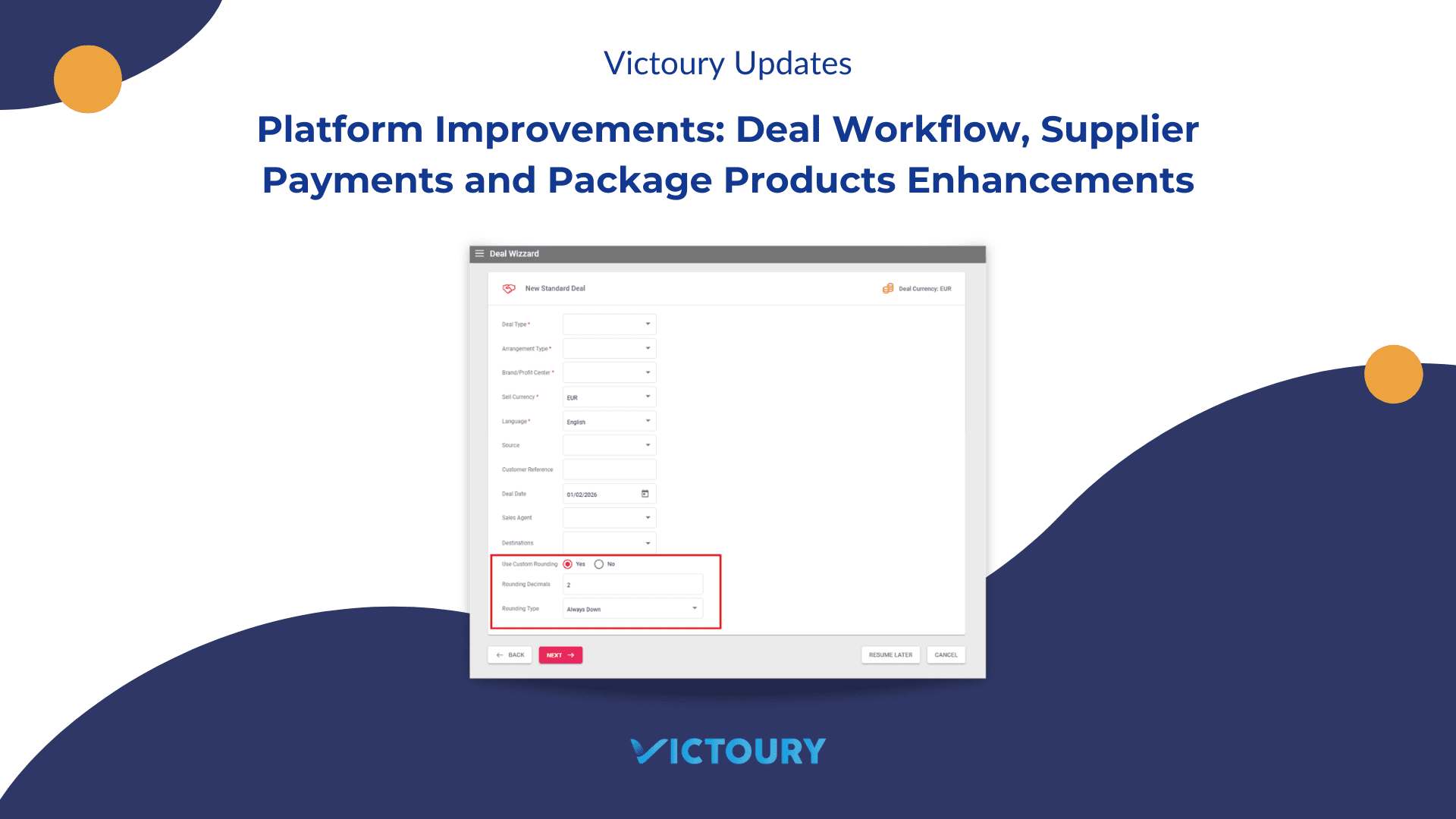
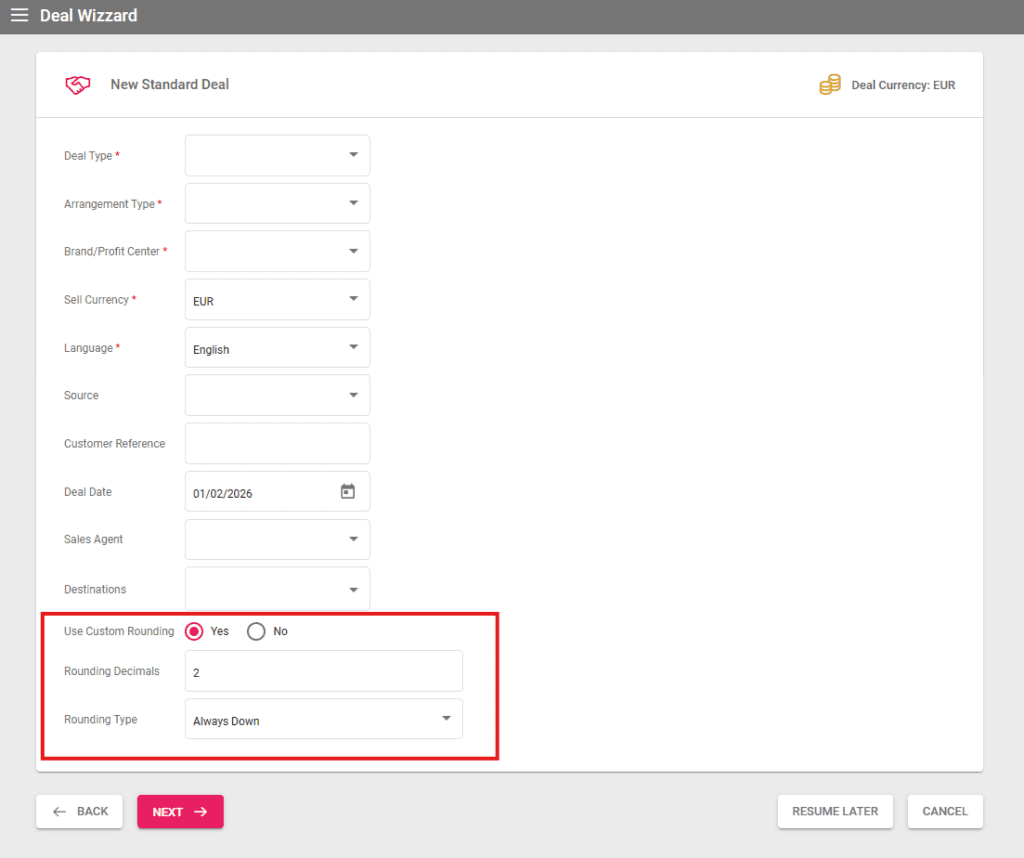
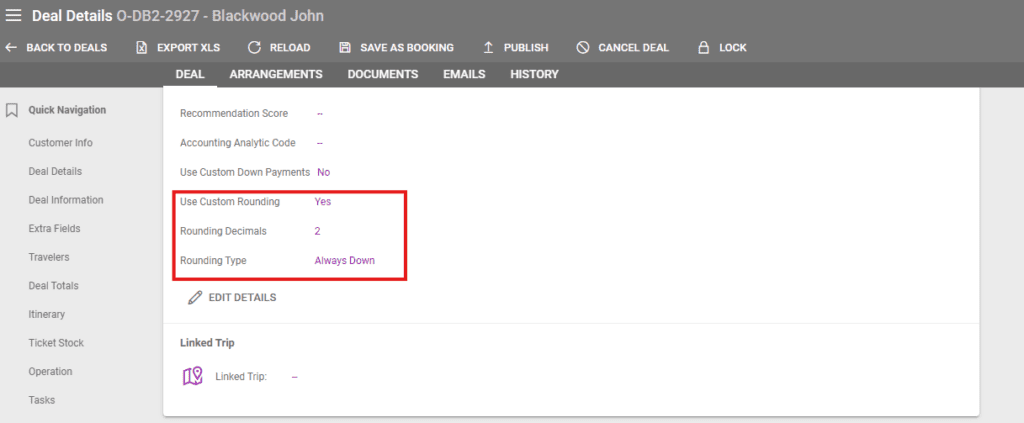
- Custom Rounding can be set per deal. The custom rounding definition is done in the deal booking process and can be visible in Deal Details after. The custom rounding settings cannot be edited afterwards
- The Duplicate Deal functionality includes custom rounding settings
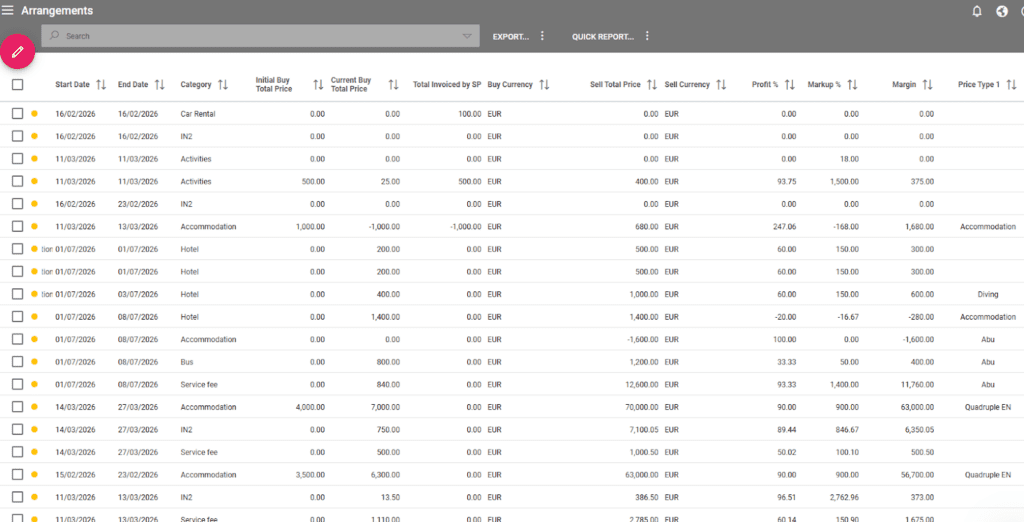
- Arrangements Listing has several new columns for Invoiced Amount by SP, Original Buy Price, Current Buy Price, Markup, Profit %, Margin
- The Customer Invoice section in Deal Details now includes a Document History to access all previous generated versions of the document
- In Deal Details, the Customer Name is displayed in the header next to the Deal Code
- A new field was added in Person Details and in Supplier Details called “Job Title”
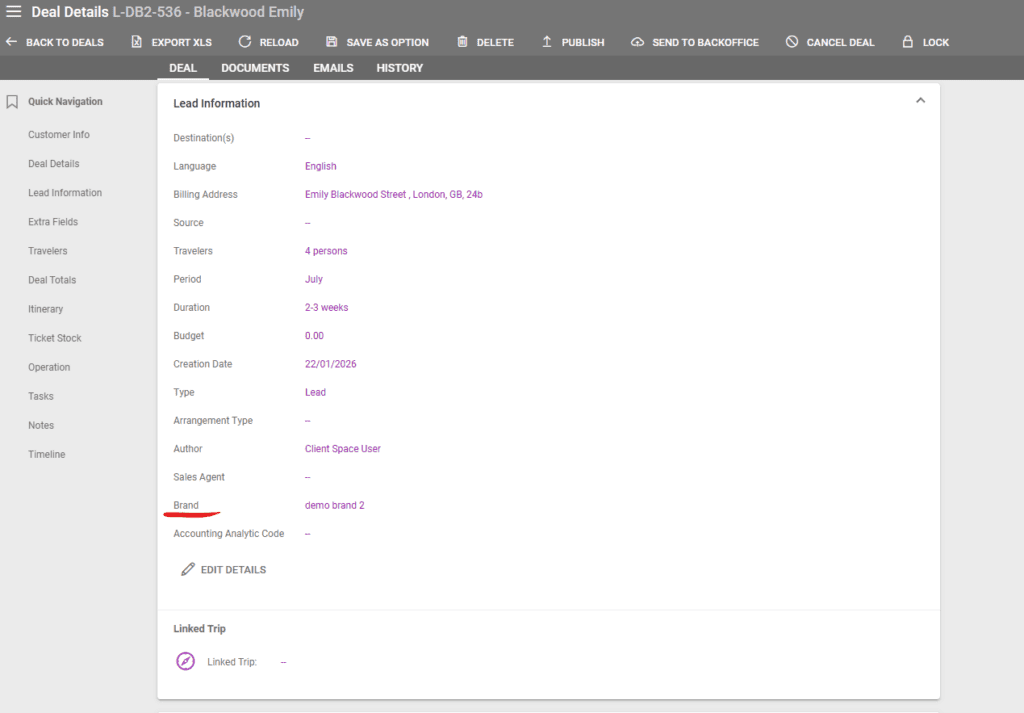
- When creating a new Lead Type deal and when editing an existing Lead Type deal, there is a new field to select the Brand / Profit Center
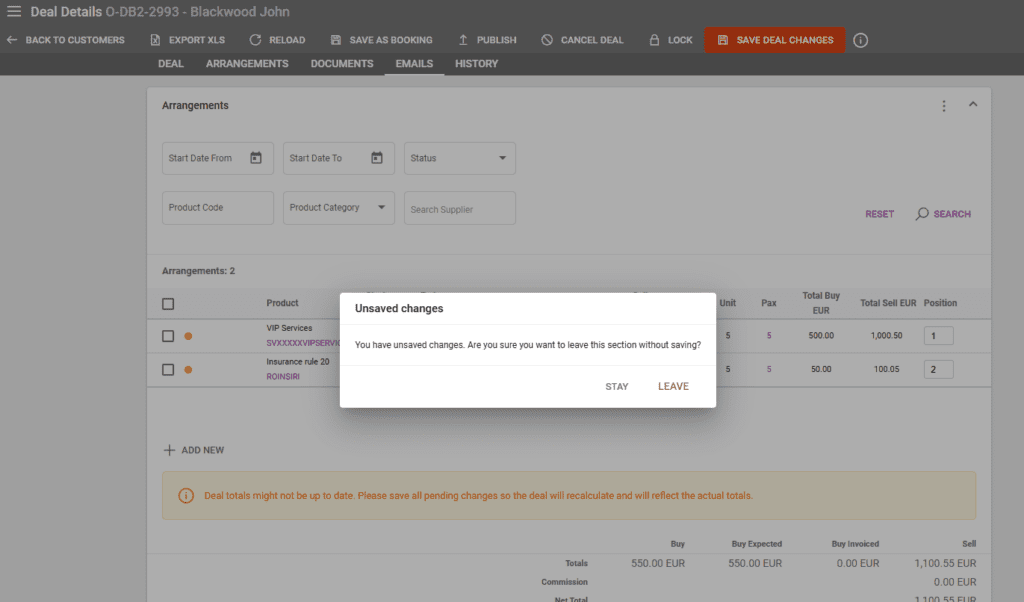
- A confirmation message is displayed while there are pending changes to Arrangements in a Deal and the operator navigates to other tabs
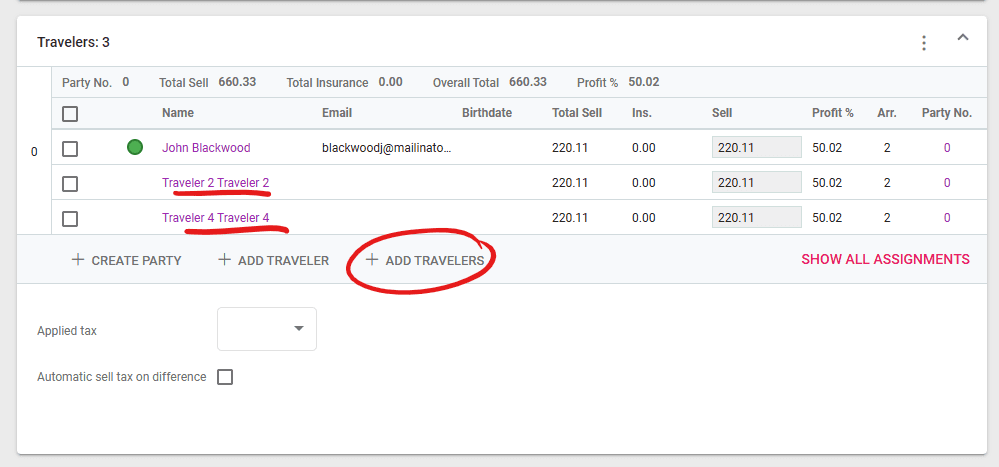
- In O type deals, a button has been added to “Add more travelers” in the Deal Details / Travelers section
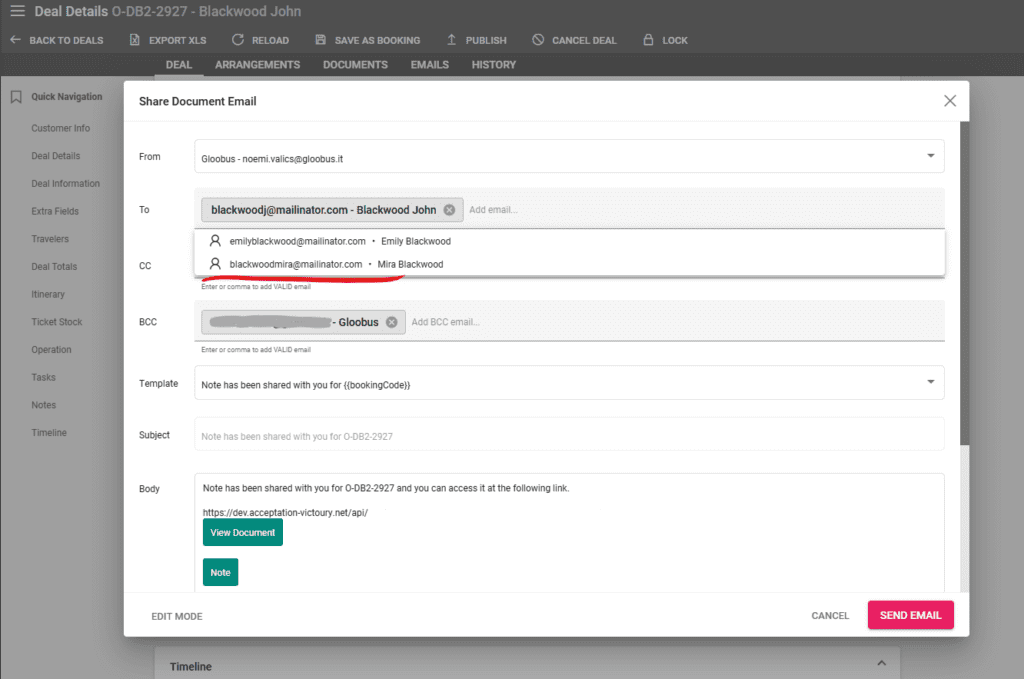
- In Notes / Email Sending, the fields for email address input will now auto suggest the emails of existing travelers from the deal
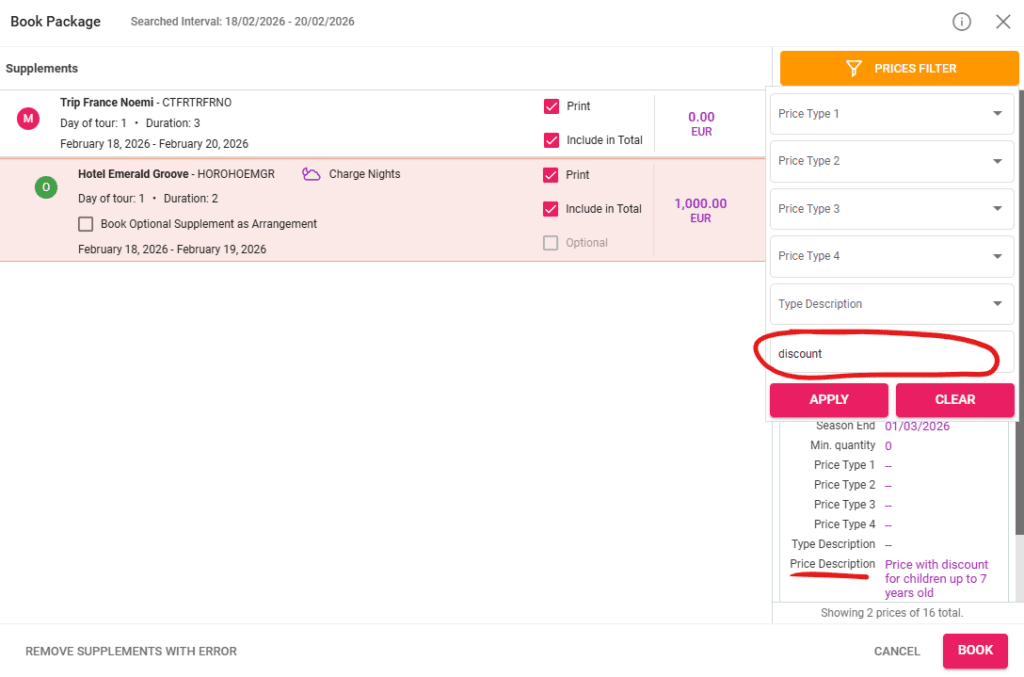
- While booking a package, prices can now be filtered by “Price Description” as well
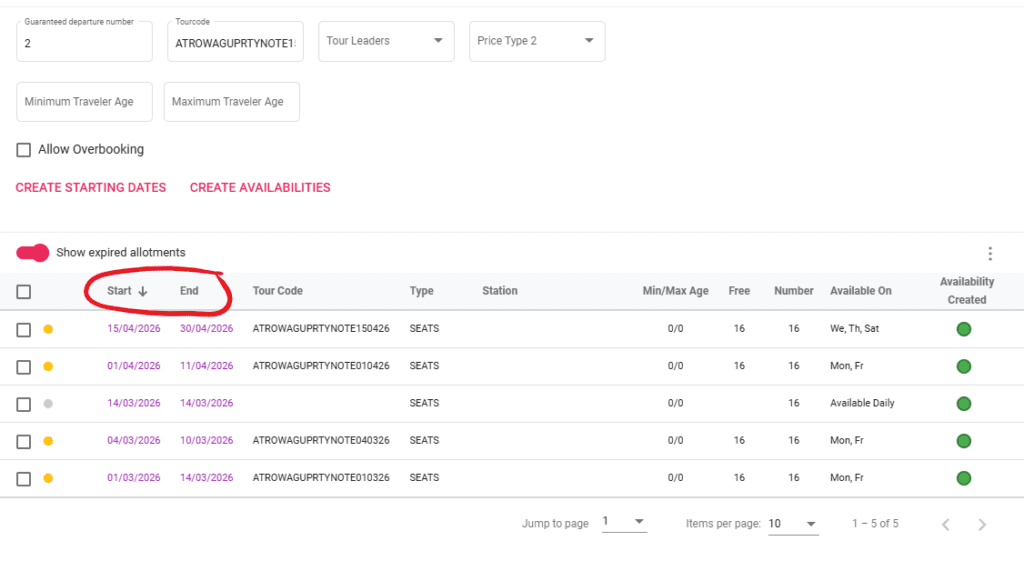
- In the Product Details / Allotment tab, allotments can be sorted by Start Date and End Date by clicking on the respective column
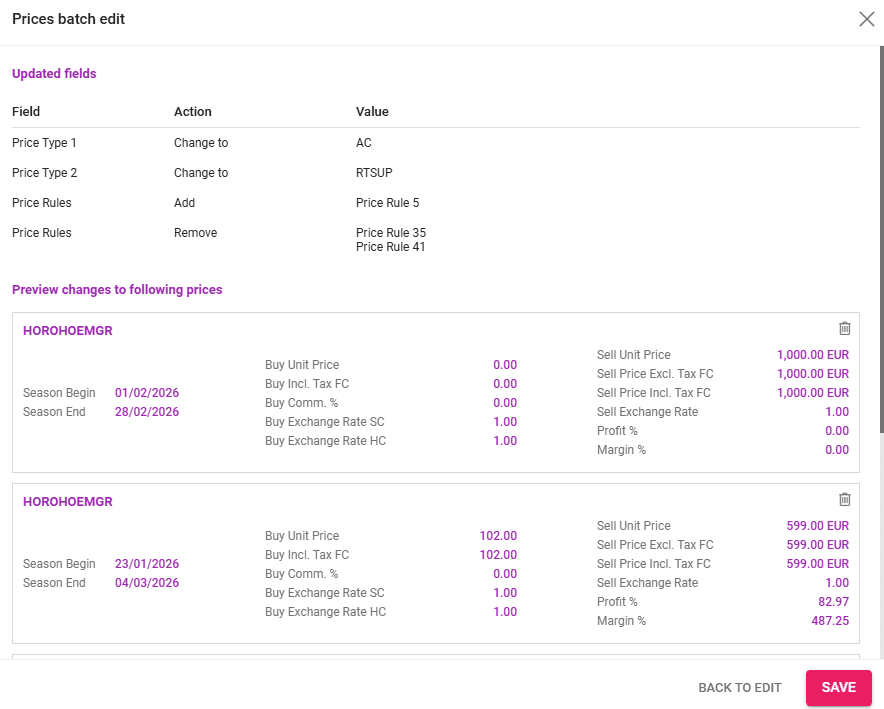
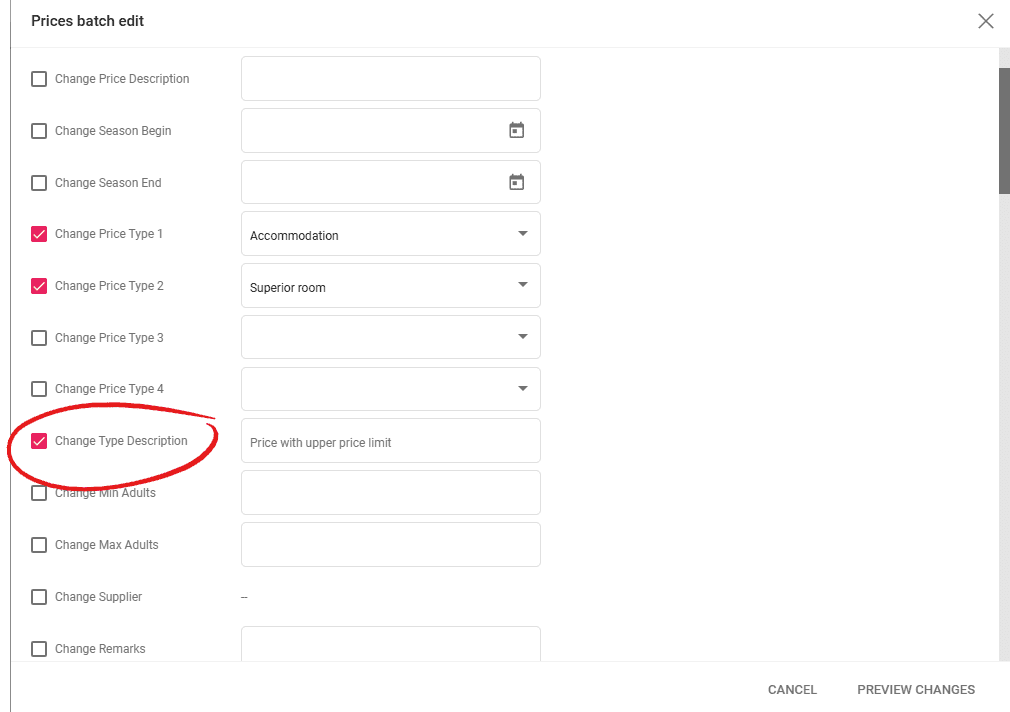
- The Price Batch edit functionality includes the Price Types and Type Description
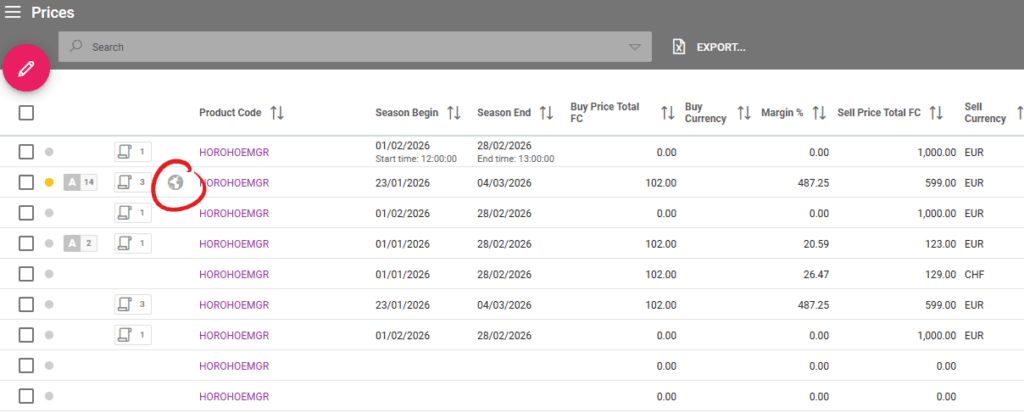
- Publish to Web icon is displayed in the Prices Listing
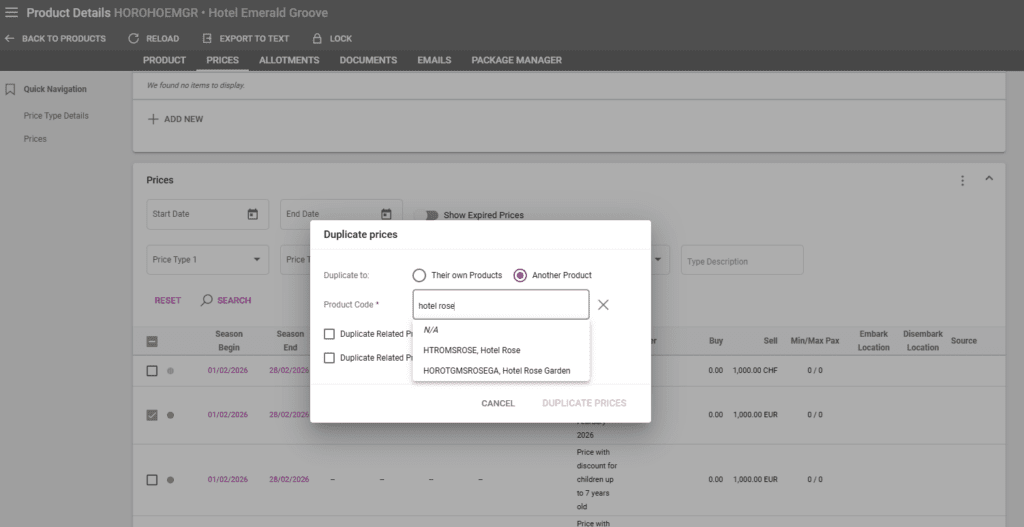
- Duplicating product prices allows to link the newly created prices to another product
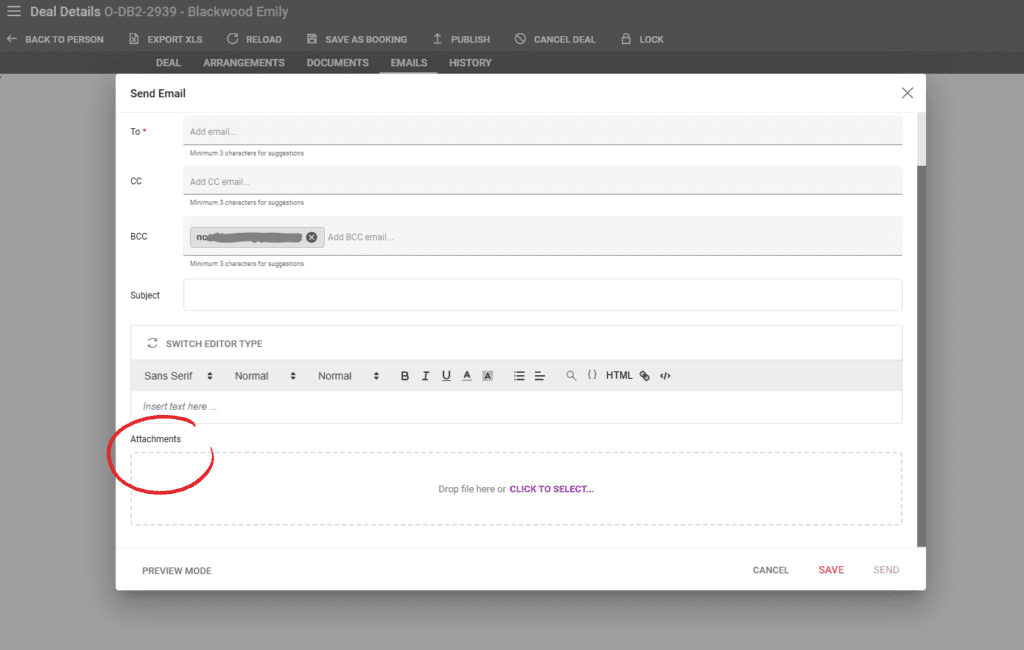
- Adding attachments to emails is faster with an improved interface
- The CC and BCC fields in Emails can have multiple recipients
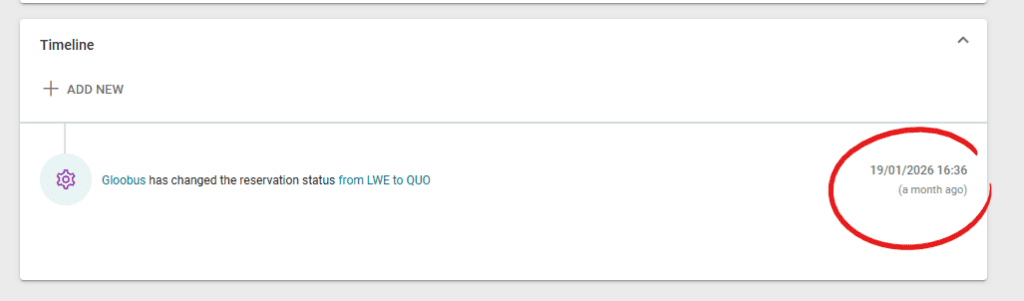
- The Timeline in Deal Details has been improved to display the exact date and time in the user’s time zone
Package Product Update
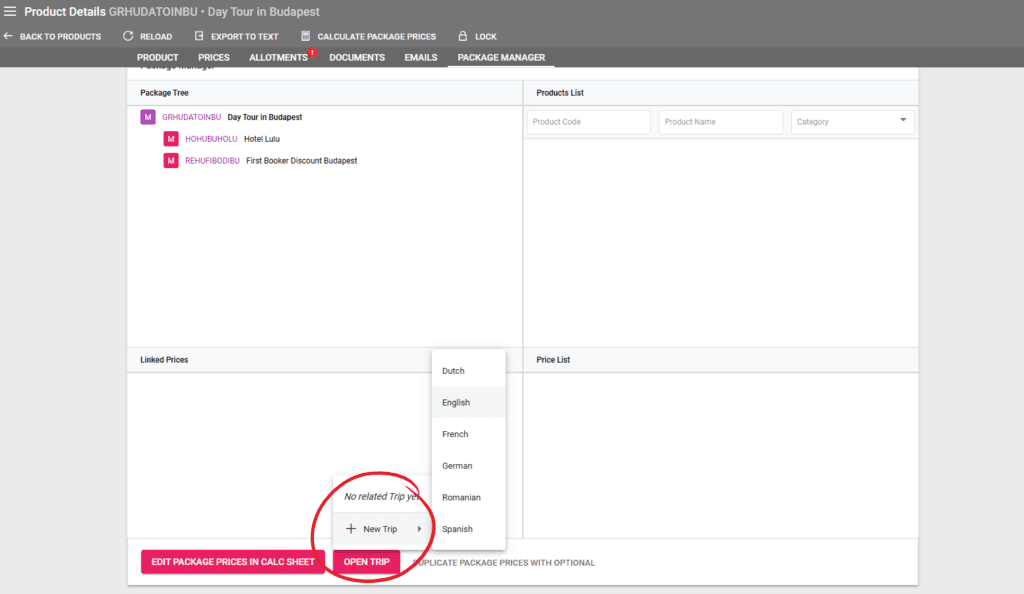
- A new button has been added to create a trip linked to a package in the package manager
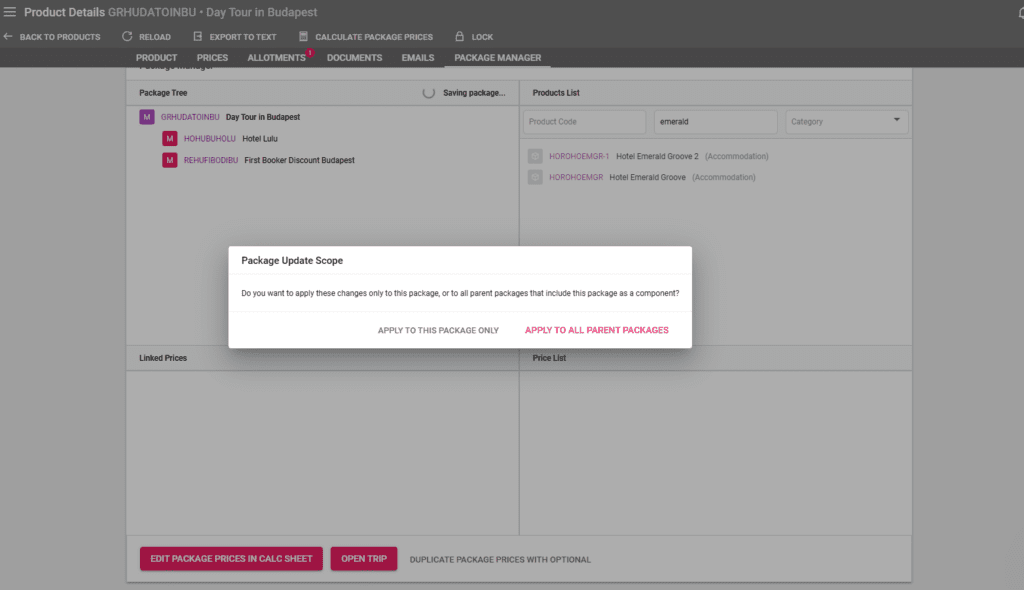
- When making changes to a package, a new option is available to also apply the same changes in all parent packages where the package is a supplement
Supplier Updates
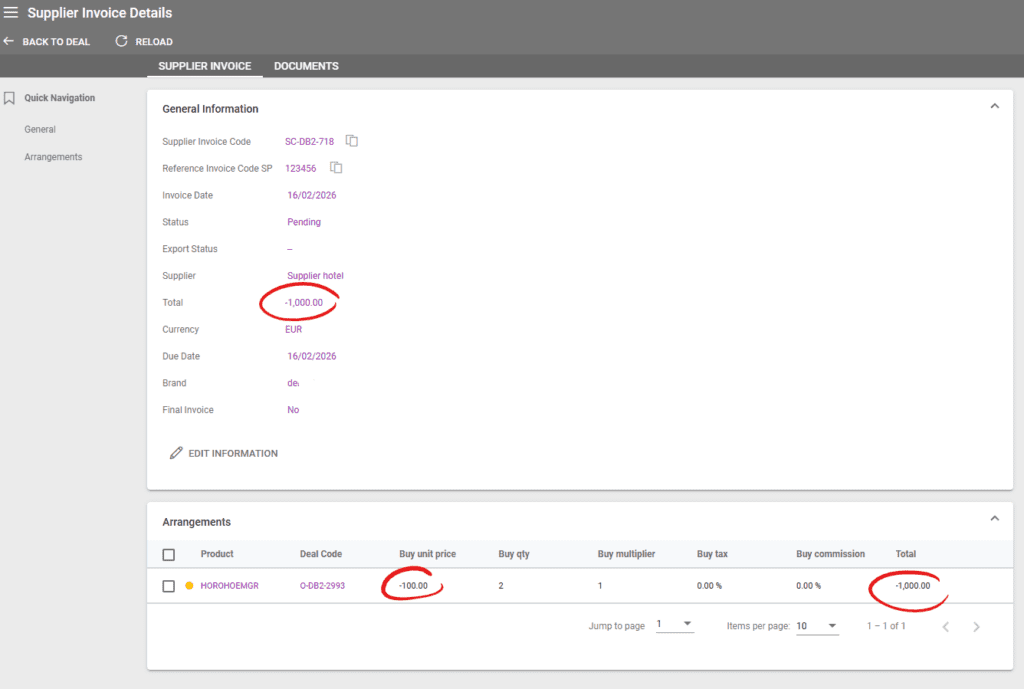
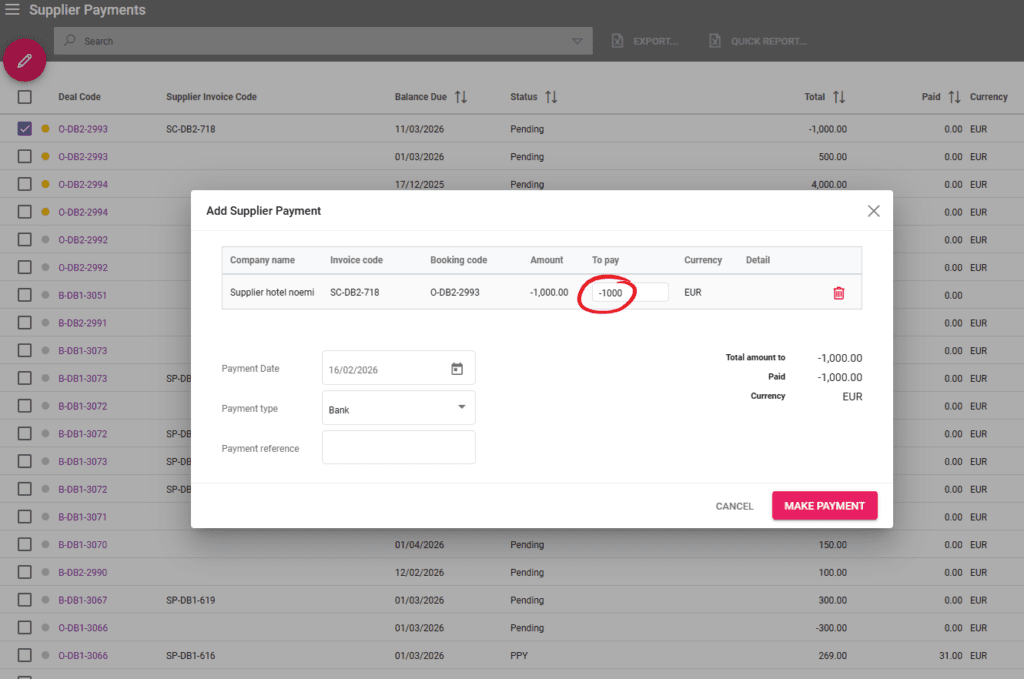
- Supplier Payments can be registered as negative in case of negative value supplier invoice
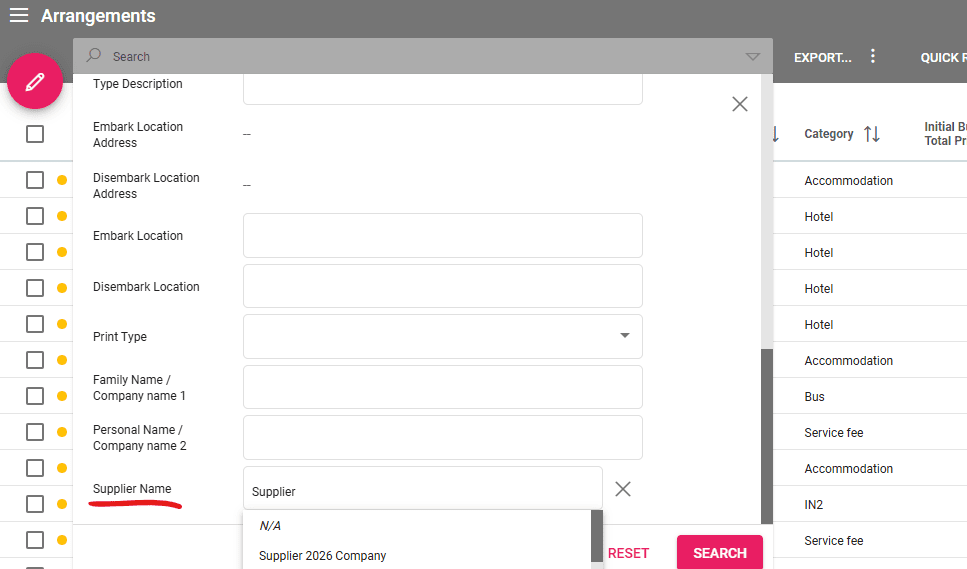
- The Arrangements Listing advanced search includes a field to search by “Supplier”
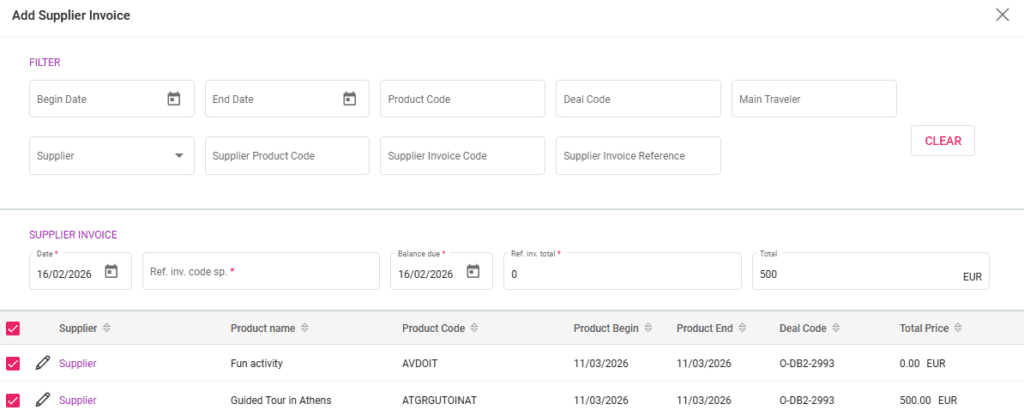
- A new checkbox to select all arrangements in the same currency and with the same supplier has been added to the Supplier Invoice creation process
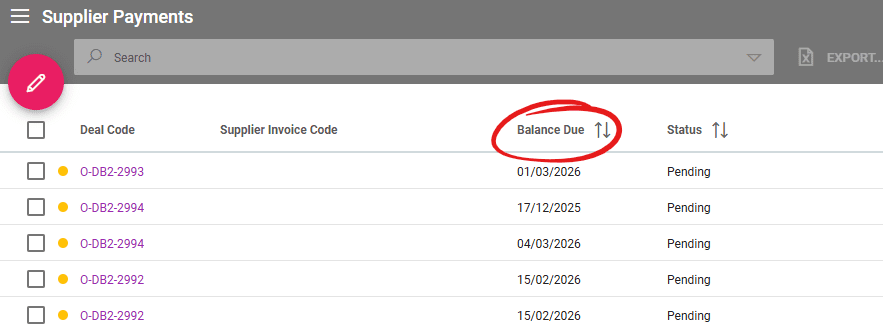
- The Date Due column in Supplier Payments has been renamed to Balance Due
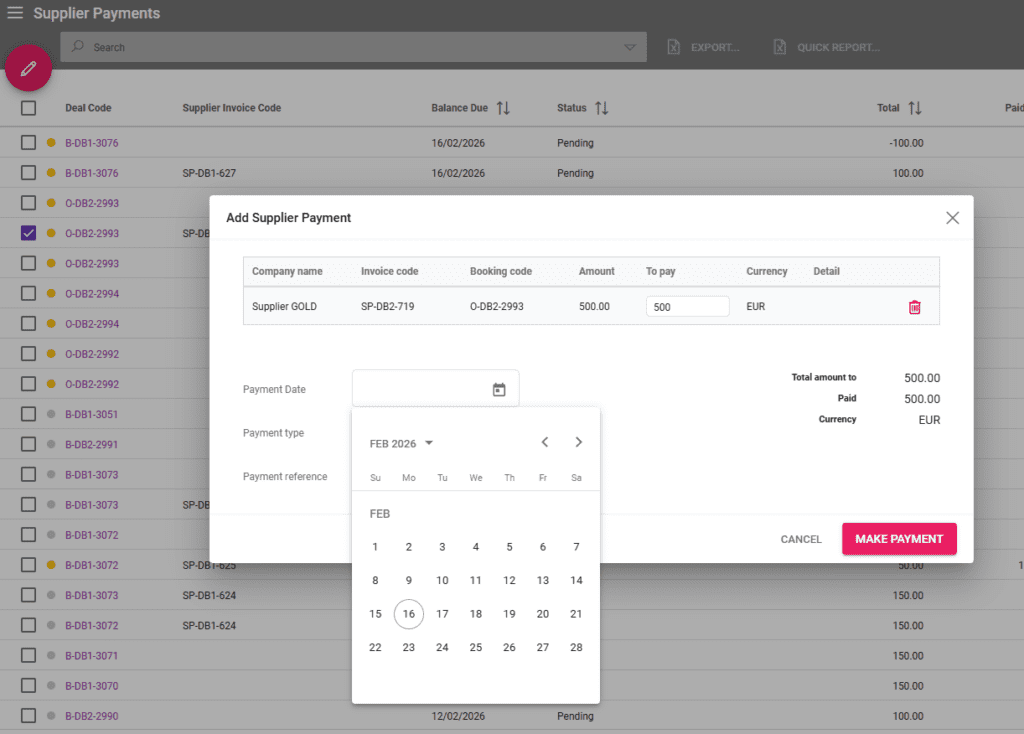
- Supplier Payments have a new field for Payment Date with a calendar date picker
Export Updates
- Excel Export and Quick Report is now available in Accounting, Customer Payments and Supplier Payments
- Deal Details Export to XLS includes columns for Buy Inclusive Tax and Supplier Name
Action-Statuses
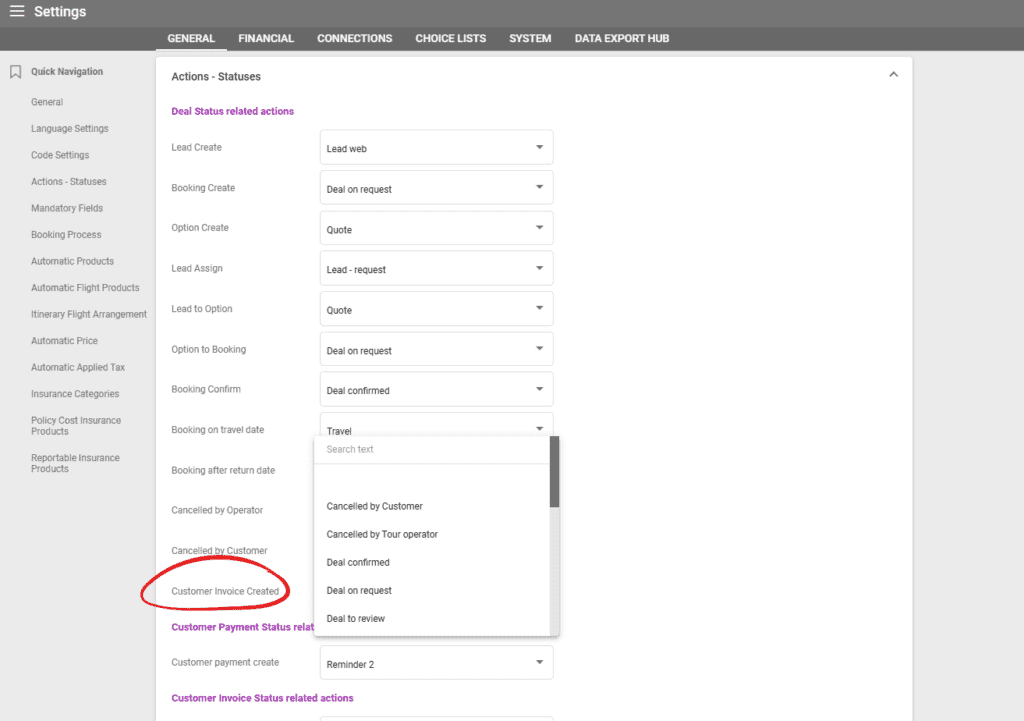
- New fields are available in Settings / Action – Statuses for Deal Status related actions: Customer Invoice Created
General Updates
Creating a Lead Type Deal – Email Field displays auto suggestions from existing customers
When creating a Lead Type deal, operators can input a customer name or email address to receive suggestions from customers already existing in the system. Typing a partial name or email address will display all the customers that have that section included.
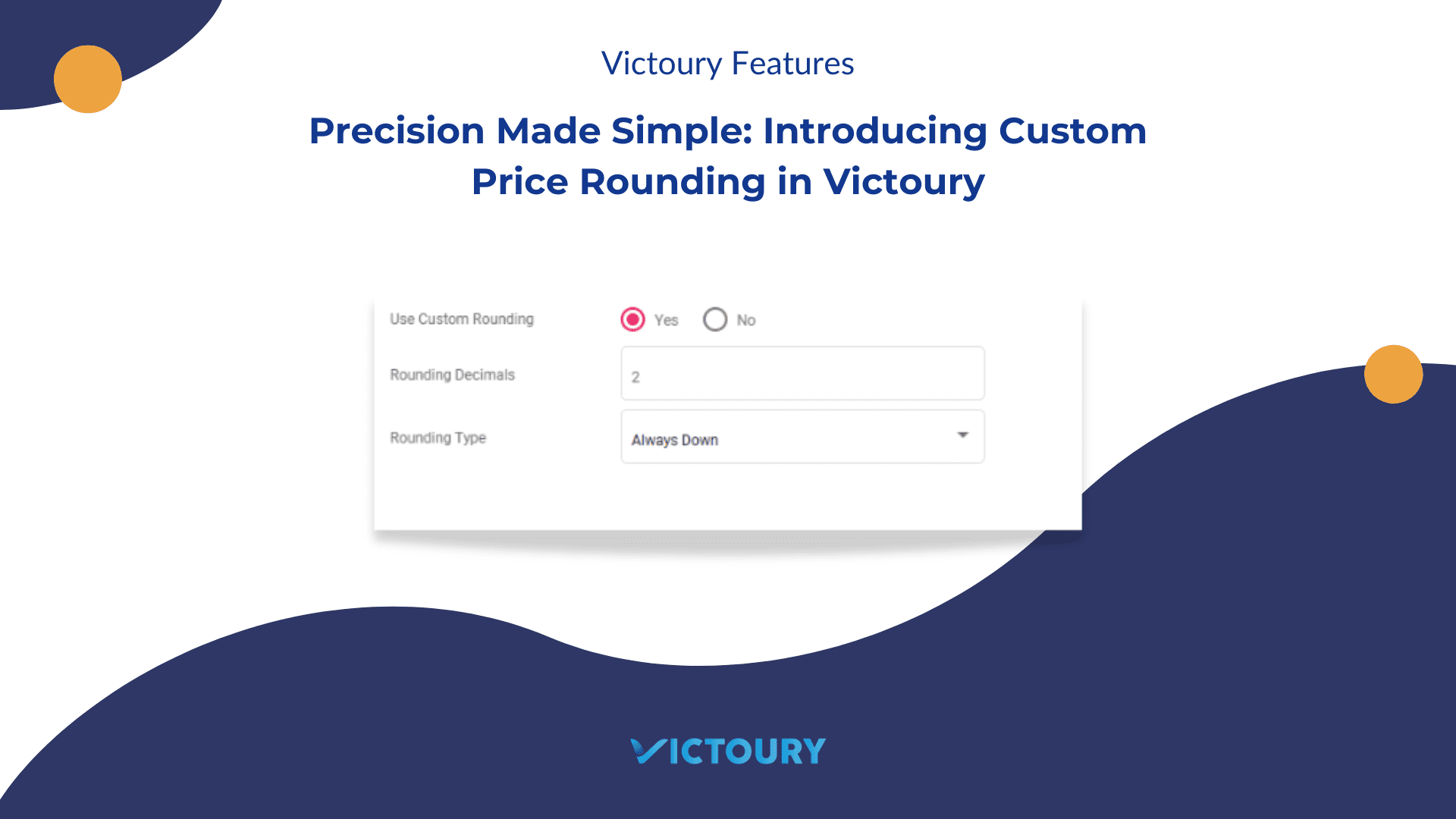
Custom Rounding Per Deal – Set custom rounding rules on a specific deal
During the booking process, the first step now includes custom rounding options similar to the ones in Settings. Operators can select the amount of rounding decimals and rounding type. For rounding examples, please check out the dedicated article on custom rounding here (https://victoury.be/precision-made-simple-introducing-custom-price-rounding-in-victoury/).
Duplicate Deal – Include Custom Rounding Settings
When duplicating a deal, the applied custom rounding settings are saved in the newly created deal as well. The custom rounding options can be seen at the bottom of Deal Details / Deal Information.
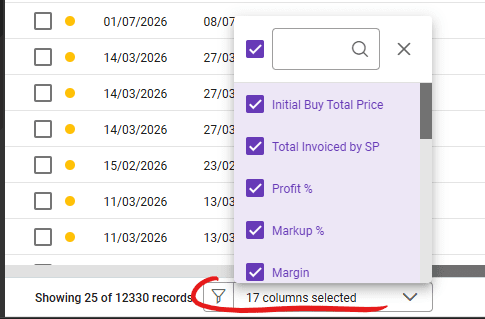
Arrangements Listing – New columns for Invoiced Amount by SP, Original Buy Price, Current Buy Price, Markup, Profit %, Margin
Several columns are now available in the Arrangements listing:
- Invoiced Amount by SP – displaying the amount invoiced by the supplier
- Original Buy Price – saved at the time of the arrangement’s creation
- Current Buy Price
- Markup
- Profit %
- Margin
The columns that are displayed can be toggled on/off in the lower left side of the listing. The newly added columns are also available in the excel export and quick report.
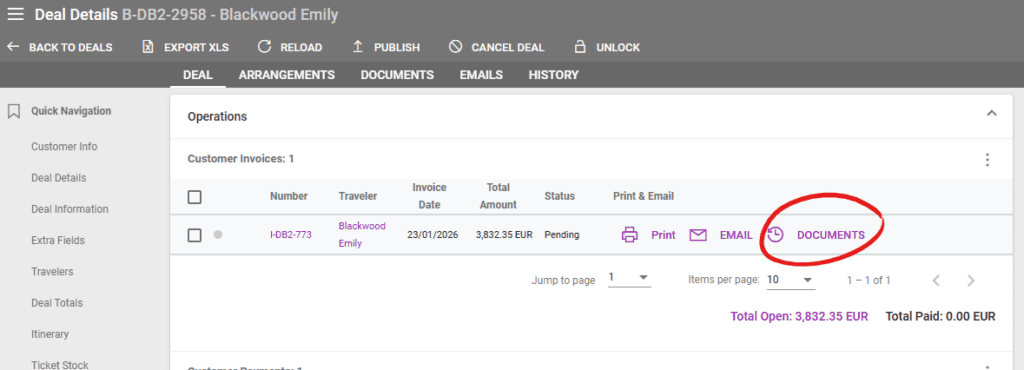
Deal Details – Document History available for Customer Invoice
A button is now available in Deal Details / Operations / Customer Invoice to access previously generated document versions. A new version is generated when the “Print” button is clicked.
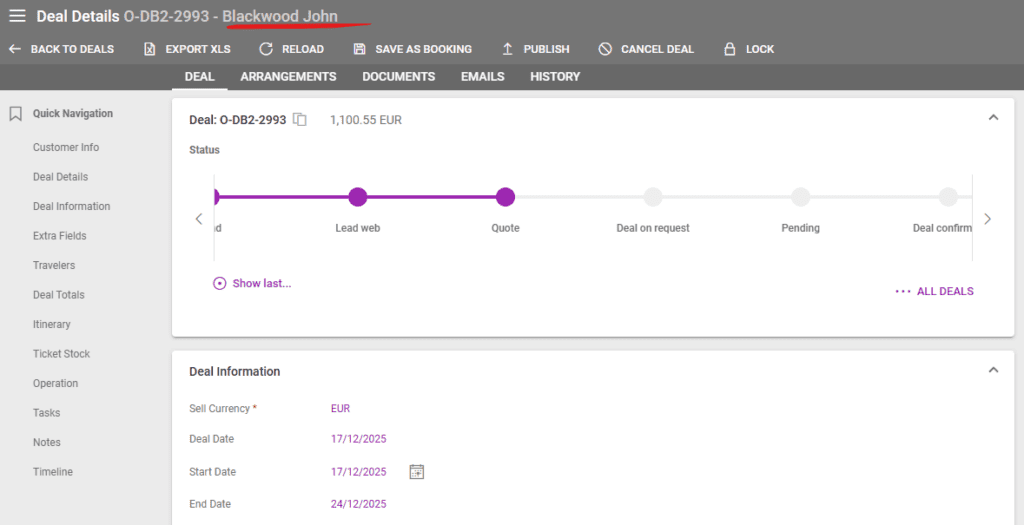
Deal Details – Customer Name is displayed next to the Deal Code
The Deal Details header displays the Customer Name right next to the deal code.
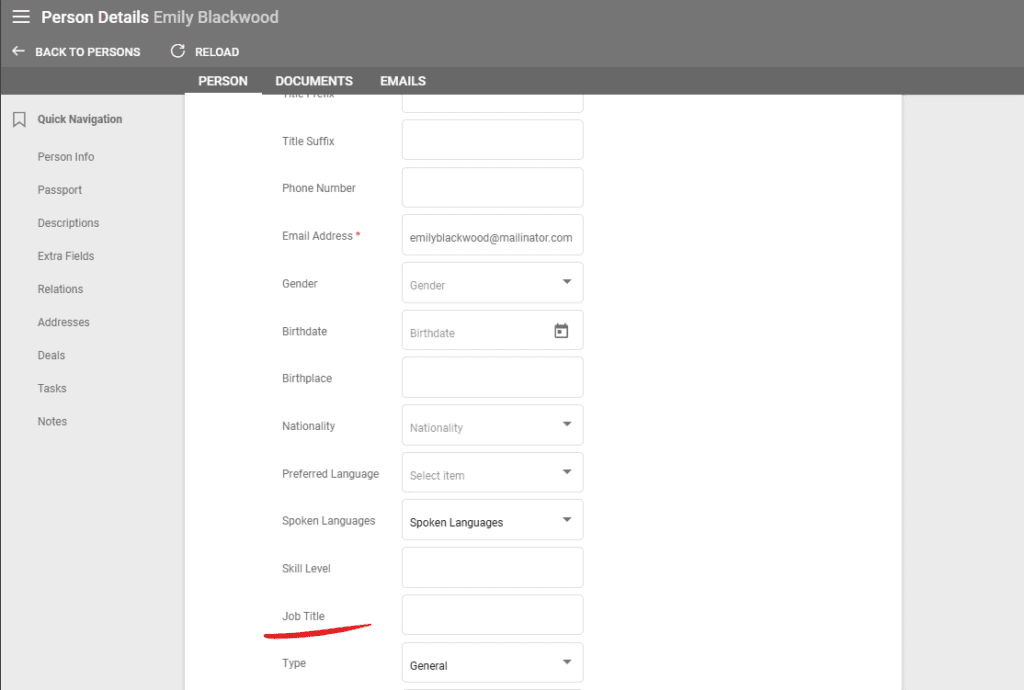
Person Details – New field for Job Title that is also available in Supplier Details / Supplier tab / Persons
A new field has been added for a person’s Job Title. This field can be found:
- in Person Details right below the Skill Level field,
- When creating a new Person,
- In the Edit Person overlay window,
- In Supplier Details / Supplier tab / Persons listing
Lead Deal – New field to select Brand / Profit Center in Lead Details
Lead type deals have a new field for the Brand / Profit Center in the Lead Information section. This field is required when changing a Lead to an Option and can be modified in the Lead Details.
Arrangement Tab in Deal Details – A confirmation window is displayed when navigating to other tabs
Adding, removing, or editing arrangements in Deal Details / Arrangements tab needs to be saved using the “Save deal changes” button. To avoid losing changes done to Arrangements, when operators navigate to the other tabs within deal details, a confirmation window will appear as a reminder of the unsaved changes.
Option Type Deals – Add more travelers button available in Travelers section
In an O type deal, the Travelers section from Deal Details now includes a second button to add travelers labeled as “Add Travelers”. Operators can input a number of new travelers, and the system will add as many new travelers with standard names such as “Traveler 1” to the deal.
Notes / Email Sending – Auto suggest emails of travelers within the deal
Notes can be sent as emails in the Deal Details / Notes section. In the email editing window when clicking on the “To” field, the deal travelers’ emails are displayed for easy selection.
Booking Package Product – Filter Prices by “Price Description”
When booking a package product, an additional window is displayed with all the package components and package related settings. If a product is selected, a price list including all valid prices for the respective deal is displayed on the right side. The search filters now include a field for the “Price Description” field set on the Product Price level.
Allotments – Sort by Start Date and End Date
A new enhancement has been added for products that use Allotments. The Start Date and End Date columns can be sorted by clicking on them. The first click will sort the allotments by ascending, the second descending, and the third click resets the sorting.
Price Batch Edit – General Enhancements
In the Prices Listing, multiple selected prices can be edited in a batch. To do so, please click the pencil button and select “Batch Edit”.
This feature now includes several enhancements:
- Preview mode before saving the changes
- Clearer distinction between fields and applied changes
- Display of each price rule applied
- Field for Type Description added
Prices Listing – Publish to web icon is displayed for Prices with the respective setting
The Prices Listing has a new enhancement to display an icon for the prices with the “Publish to Web” setting enabled.
Duplicating Product Prices – The newly created prices using the Duplicate functionality, may be linked to a different product
A new field has been added to the duplicate price and the batch edit functionalities. This field allows the selection of a different product as the target for the newly created prices.
Product Prices can be duplicated from:
- Product Details / Prices – select one or multiple prices, click the three dots in the upper right corner, and select “Duplicate”
- Prices Listing – use the advanced search filters if needed, select the prices to be duplicated, click on the pencil button and select “Duplicate”
The Duplicate prices window has the following options:
- Duplicate to – either to the same products or a different one. “Their own products” will duplicate the prices to each price’s respective product
- Product code – displayed only if “Another product” is selected above. Operators can search by product codes or product names
- A checkbox for duplicate related price rules
- A checkbox for duplicate related promo prices
Emails – Attach files easier with an improved interface
When editing or creating an email, operators can use an improved interface to either drag and drop files, or click to select from the file explorer.
Emails – The To, CC and BCC allow multiple recipient selection
When creating or editing an email, the To, CC and BCC can have multiple recipients. Email addresses can be added by typing at least three characters to search within the existing emails in your system, or by typing an email address and pressing space, enter, comma or semicolon.
Deal Details – Timeline section displays exact time in the user’s time zone
In Deal Details, operators can use the timeline to see Deal status changes and other actions related to publishing the deal. The time displayed in this section now displays the exact time and date in the user’s time zone for easier viewing.
Package Products Updates
Package Manager – Create Trip from Package
A new button is available in the Package Manager to create a trip linked to the package. Any changes done in the package manager will be reflected in the trip designer and vice versa. The button has a language selection submenu to set the trip’s language.
Package Manager – Save package changes in parent packages
When editing a package’s structure or details in the package manager, a confirmation window will appear to select whether the changes should be applied only on this package, or if they should be applied in all parent packages that include this package.
Supplier Updates
Supplier Payments – Negative values can be registered in case of negative value supplier invoice arrangements
If an arrangement has a negative value, a supplier invoice can be created with a negative value if that arrangement has a supplier. The resulting Supplier Payment can be registered with a negative value.
Supplier Payments – Due Date column renamed to Balance Due
In the Supplier Payments listing, the Due Date column was renamed to Balance Due. This column displays the Rest Payment Due Date of the respective supplier payment entry.
Supplier Invoice Creation – Select all checkbox added for arrangements with the same currency and supplier
A new field has been added in Supplier Payments for the Payment Due. This field has a calendar date picker to make the date selection smoother.
Arrangements Listing – Search by Supplier
The Arrangements listing received a new advanced search filter for the arrangement’s Supplier. The field input searches by the Supplier’s name using the phrase written and suggesting all relevant suppliers.
Supplier Invoice Creation – Select all checkbox added for arrangements with the same currency and supplier
In the Supplier invoice creation process, a new checkbox allows operators to select all arrangements that have the same supplier and currency, resulting in a single supplier invoice for multiple arrangements.
Export Updates
Excel Exports – Export and Quick Report available in Accounting, Customer Payments and Supplier Payments
The Accounting, Customer Payments and Supplier Payments listings have been enhanced with the addition of Excel Export and Quick report. These buttons are available after conducting a search.
Deal Details Export – Export XLS has two new columns for Buy Inclusive Tax and Supplier Name
In the Deal Details header there is a button to export an excel sheet with several deal details. Two new columns have been added for Buy Inclusive Tax and for Supplier Name.
Actions – Statuses Updates
Actions – Statuses – New Fields available for Deal Status – Customer Invoice Created related actions
New options are available in Settings / General under the Actions – Statuses section. The newly added field is in the “Deal Status related actions” section and refers to the status that should be applied to a deal once a customer invoice has been created.