Adding Notes Across Victoury
Notes are accessible by Victoury users and can contain internal information about an entity, or they can be used in document printing.
Some ways in which notes can be used:
- Notes from an appointment, phone call, meeting, and other forms of communication
- Additional Information
- Remarks
- Post travel information
- Travel Information
Currently, notes are available in:
- Customer Details
- Person Details
- Supplier Details
- Deal Details
- Arrangement Details
- Product Details
- Group Tour Details
Creating a Note
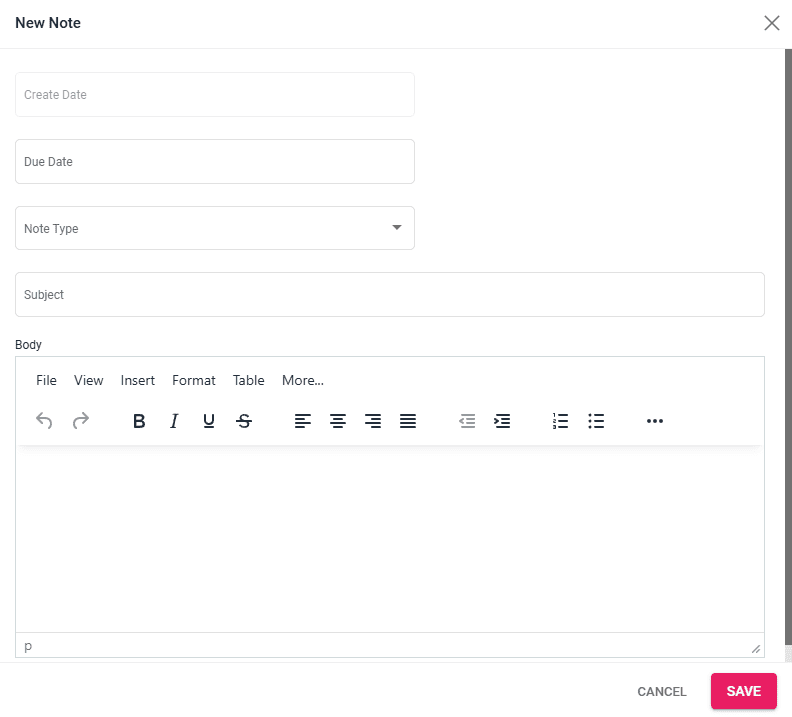
To add a note, navigate to the Notes section in one of the entities mentioned above and click on the “Add New” button. A window will open in which you can input the following information:
- Create Date – this field is automatically filled out with the current date at the moment of creation
- Due Date
- Note Type – choice list editable in Settings / Choice Lists / Note_Type
- Subject
- Body
Viewing a Note
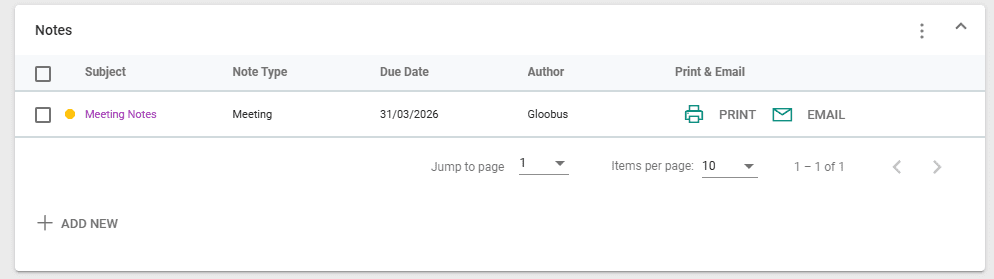
After creating a note, it can be viewed by clicking on the Subject. A note can also be printed or sent via email.
Editing Notes in a Locked Deal
After certain actions in a deal (e.g. Creating a Customer Invoice), a deal gets locked by default. This can also be toggled manually by clicking on the ”Lock” / ”Unlock” button in the top menu of a Deal’s Details.
Operators can still edit Notes, Tasks, and Timeline Entries despite a deal being locked, allowing for easier addition of internal information.
Filtering and Sorting Notes
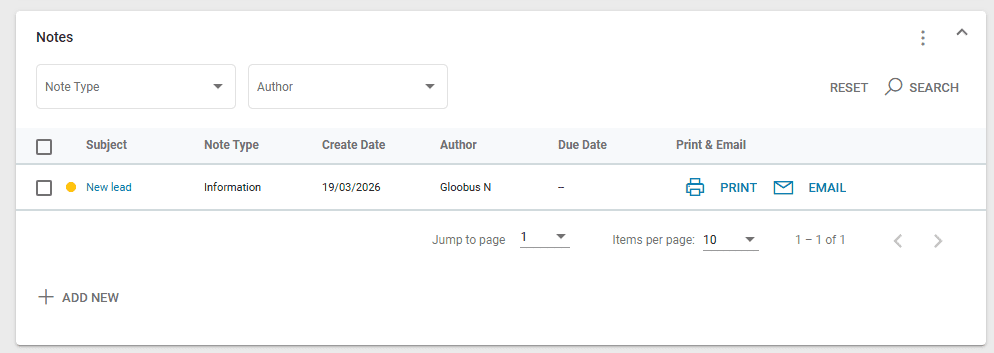
The Notes section in Deal Details has been updated to have filtering options, column sorting, and a new column for the Due Date.
Notes can be searched by Note Type and by Author by selecting the relevant information in the drop down lists, then clicking on the “Search” button. The search filters are cleared by clicking on the “Reset” button. Columns can be sorted ascending or descending by clicking on the column name. An upwards or downwards arrow will appear depending on the sort type. Clicking a column three times clears the sort.
In case there are no Notes created, the search filters are disabled.
Moving Notes to Other Deals
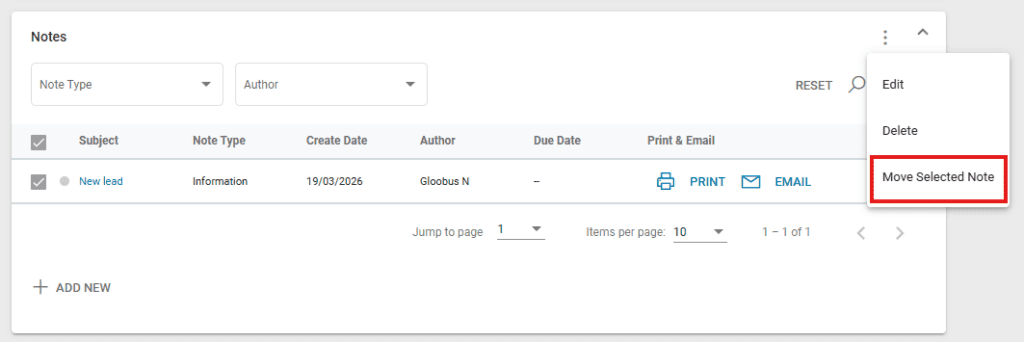
One or multiple notes can be moved to another deal. First, select the desired notes by clicking on the checkboxes next to them, then click on the three dots at the top right of the section. Click on “Move Selected Note(s)”, then fill out the Deal Code of the deal they should be moved to.