Settings – Choice List Editor (Drop Down Lists)
Accessing Choice Lists
A collection of editable choices for types of fields – dropdown lists – that allow users to select options from a predefined set of choices. The choice list is used in many places across Victoury, including addresses, products, trips, prices, etc.
Victoury comes with a set of preset choice list items. The Available Options in the first column are not editable. The Choice Lists form the core of the system. The drop-down menu includes all the lists used by the system, and you can edit the codes and labels of these according to how you plan to use VCT.
Adding a New Option
If you need to add a new option to the “Arrangement_Type” choice list, click INSERT OPTION, then add the option code and the translated labels. For each option, you may add different Nodes.

To add new Node entries to the lists, click INSERT NODE. To delete entries, click DELETE OPTION.
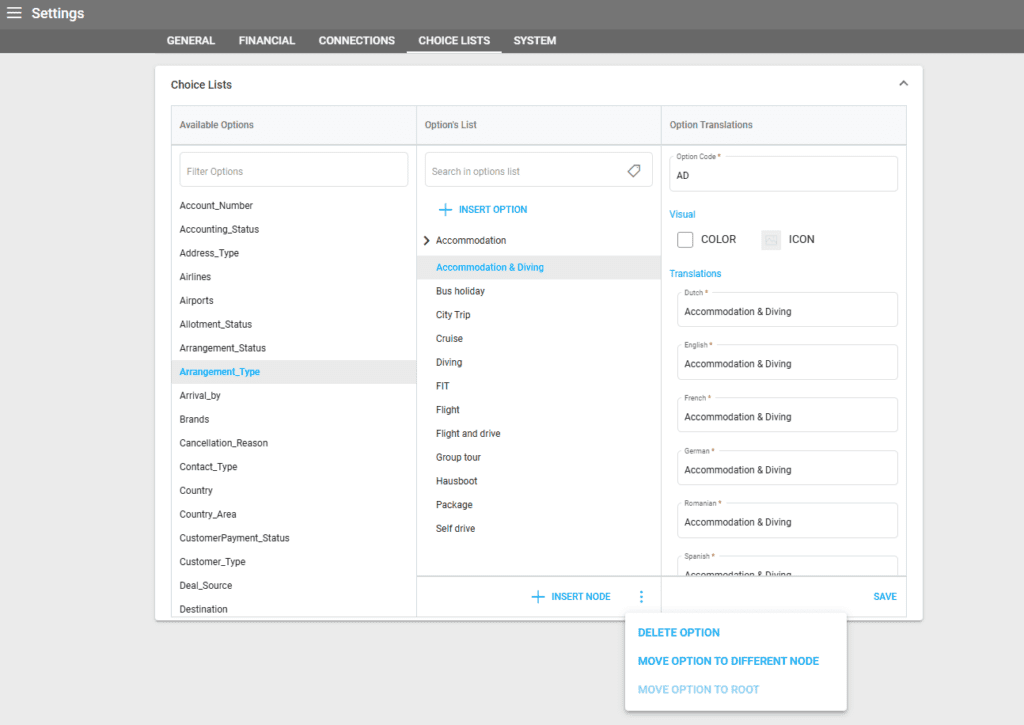
Make sure to add a unique identifier code and a clear label.
Be careful not to delete all entries in a choice list; otherwise, there will be no options available to select from when it is used by the system.
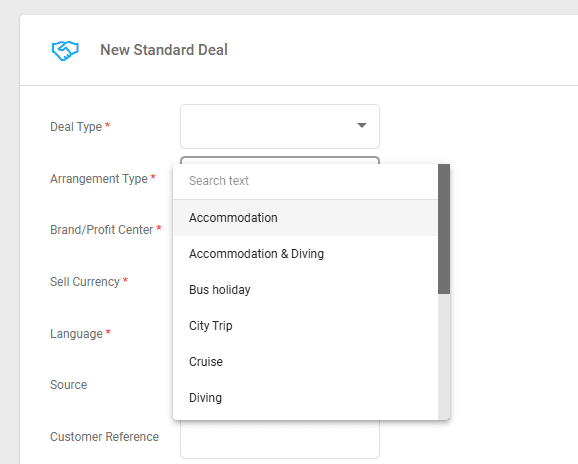
The entries in the Arrangement Type choice list are used at the beginning of your Deal process as a selection drop-down and will determine the type of arrangements in your Deal.
Editing Choice Lists
Option’s List – the second column is editable, and all items can have sublevels:
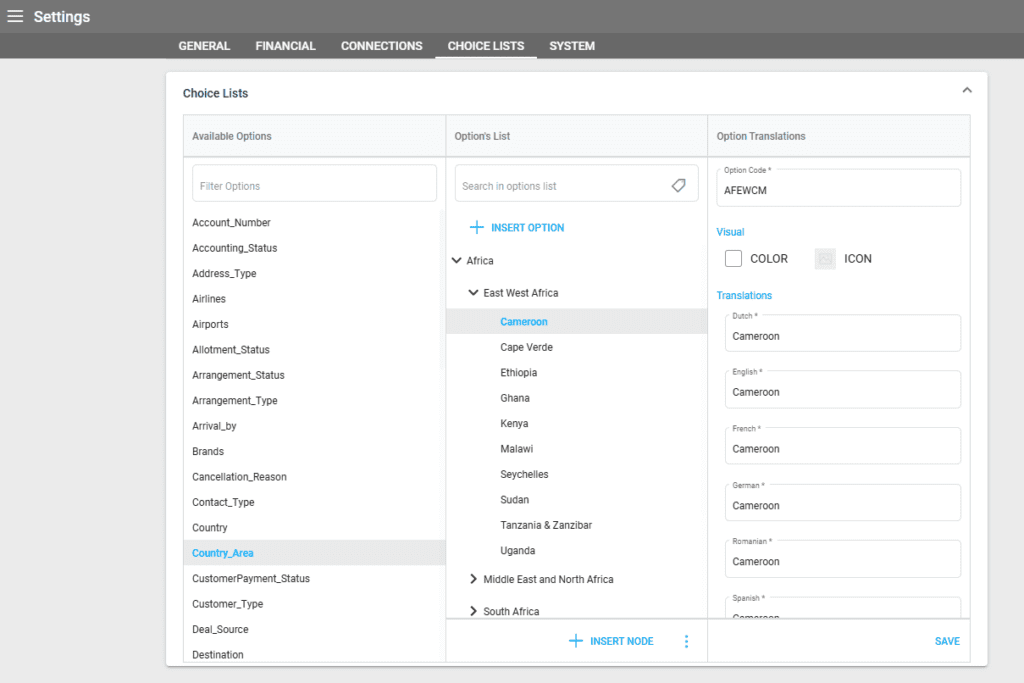
The Visual section in the choice list allows setting a color for each category and an Icon from the predefined icon list: Hotel, Flight, or Transfers.
At the moment, the color of a category, if selected in the choice list, is visible only when creating a trip in the Trip Designer. So, if for the Hotel category there is a Red color set in Visual, when adding a product that belongs to the Hotel Category in a trip, it will be shown in red in the Timeline of the trip.
For options related to Arrangement Status, the colors defined will appear in Deal Details / Arrangements next to the Arrangements depending on the status set in Arrangement Details.
Deleting and Moving Options in Choice Lists
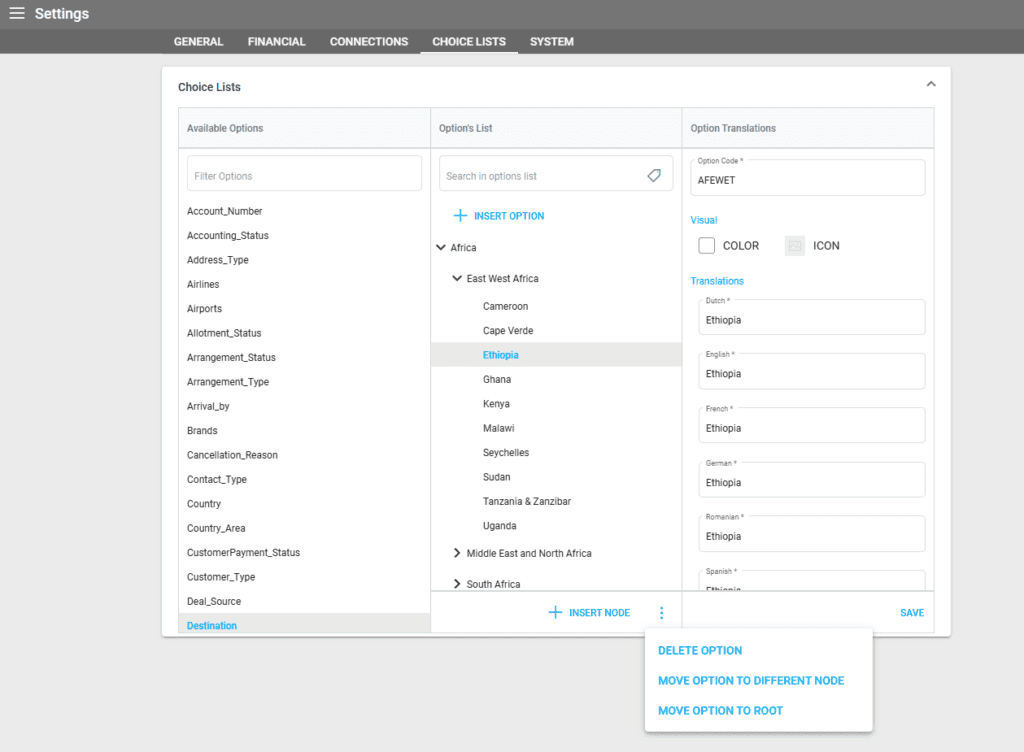
The dots next to the “Insert Node” button have several options to add the option directly to the list root, move it to a different node, or delete it.
When an option is selected, clicking on the three dots allows operators to move the option to a different node or to create a new one.
Available Choice Lists
Account Number
- Used in accounting entries to mark the account number when importing bank statements. Instead of codes, numbers are used.
Accounting Status
- Used for statuses of accounting entries – marking an entry after being exported to the accounting system.
- Drop down with options for setting accounting record statuses for invoice partial and full payment actions in Settings/GENERAL
Address Type
- Dropdown with options available when editing Address_Type for an address in the Addresses list, Customer details – Addresses, and Supplier details – Addresses. Its role is to define what kind of address it is.
Arrival by
- Dropdown with options when editing an arrangement
Brands
Tenants may work with more than one brand. All brands are defined in the Choice List. The Brand dropdown list is used in the following places:
- Settings/USERS – each user having their own Brand
- Create Deal – the brand of the user is automatically assigned, but a different Brand can be selected from the dropdown list with options
- Product – when creating a product, the brand of the user is automatically assigned, but more brands or a different one can be selected from the dropdown list
- Customers – when editing a customer
- Minisite – for each Brand, a Minisite can be designed and the products listed on the Minisite depend on the Brand assigned at the product level
- Brand information is important. It may influence templates, websites, etc.
Contact Type
- Dropdown with options when selecting CONTACT INFO/Type when editing customer information.
Country
- Dropdown with options when selecting Nationality for a Customer/Supplier or Country in Addresses
Country Area
- Dropdown with options for Country/Region when creating or editing a Product
Customer Type
- Dropdown with options when editing Customer details
Deal Source
- Dropdown with options when creating or editing a Deal/lead. It shows how the customer booked a product. It could be a direct call, website, or other sources.
Destination
- Dropdown with options when creating or editing a Deal
Invoice Status
- Dropdown with options when setting invoice create and credit statuses in Settings/GENERAL
Itinerary Status
- Dropdown with options when creating a Deal, Itinerary section
Multimedia Scope
- Dropdown with options when setting images in the Multimedia section of a product
- The Multimedia section is used when generating templates and when displaying products on a Minisite. Based on the scope set, an image can be displayed in different places on templates, list view, or detailed view on Minisite.
Nationality
- Dropdown with options when creating Customer, Persons, or Suppliers
Note Type
- Dropdown with options when creating a note in Customer details, Deal details
Order Status
- Dropdown with options in Orders
Payment Type
- Dropdown with options when receiving Customer Payment or registering Supplier Payment
Price Types
Price Types are important when booking the price so the operator knows which is the correct one.
Price Types are also important for templates in the section of prices.
Price Type 1
- Dropdown with options when setting price in Product/Prices
Price Type 2
- Dropdown with options when setting price in Product/Prices
Price Type 3
- Dropdown with options when setting price in Product/Prices
Price Type 4
- Dropdown with options when setting price in Product/Prices
Print Type
- Dropdown with options when editing Product details and Arrangement details
Product Budget
- Dropdown with options when editing Product details
Product Category
- Dropdown with options when adding or editing a Product
Product Characteristics
- Checkboxes in Product details – shown on the website in List view and detail view of the product
Product Rating
- Dropdown with options when adding or editing a Product, shown on the website in List view and detail view of the product
Product Webpages
- Dropdown with options when editing Product Details – Show on Webpages
Referrer
- Dropdown with options when creating or editing a Lead. It is related to the channel that led the customer to book or request an offer (“how did you hear about us”).
Salutation
- Dropdown with options when creating or adding a Customer or a Supplier
- Salutation might be displayed on templates, confirmation emails, etc.
Status
- Dropdown with options when adding or editing a new Pipeline column
- Dropdown with options when setting deal create status and customer payment create in Settings/GENERAL
- Statuses are displayed in the Detailed view of a Deal
- Statuses are displayed in the Detailed view of a Customer Payment record
Supplier Type
- Dropdown with options when editing Supplier details
Task Type
- Dropdown with options when creating a task in Product, Customer, or Deal
- All tasks created in different places in Victoury are visible in the Tasks list, in the main left menu.
Tax Type
- Dropdown with options available when creating or editing a new tax in Settings/TAXES
- This tax is used when setting a price for a product