Arrangements – Editing and Viewing Arrangement Details
Add More Arrangements to An Existing Deal
If you need to edit an existing Deal by adding more arrangements, navigate to the Deals list and open the deal you wish to edit. On the Deal page, you will find the Arrangements section:
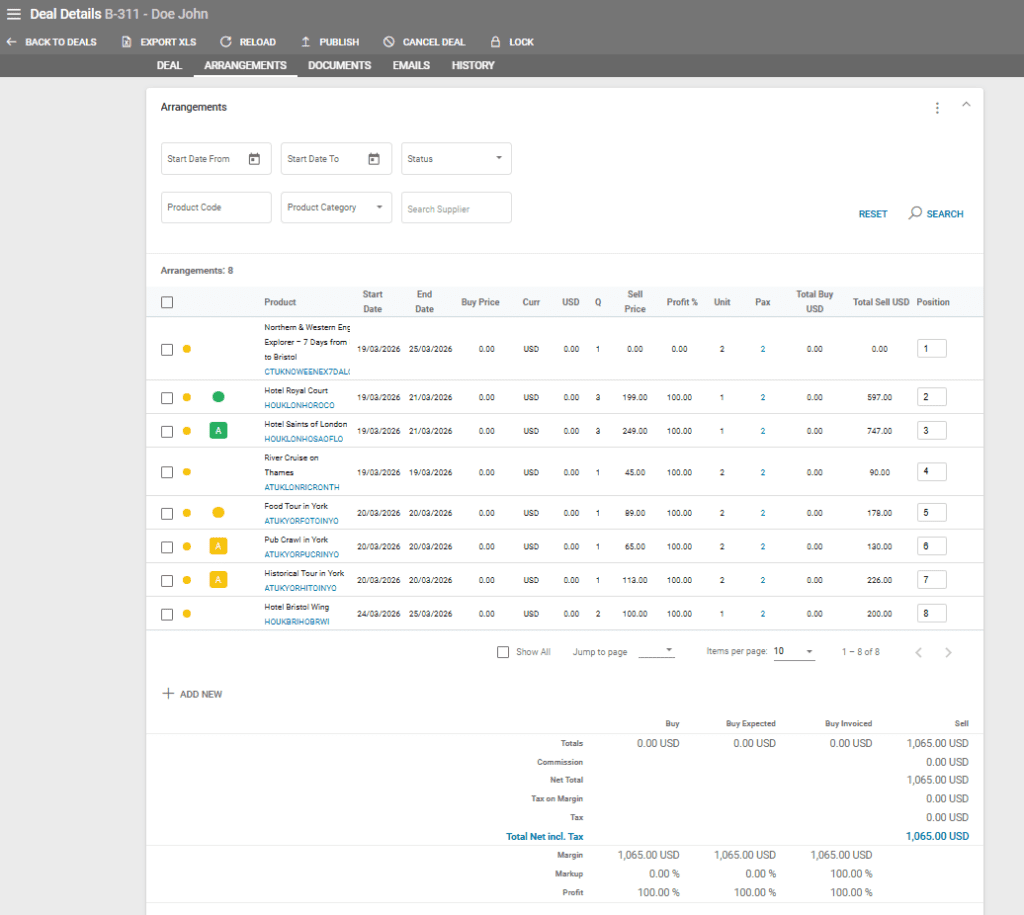
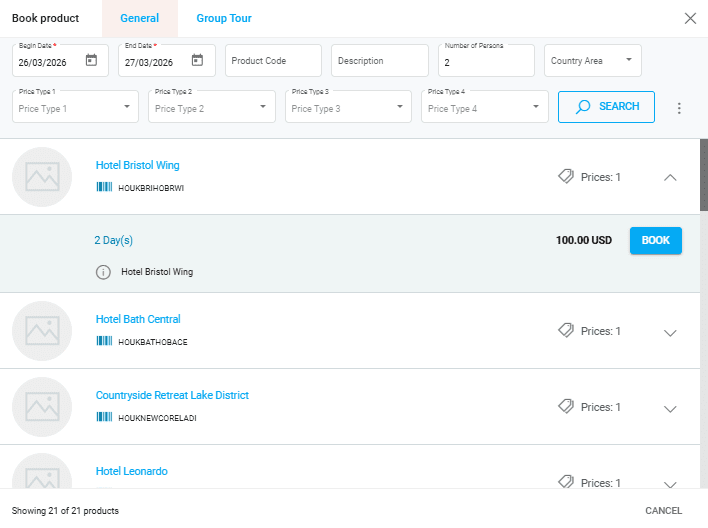
Click “ADD NEW” and follow the same steps as in the deal creation process. This involves selecting a start and end date for the search and then choosing the product you wish to add as a new arrangement to the existing Deal.
Please note that for products with multi-language texts, the system will add the text in the Deal’s language. In case there is no text in that language, then it will use the text in the tenant’s main language (Settings / General).
View Arrangement Details
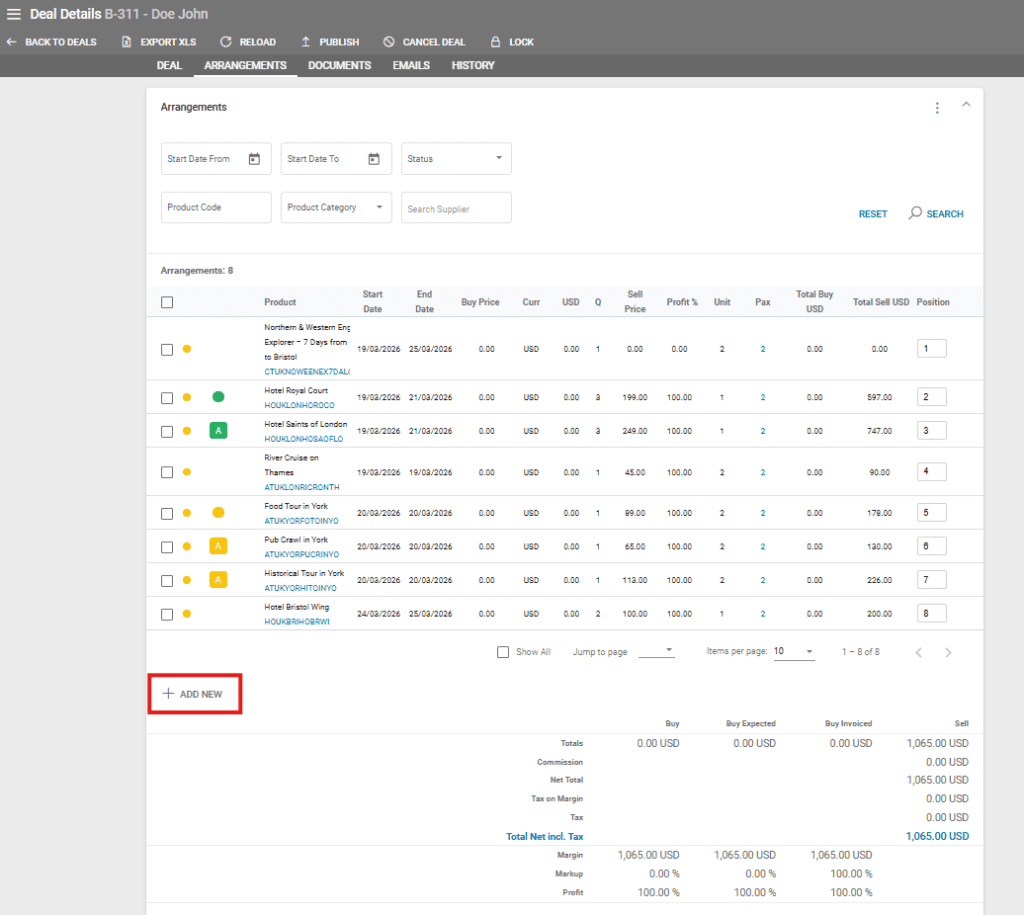
Arrangement Details can be accessed through several ways:
- In Deal Details / Arrangements tab by clicking on the arrangement’s code or double clicking the arrangement’s row
- In Deal Details / Arrangements by hovering, then clicking on the pencil icon on the left of the arrangement row. This opens the quick view window
- In Arrangements listing by using the search filters, then clicking on the arrangement’s code
Charge by Grace Period For Car Rental And Similar Arrangements
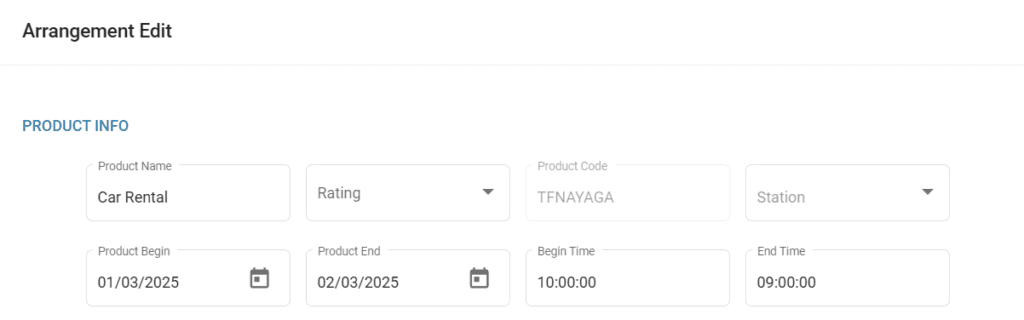
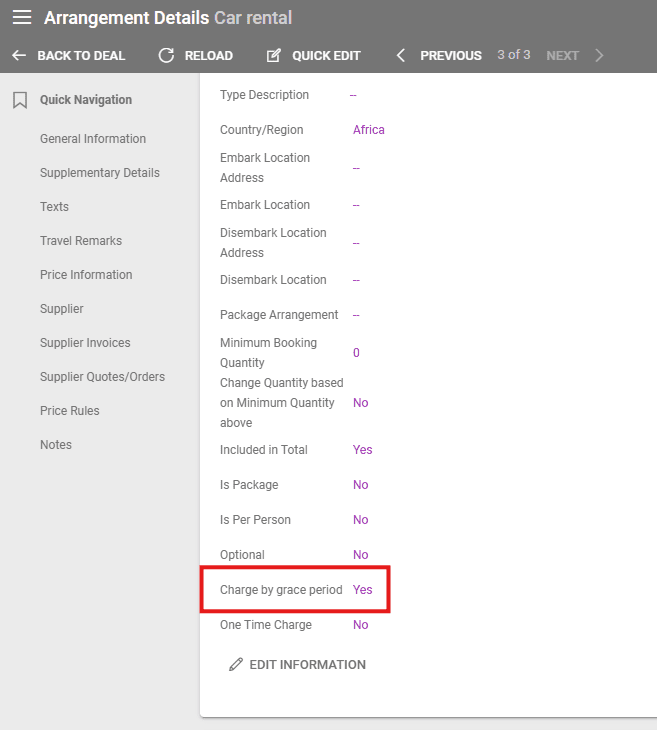
The Grace Period field is used to rent vehicles for 24 hours or less without charging the arrangement price for two days. The Grace Period field from the arrangement’s details must be checked True to set this up, and the arrangement also needs the Begin and End Time so the system can calculate whether the arrangement is booked for less than 24 hours.
In the examples below the Car Rental arrangement is added with the Quantity of 1 even though it looks booked for two days.
Arrangement Warnings Set Through Price Rule #34 Warning Rule
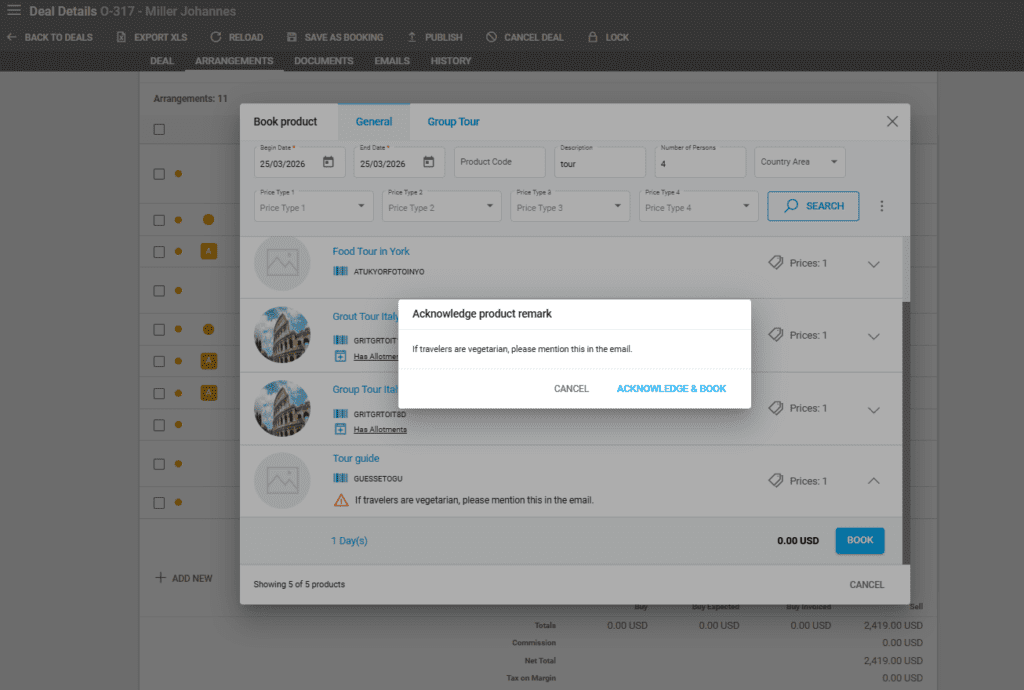
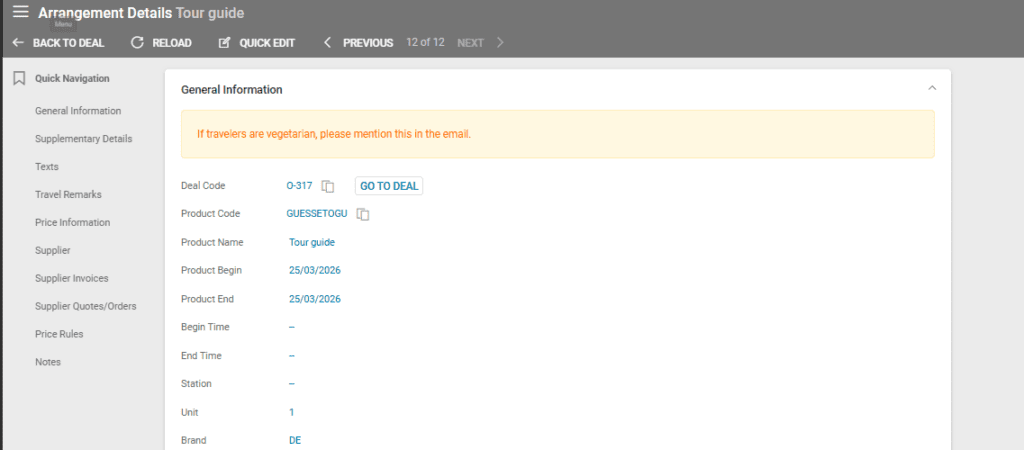
If a Product has a Warning Rule set on its price, upon booking the product the warning is displayed through an overlay window that has to be Acknowledged. The warning is also visible next to an exclamation mark icon, and in the Arrangement Details.