Logging in, Editing User Settings and Increasing Security with Two-Factor Authentication (TFA)
Accessing Victoury and Your User’s Personal Settings
Users can log in to Victoury by accessing their respective environment URL, then inputting their username and password. User details can be managed by Admin users in Settings / System. For more information, please check the dedicated article here.
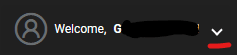
Additionally, once logged in, users can access their user-specific preferences and settings by clicking on the downward arrow next to their user name in the left menu, then clicking on “Personal Settings”.
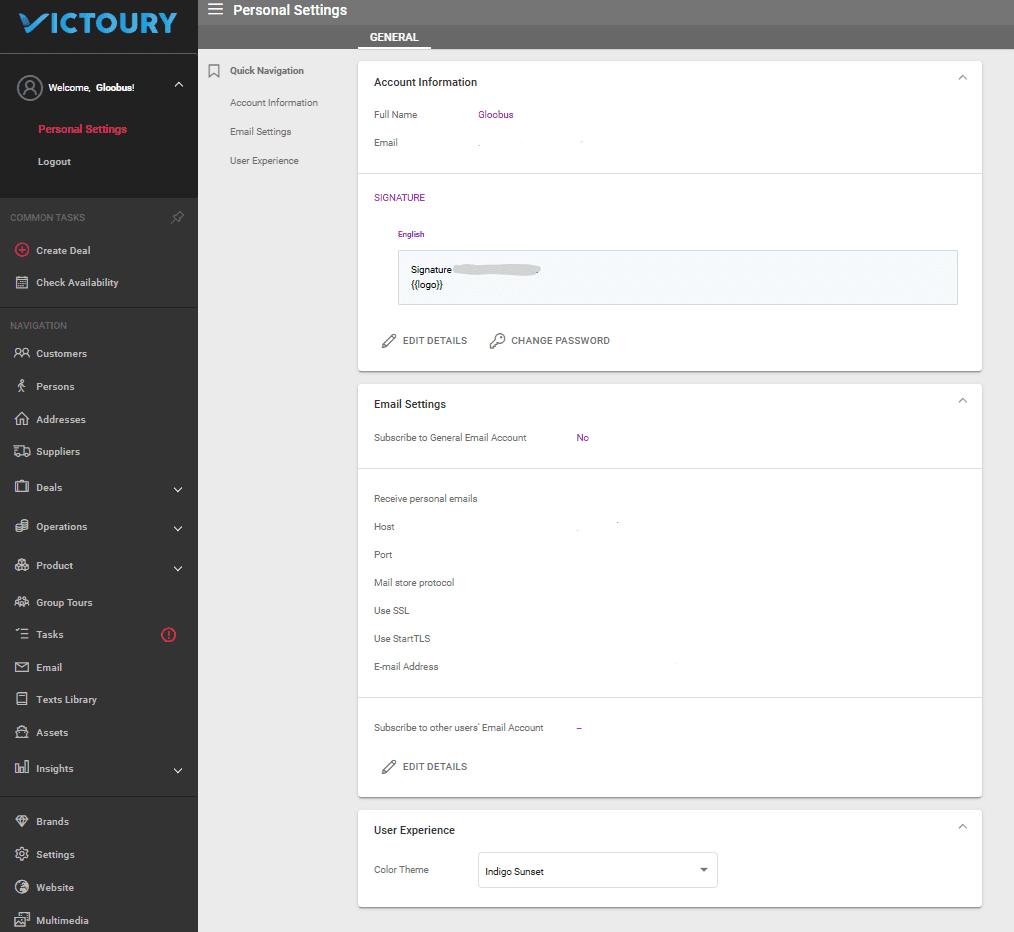
There are three sections in Personal Settings:
- Account information: to change your Full Name, email address, email signature, and password.
- Email settings: to set up an email connection to an external emailing platform. For support, please contact your Victoury representative or our support team through the intercom.
- User experience: to change the theme.
Toggling Password Display on Login Screen
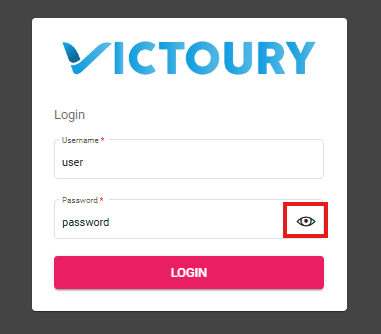
On the login screen, the password field can be toggled on/off by clicking on the Eye icon at the end of the field.
Two-factor Authentication (TFA) on Login
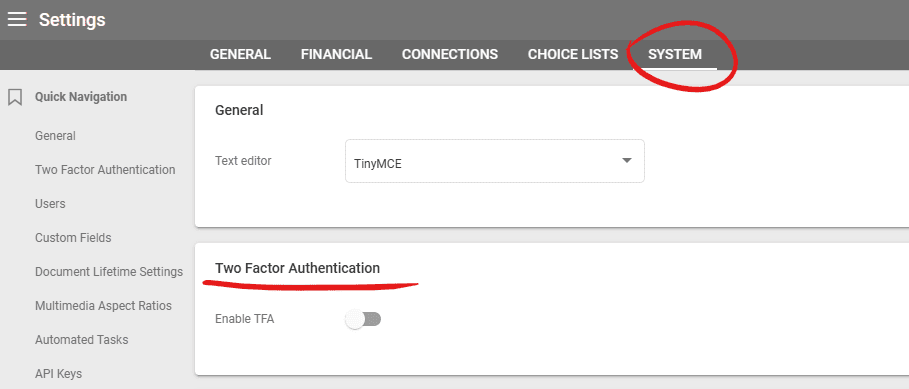
In order to keep accounts more secure, operators can set up two-factor authentication login from their accounts. The TFA settings are available in your Victoury account if the administrator has enabled it in Settings / System:
- Navigate to your Settings and access the System tab.
- Turn on the toggle for two-factor authentication.
- Choose between the Email or Time based one password options.
To set up TFA for your own user, follow these steps:
- Click on the downward arrow next to your user name in the left menu and select “Personal Settings”. A new section will appear where you can start your TFA setup.
- For the email option: A code will be sent to the user’s email address
- For the Time based one password option: A code will be displayed using an authenticator app.