Customers – How Do I Add A Customer or An Agent
How To Create A New Customer
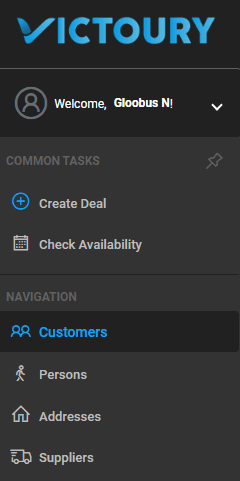
To add a new customer, navigate to Customers from the main left menu and click the + symbol.
If the new Customer is a company, ensure the radio button is checked.
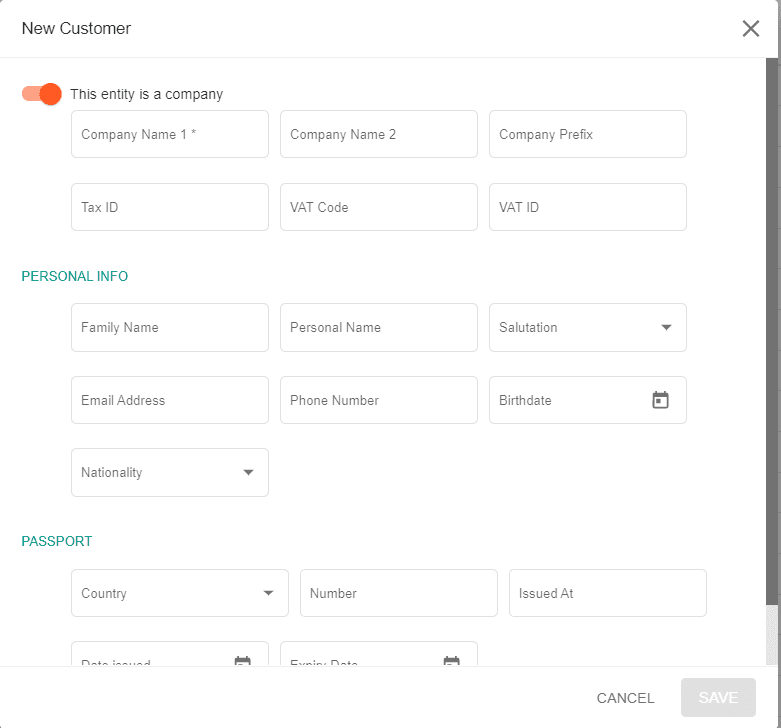
Enter all the details according to the type of customer (company or individual) and click SAVE.
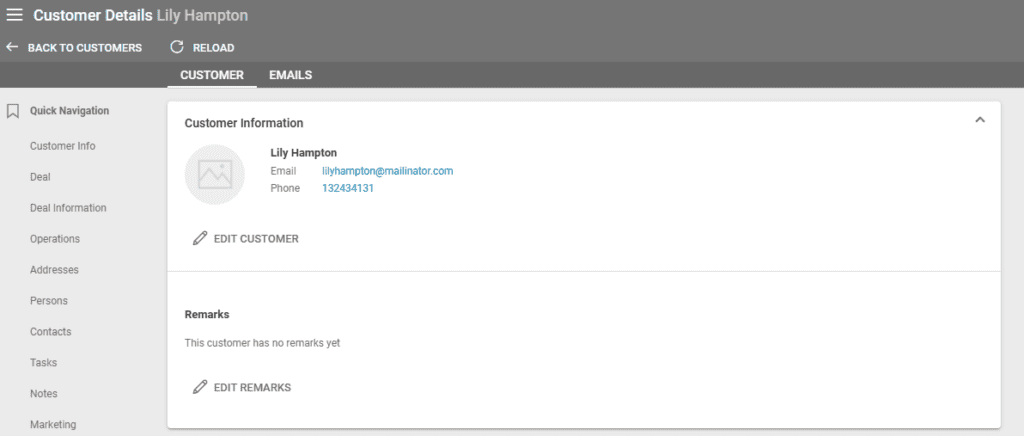
The customer can then be found in the customer list, and you can complete their information by editing them in Customer Details. Access their details by clicking on their name. To add images for individuals or company logos, edit the Customer Information area.
In the customer tab, information about deals, customer invoices, and payments, as well as addresses and persons, are displayed.
Customer Information
In this section, you can edit details about your customer by clicking on the “Edit Customer” button. Remarks can also be set here that are internal mentions.
Deals and Deal Information
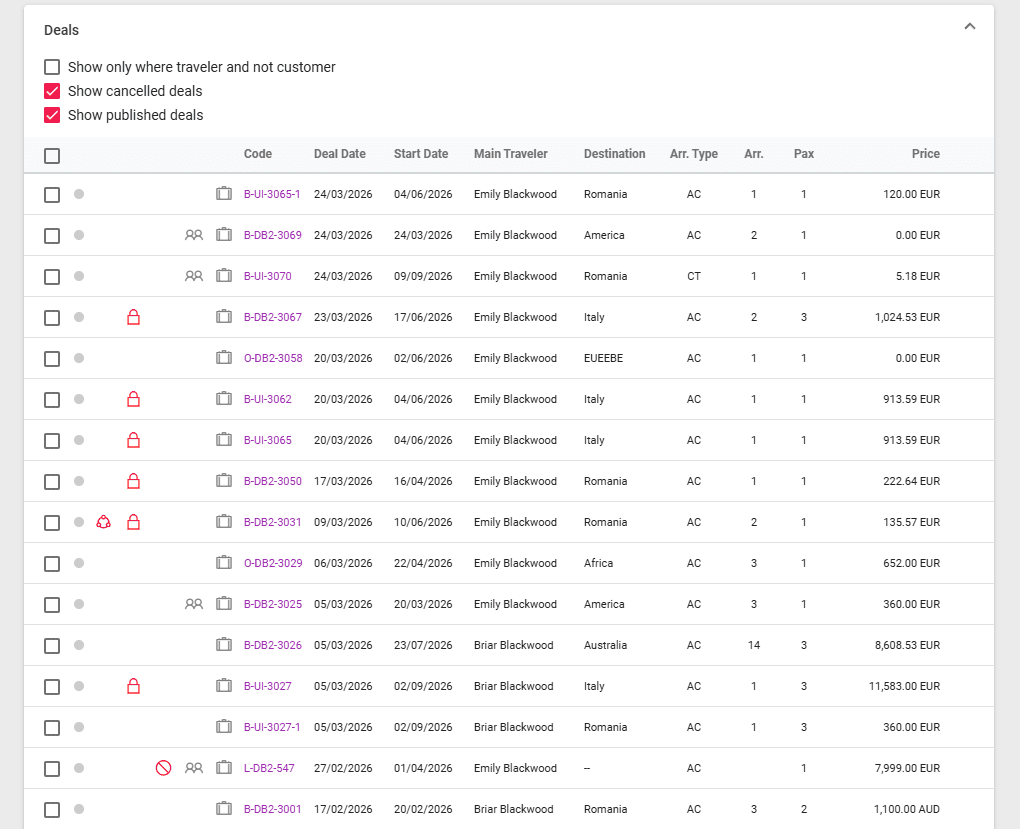
The Deals section displays all the deals the customer is related to. The checkboxes at the top determine what kind of deals are displayed in addition to the Deals where the customer is set as the deal’s customer:
- Show only where the customer is a traveler and not a customer
- Where the deal is cancelled
- Where the deal is published to the client space
The Deal Information section has an overview of the total Buy and Sell prices, and the Profit.
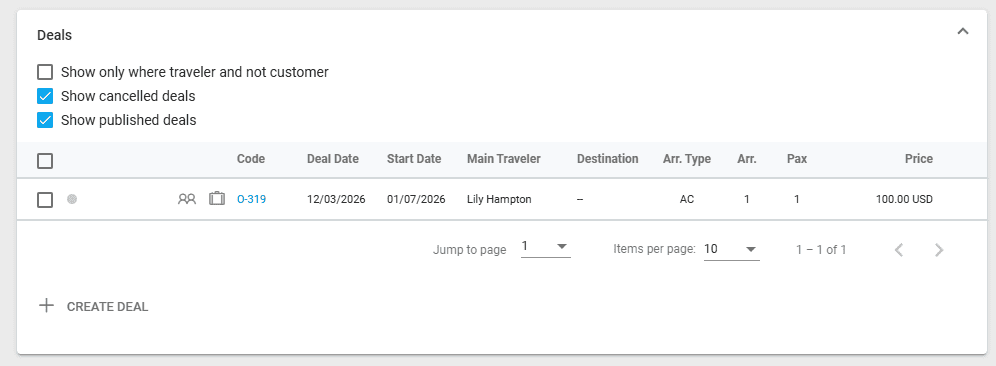
Information can be seen at a glance trough the following icons:
- Circle with three dots – the deal has been published to the client space
- Lock – the deal is currently locked
- Cancel – the deal has been cancelled
- Two persons – the customer is set as the deal’s customer
- Suitcase – the customer is the main traveler of the deal
Create Deal/Lead
A new deal or lead type deal can be created from this section as well.
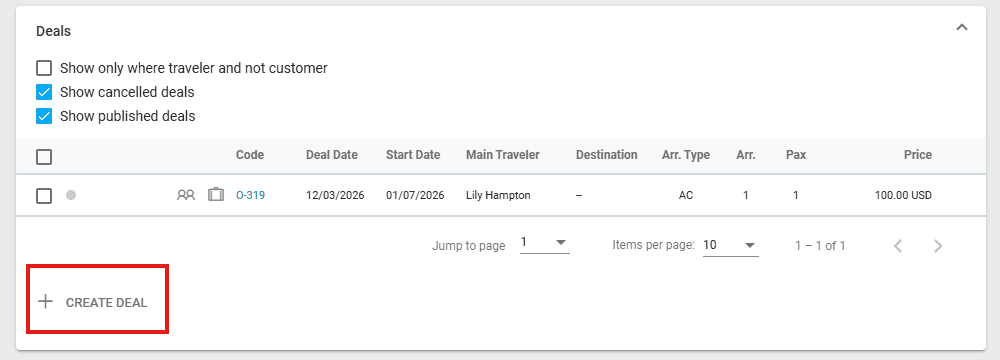
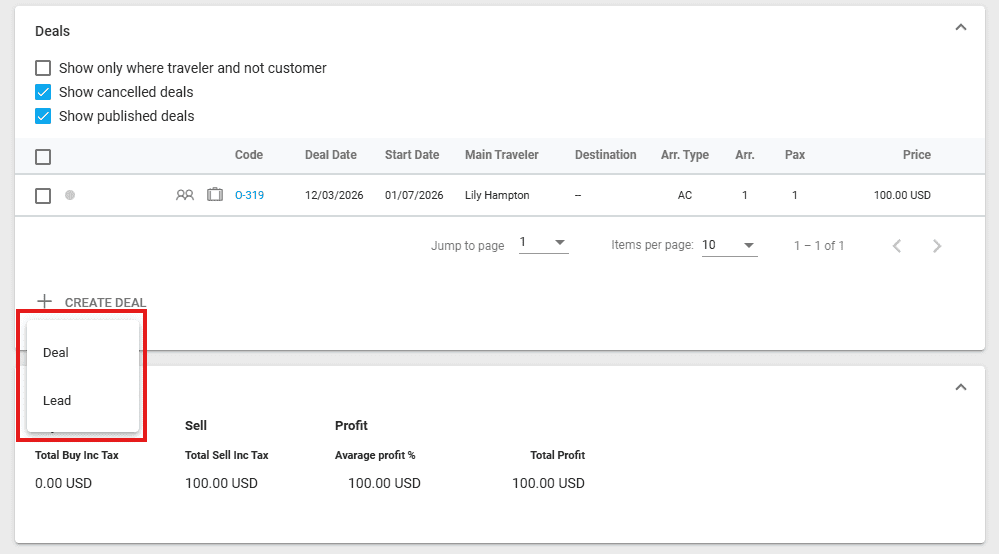
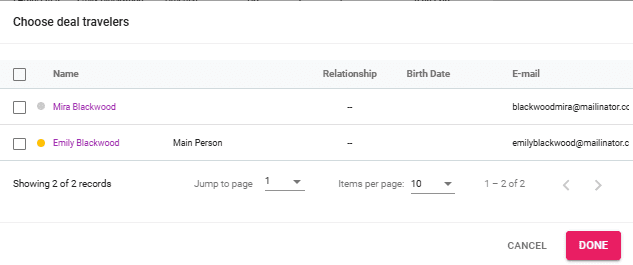
Use the “Create Deal” button to create Deals for a customer, where the Customer and its persons are automatically added so there is no need to start Creating a new deal from the deals list and search for the customer.
For the create Lead option, the form will already be completed with the details of the Main Person of the customer in the CUSTOMER section.
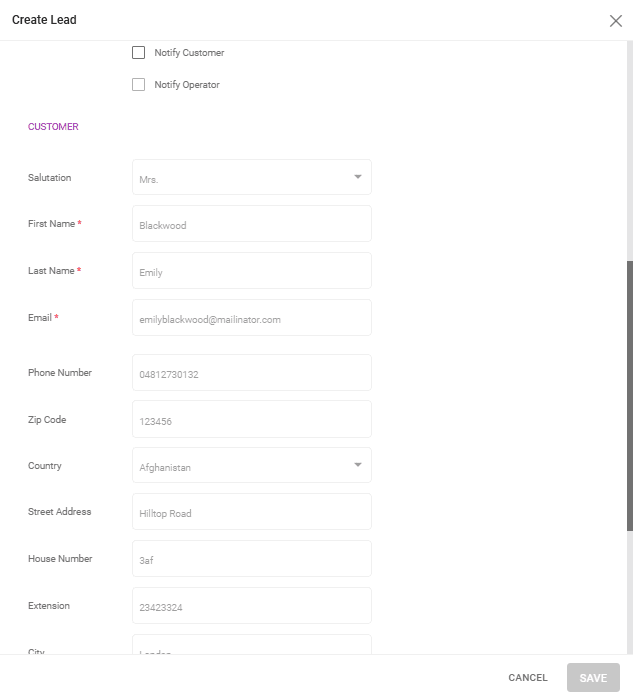
Creating a Customer Entry for Persons (Travelers) When the Deal Becomes a Booking
It is not allowed to change an Option to a Booking if all travelers/persons of the deal do not have the below minimum info set:
- Family name
- Personal name
- Email address
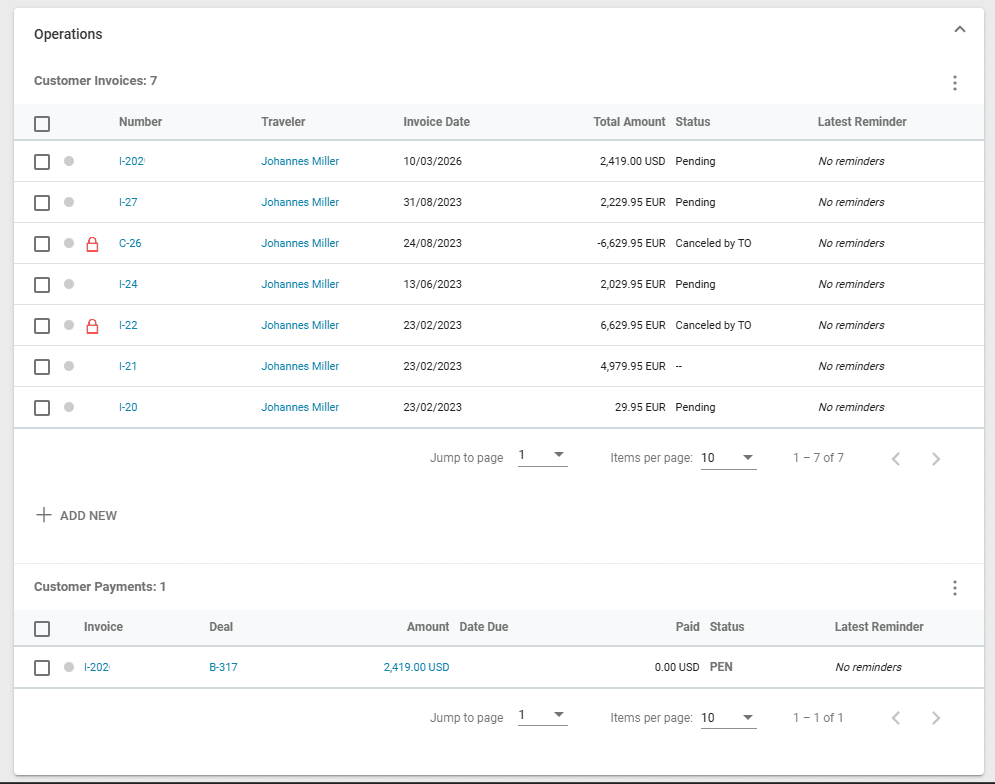
Operations
The Operations section includes all the customer invoices and customer payments related to a customer. Customer Invoices can be created from this place by clicking on the “Add new” button and then selecting a deal related to the customer.
Addresses
In the Addresses section, you can edit the main address or add additional addresses.
Persons
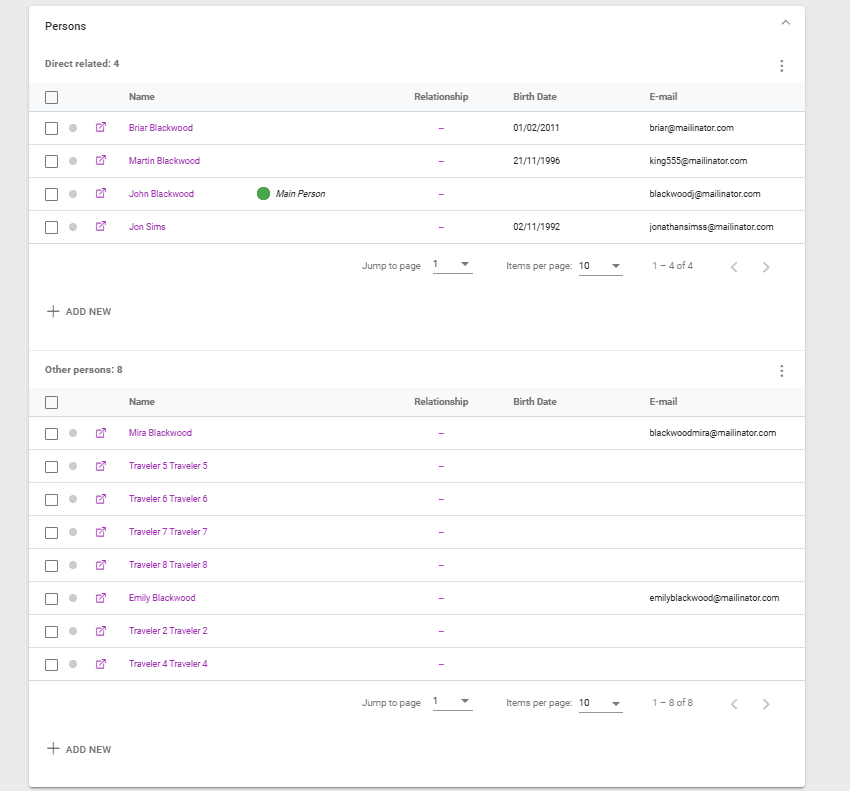
In the Persons section, you have the option to add or remove travelers and can designate another main person of the customer.
Direct Related – these persons have a direct relation to the customer. Can be set during the booking process or in the customer’s details.
Other persons – these persons were involved in a deal with the customer but they don’t have a direct relation set during the booking process.
New related persons can be added by clicking on the “Add new” buttons in the respective section.
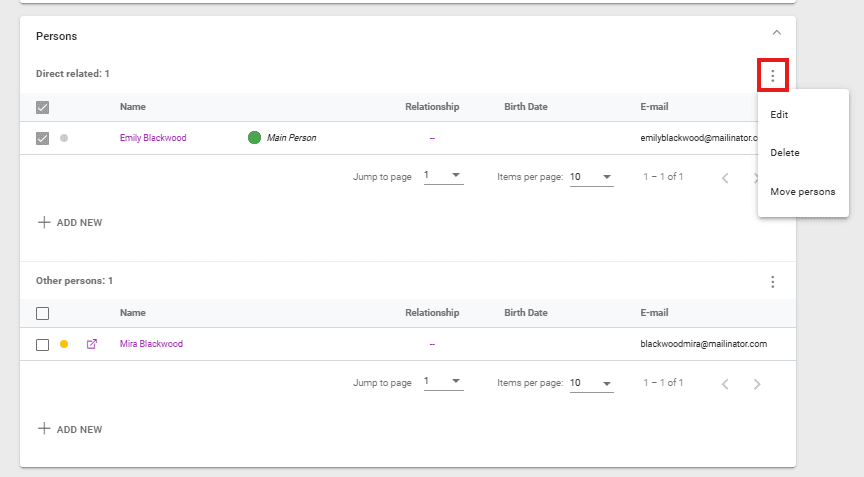
Persons can be removed by selecting them via the checkbox, then clicking on the three dots at the tip right corner, then selecting “Delete”. Relations can be edited through the same process but selecting “Edit” instead.
A person in the “Other persons” section can be moved to direct related by selecting “Move persons”.
Contacts
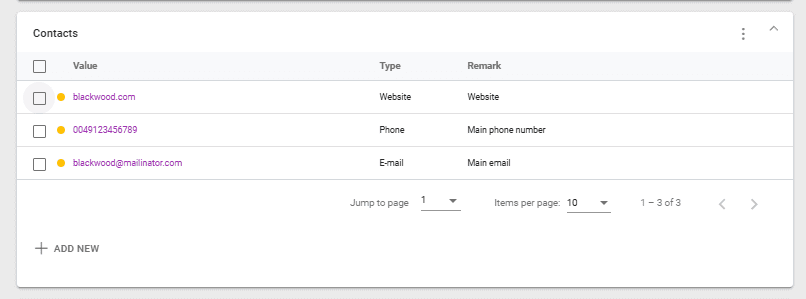
The Contacts section includes various types of contacts: email addresses, websites, phone numbers and more. A customer can have multiple contacts. To add a new contact, please click the “Add new” button, then fill out the Value, Contact Type (choice list that can be modified in Settings / Choice List under Contact_Type, and Remarks if any).
Tasks, Notes, and Marketing
These sections are meant for your operator team to create and assign tasks, add internal notes, and save marketing preferences.
For more information, check out the following articles:
How To Create An Agent Customer
If the customer is an agent, select the Agent radio button and set up your commission percent. Additionally, you can add other commissions using the +ADD NEW button. These commissions can be set up for a Product Code or Product Category and have a cumulative effect on the agent commission.
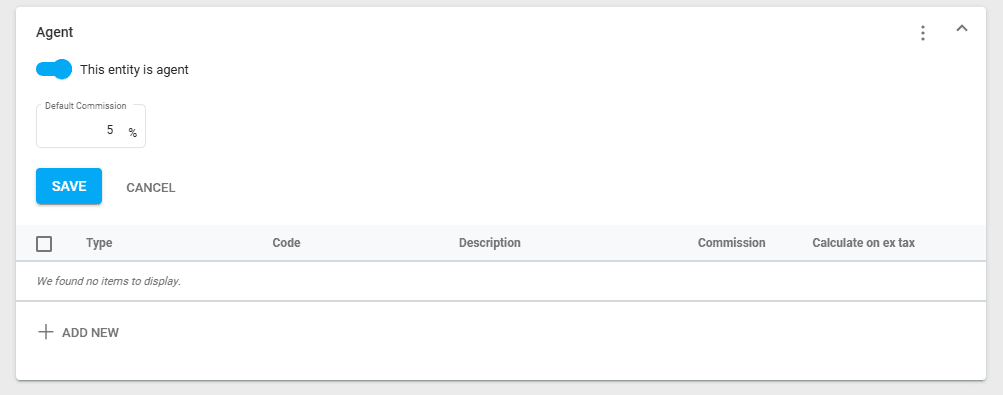
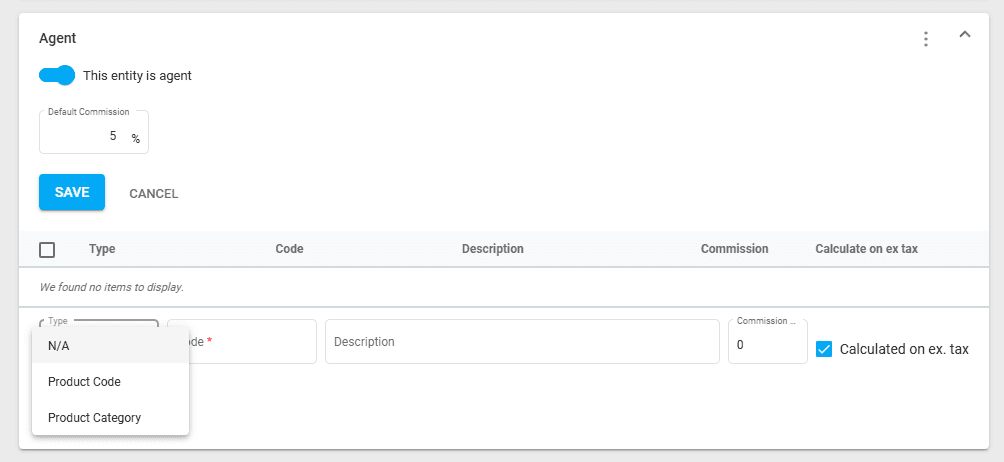
The logic for setting up commissions when the customer is an agent
Setting Up A Commission For An Agent
The commission can be set as follows, as shown in the above screenshots:
1. At the product price level
In the Price section for each product, you can set the default commission for agents. This commission is applied only to customers marked as agents.
2. At the customer level
Commission Types
1. Default commission
When set as an agent, the % commission set as the default is applied only if there is also a commission set at the price level (per product). The final percent of the commission applied is the sum of the % commission set at the price level and the % commission set at the customer level.
If no commission is set at the price level, then the default commission for the agent will not be applied either.
Example:
- If there is a 3% commission set at the price level and a default 5% commission set at the customer level, the final amount of commission applied when creating the deal will be 8%.
- If the Agent Commission is set to 0%, then the full commission percentage will be that set on the Product’s price level. For a price with 5% commission, the total commission will be 5% in this case.
2. Custom commission
For customers marked as agents, a commission can be set per Product Code or/and per Product Category.
Only these will be taken into account. If there is also a commission set per Product Price or by Default at the customer level, these will be disregarded in the calculation of the final price to be paid by the agent customer.
The screenshot below shows a default commission of 5% and two custom commissions (by product code and product category).
All products with a product code starting with HO will have a 3% commission applied. Also, for the product with the product code HOTESTVCT500, a 10% commission is applied.
Modifying Commissions
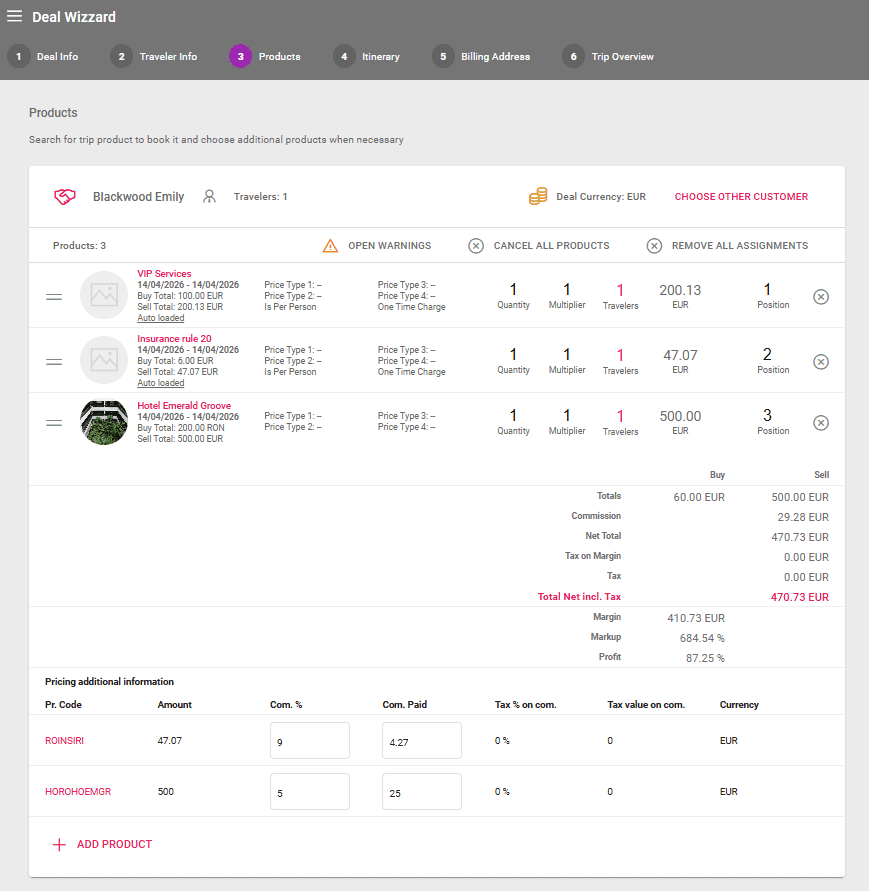
Commission percentages can be edited freely during the booking process and after booking in Deal Details / Arrangements.
Relationships Between Customers
Definition of Terms
Customer – is any person who is the main traveler or a traveler in a deal.
Directly Related (Relatives) – is a person directly related to the customer, and when loading this customer in the deal, we display the list of these directly related persons.
Other Persons (Travelers) – is a person who is related to many customers. These persons are not shown when loading the customer in a deal.
Relationship Type – a dropdown list that defines the relationship between a person (both directly related and many related) and the customer.
Person Versus Traveler
Person – the person entry is created for a customer (Directly Related or Other Persons), who may or may not be a traveler.
Traveler – the traveler entry is created for a person who is a traveler in a reservation.
Main Person of Customer Versus Main Traveler of Reservation
Main Person – is the person who is automatically created for a customer entry when a new Customer is added. Any other person of the customer may be set as the main person. Only one main person may exist for the same customer.
Main Traveler – is the first person in the traveler list of the booking, regardless of whether the person is or is not the main person of the customer.
Special Cases
Customer is marked as an agent
- Persons are never loaded in a deal.
Customer is/is not a company
- Both directly and many related persons exist.
- Directly related persons can be loaded in a deal, meaning that when the customer is selected in the booking process, the system should display all directly related persons in an overlay, asking the operator to choose the ones they want to use in this deal.
- Persons without direct relation – those added in a booking but not linked to the customer – are not loaded when the customer is selected in the booking process.
Basic Functionality
Booking Process
Customer is not an agent
When the customer is selected in the booking process, the system displays all directly related persons in an overlay, asking the operator to choose the ones they want to use in this deal.
If new traveler(s) is/are added during the booking process, the system pops up a question asking whether the newly added person(s) should or should not be linked with the customer. If Yes, the direct relation is created, and the new person will be found in the Directly Related list in Customer details. If No, the new person will be found in the Other Persons list in Customer details.
Only one traveler may be the main traveler.
Customer is an agent
When the customer is selected in the booking process, the system never loads the persons related to the customer.
If new traveler(s) is/are added during the booking process, the system never creates a relation with the customer. Directly related persons may be added for the agent only in the Customer Detailed view.
Only one traveler may be the main traveler.