Deals – Accessing The Deal Details and All Deal Tabs
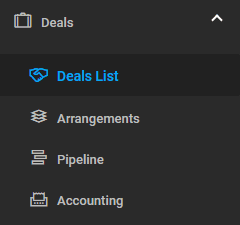
All deals can be found in the Deals list accessible from the main left menu.
Deal Details
Export Deal Details to XLS
From the deal details, you may export data to an Excel file using the EXPORT XLS button.
Save Deal as Option or Booking
If the deal is of type O (Option), you may save the deal as a Booking (B type) using the SAVE AS BOOKING button from the deal details:

For O (Option) type deals, a Customer Invoice cannot be created. To create a Customer Invoice, you must first save the option as a booking, as explained above.
The Deal Details Tabs
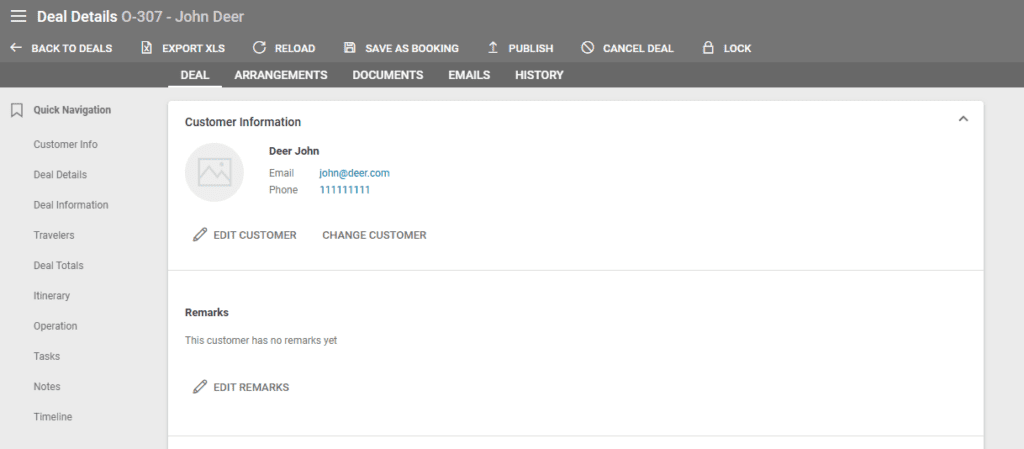
In Deal details, there are 5 tabs:
- Deal
- Arrangements
- Documents
- Emails
- History
Deal Tab
- Customer Information section with Remarks and Reservation Text
- Deal Status Timeline
- showing the status of the deal updated based on certain actions. Settings – Action – Statuses – more about setting statuses.
- Deal Information
- Linked Trip (if there is a trip linked to a reservation, a link to the trip is displayed in this section). See more about Trip Designer.
- Travelers
- Deal Totals
- Itinerary
- more about setting Itineraries: How to link an Itinerary (route) to an arrangement
- Operations
- Customer Invoices – How to create a customer invoice
- Customer Payments – How to receive payment from a customer
- Supplier Invoices – How to create a supplier invoice
- Supplier Quotes/Orders – How to create supplier orders/quotes
- Tasks – How to create and assign tasks
- Notes (reminders)
- Timeline – displays certain actions such as manual status changes in the deal’s timeline or create supplier orders.
The Travelers Table
In this table, we display information grouped by traveler.

Sell Amount by Traveler
- Total Sell column – the sum of the total sell price, including tax, of all arrangements to which the traveler is assigned, by reservation.
- Ins. column – the price of insurance calculated per traveler.
- Sell column – the custom sell price with tax, excluding insurance.
- The Sell column allows for setting a different price for each traveler than that calculated as the sum of the total sell price, including tax, of all arrangements to which the traveler is assigned.
- The prices from the Sell column define the final price of the deal, and the insurance will be recalculated based on the custom price (depending on whether it increases or decreases the amount per traveler compared to the sum of arrangements to which the traveler is assigned).
- If the deal is edited, an arrangement is deleted, or a new arrangement is added after the custom amount by traveler is added, the new custom amount by traveler will represent the sum of the arrangement values by traveler, and the difference (with tax) originally calculated between the custom amount by traveler and the sum of original arrangement values.

- Profit % column – the profit calculated per traveler.
- Arr. column – the number of arrangements to which the traveler is assigned.
- Party No. column – the party to which the traveler pertains.
Header Section

- Party no. – if only one party is created, the number of the party will be 0.
- Total Sell – the total with tax calculated as the sum of the arrangements.
- Total Insurance – the total of the insurances.
- Overall Total – the total calculated based on the custom amounts set in the Sell column, which is actually the final price of the deal.
- Profit % – the total of the profit calculated for the deal.
Add, Edit and Delete Travelers
From the ACTIONS button, you may edit or delete travelers.
To add new travelers, use the ADD TRAVELERS button.

Add A New Traveler Party
To create a new Party, click the CREATE PARTY button. Each time this button is clicked, a new Party No. is created.
Drag and drop travelers to the new Party No.

The header of each Party No. table contains the totals calculated (split) per traveler assigned to that Party.
Show All Assignments
Displays the list of travelers and the list of arrangements to which each traveler is assigned.

Applied Tax

The tax applied on the difference between the custom amount by traveler (amount from the Travelers table – Sell column) and the Total Sell from arrangements.
The applied tax is calculated on the total of all traveler custom amounts (Travelers table/Sell column) minus the total sell (total sell including tax of all arrangements).
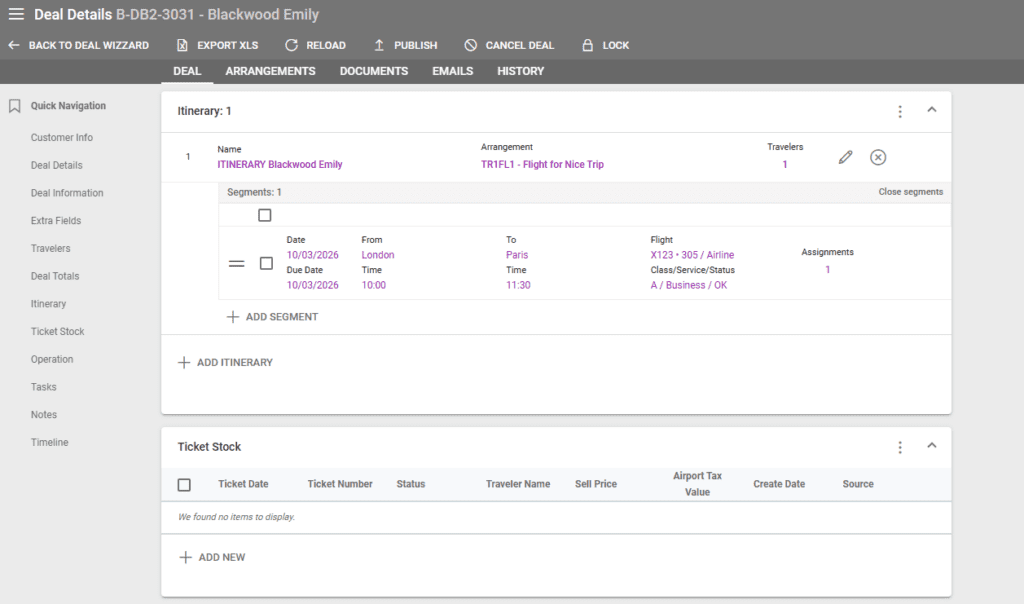
Itinerary Section
In the itinerary section, routes can be linked to deals. This section can be filled out during the booking process and edited or completed at any time through the Deal Details.
Segments can be filled out manually or imported from GDS (Amadeus, Amadeus Extended, Galileo, Sabre). For more information about setting up itineraries, please check out the dedicated article here.
Deal Totals
The Deal Totals section has two new columns for the Buy totals – Buy expected and Buy invoiced. Each has dedicated Margin, Markup, and Profit values to give you a more comprehensive view of your deal totals.
The Buy column has values based on:
- the Supplier invoices that have been added for arrangements
- the Buy values of the arrangements that have no supplier invoices added yet.
Whenever a new supplier invoice is added, the value is recalculated.
The Buy expected column has the total value of the deal’s arrangements without any supplier invoices. This is the expected value based on the buy prices of your arrangements.
The Buy invoiced column has the total value of the arrangements with a supplier invoice added, without adding the buy prices of the arrangements with no supplier invoice added yet.
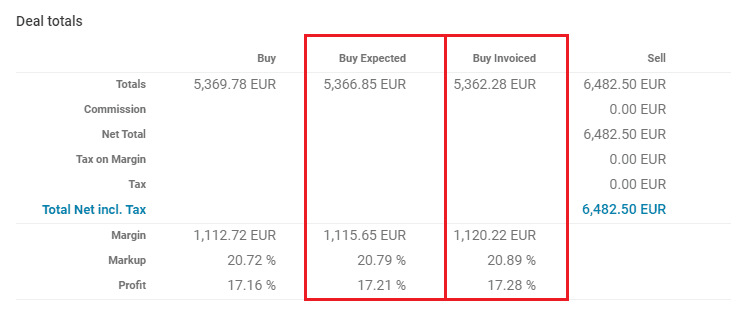
- Total Buy is the total buy including tax.
- Total Sell is the total sell excluding tax.
- Commission: Commission including Tax.
- Net Total: Total excluding tax minus commission.
- Tax on Margin: if tax on margin is applied to arrangements, then Tax on Margin is not 0.
- Tax: Other taxes, if any, depending on product prices and the setting of the taxes.
- Total Incl. tax: Net total sell plus tax on margin plus other tax.
- Margin percentage: Calculated from the sell price without deduction.
- Margin net percentage – Calculated from the sell price with deduction.
- Profit net percentage = Calculated as (1 – total Buy Price / (total Sell Price NoTax – deduction)) * 100.
- Profit Net = total Sell Price NoTax – Deduction – Total Buy Price (Margin Net)
- Calculated depending on the following:
- If there is a final Supplier Invoice added – taken from the total invoiced by the supplier * buy exchange rate).
- If there is no final Supplier Invoice, and if calculate_margin_with_buy_ex_tax = false, this is the total of the Buy Total Price HC fields of arrangements.
- If there is no final Supplier Invoice, and if calculate_margin_with_buy_ex_tax = true, this is the total of the Buy Total Price Exclusive Tax HC fields of arrangements.
- Calculated depending on the following:
More info about how to set up Taxes here.
Operations
The operations section contains information about customer and supplier invoices and payments.
Customer Invoices: The section that displays all the customer invoice and credit note records related to the deal. Invoices can be viewed by clicking on the respective code. The customer invoice document is generated by clicking on the Print button, and it can be sent via email if there is an email connection set up. Selecting an invoice, then clicking on the three dots in the upper right corner allows operators to credit the invoice, lock or unlock it, and access the invoice information.
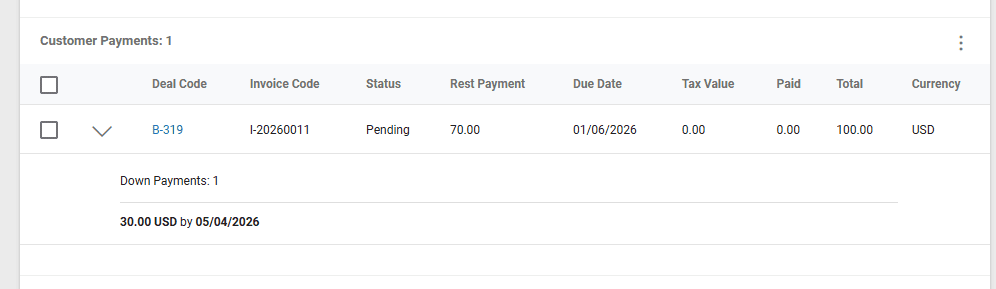
Customer Payments and Accountings: All customer payments related to the deal are displayed here. Depending on your down and rest payment settings in Settings / Financial / Invoice, a down payment may be generated for the respective deal. The down payment details can be viewed by clicking on the downward arrow.
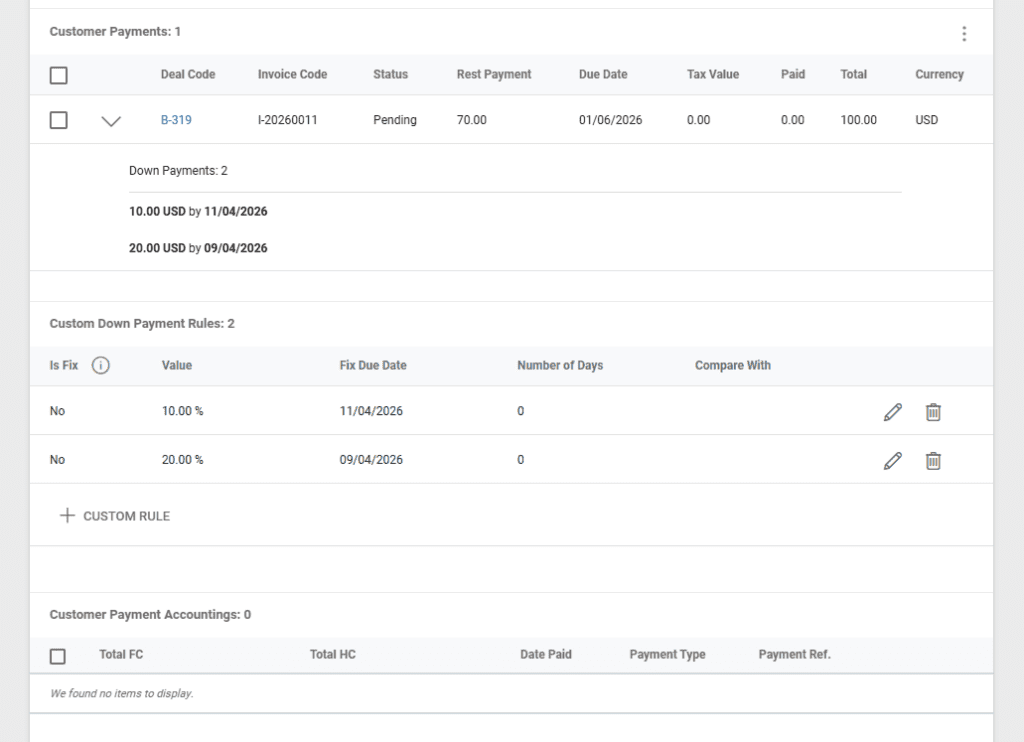
This section also includes the Custom Customer Down Payment settings if enabled on the deal. Custom Down Payments can be set up in this section after they are enabled in the Deal Information section.
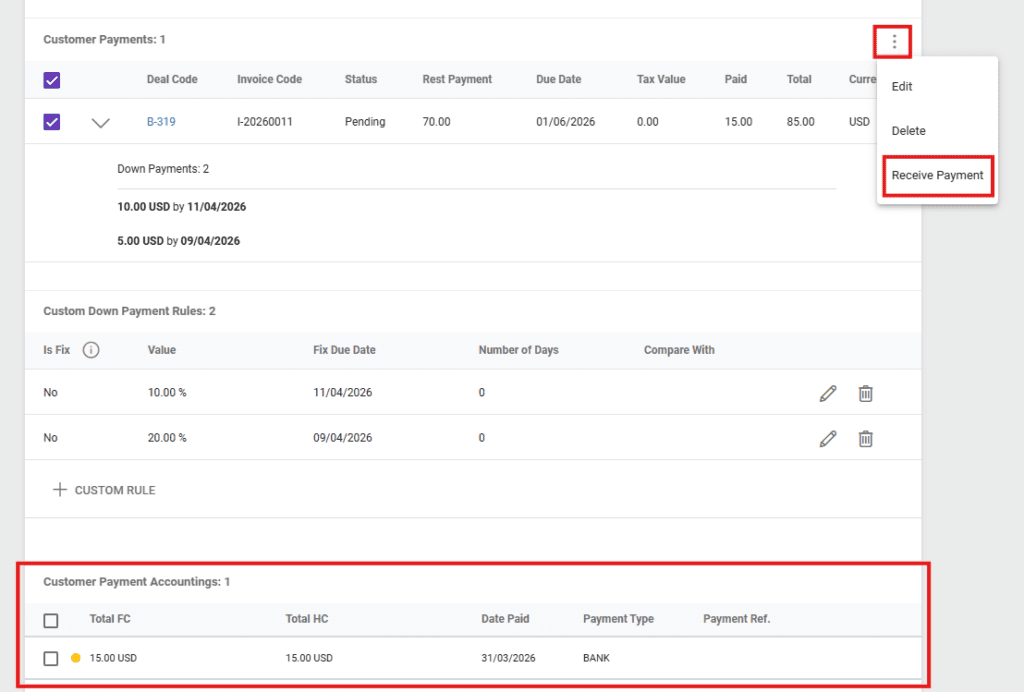
The last part of the customer payments is Customer Payments Accountings. Here, all received customer payment records are displayed. To receive a payment, select the respective customer payment record under Customer Payments, click on the three dots on the upper right corner, then select Receive Payment. Fill out the payment details and then click save. The customer payment amounts will get updated depending on the amount received.
Supplier Invoices: If the deal’s arrangements have suppliers assigned to them, a supplier invoice can be created in this section. To do so, click on the “+Supplier Invoice” button, then select the respective arrangement(s) and create an invoice. For more details, please consult the dedicated article here.
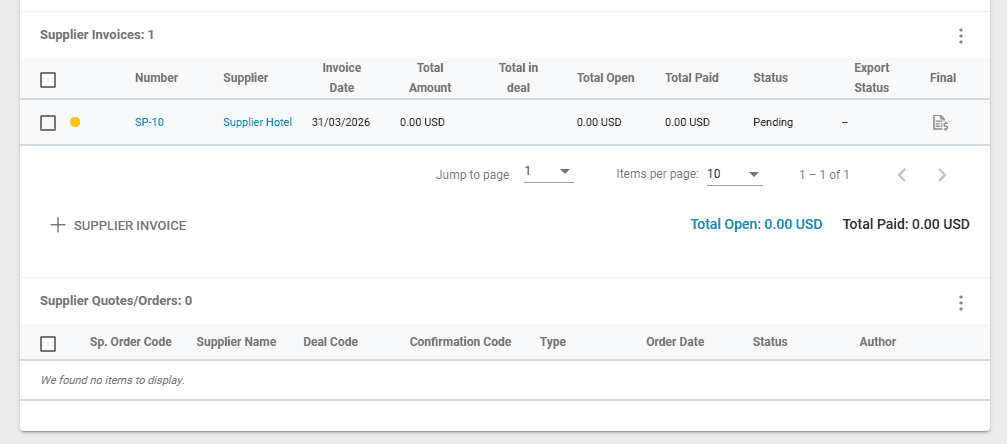
Supplier Quotes/Orders: This section displays all Supplier Quote/Orders created in the Arrangements tab in relation to the deal’s arrangements. For more information on supplier quotes/orders, please check the dedicated article here.
Tasks, Notes and Timeline entries
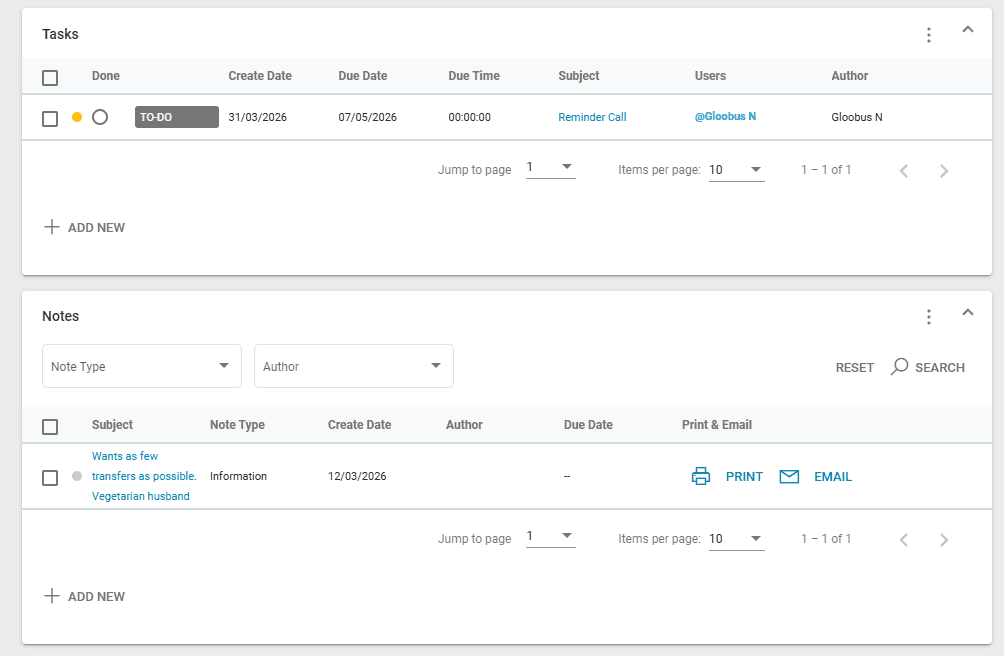
Tasks can be set and assigned to different members of your team in relation to the deal. This section displays all the tasks created related to the deal you are viewing. All Tasks can be viewed in the Tasks Listing.
More on Tasks here.
Notes can be used by your team to store remarks and other deal related information. They can be printed as standalone documents and emailed if needed.
More on Notes here.
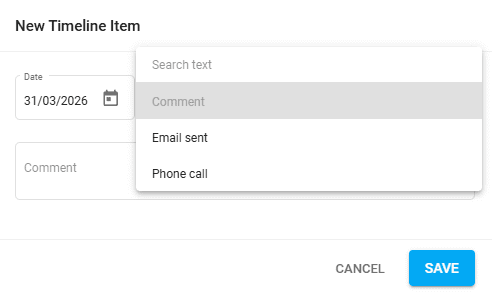
Timeline entries are created automatically by the system in case of deal status related updates. They can also be added manually, allowing your team to note important actions done in relation to the deal.
Editing Notes, Tasks and Timeline Entries in a Locked Deal
After certain actions in a deal (e.g. Creating a Customer Invoice), a deal gets locked by default. This can also be toggled manually by clicking on the ”Lock” / ”Unlock” button in the top menu of a Deal’s Details.
Operators can still edit Notes, Tasks, and Timeline Entries despite a deal being locked, allowing for easier addition of internal information.
Arrangements Tab
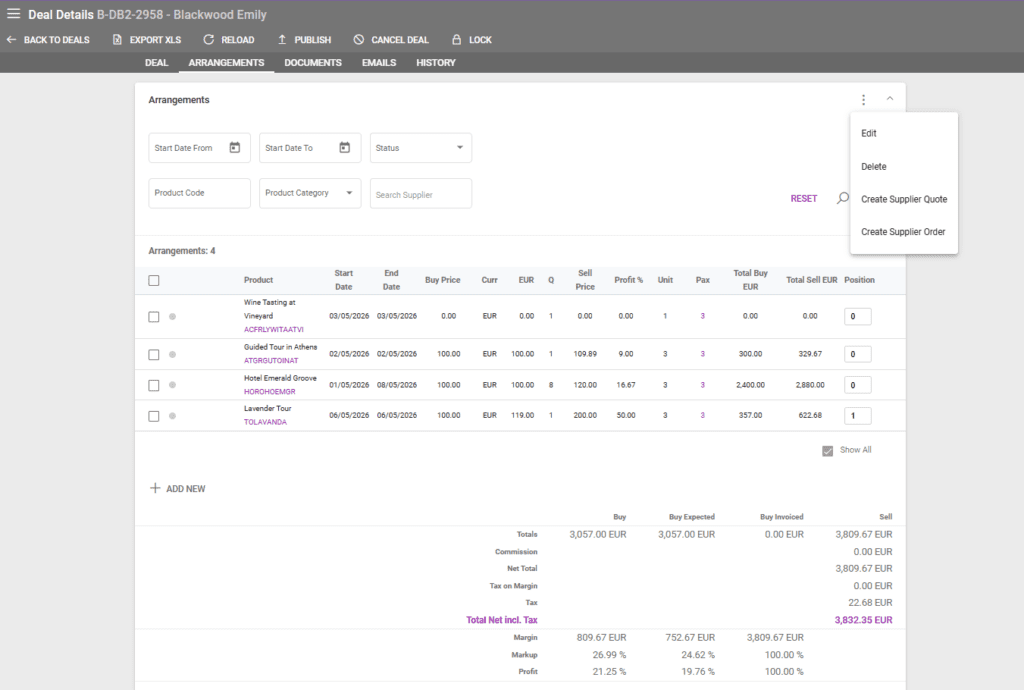
The list of all products booked in a deal.
In this tab, you may edit price details, change traveler assignments, delete, or add new arrangements. Creating supplier Quote / Orders is also available by selecting arrangements that have suppliers.
To delete an arrangement, you may select the arrangement from the list and from the ACTIONS button, select the DELETE option, or you may use the delete icon displayed when hovering over each arrangement.
Arrangements can be filtered using the search boxes for:
- Start Date From
- Start Date To
- Status
- Product Code
- Product Category
- Supplier
Editing Traveler Assignments
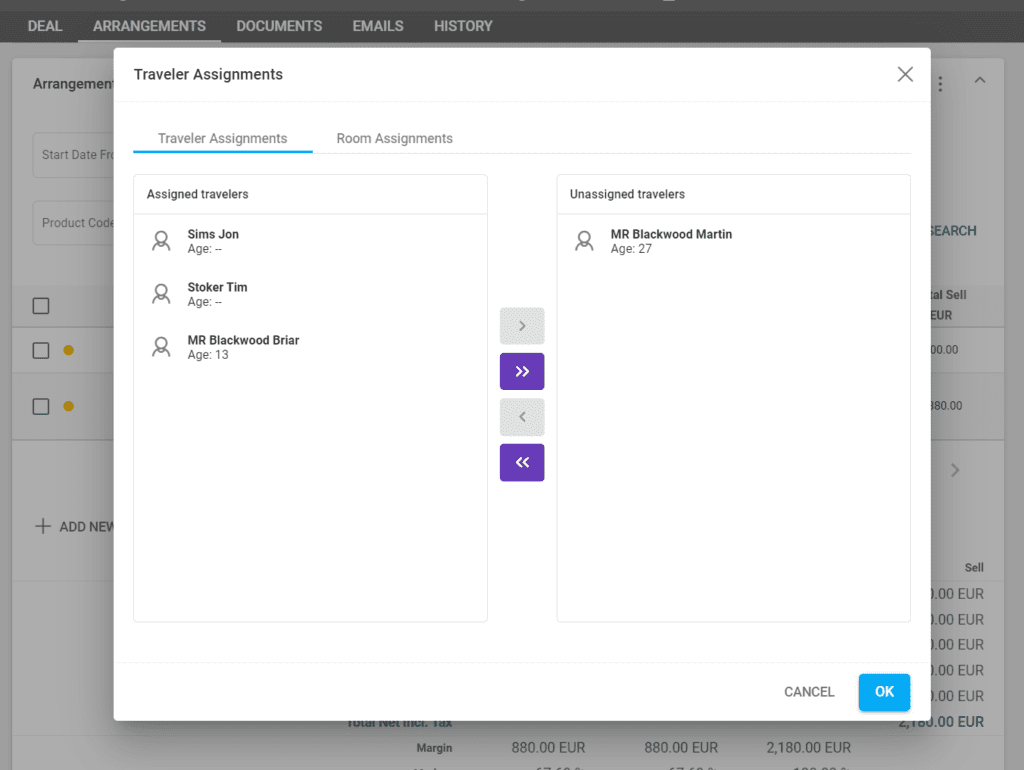
The traveler arrangement assignments can be checked in the deal details under the “Travelers” section by clicking the “show All Assignments” button.
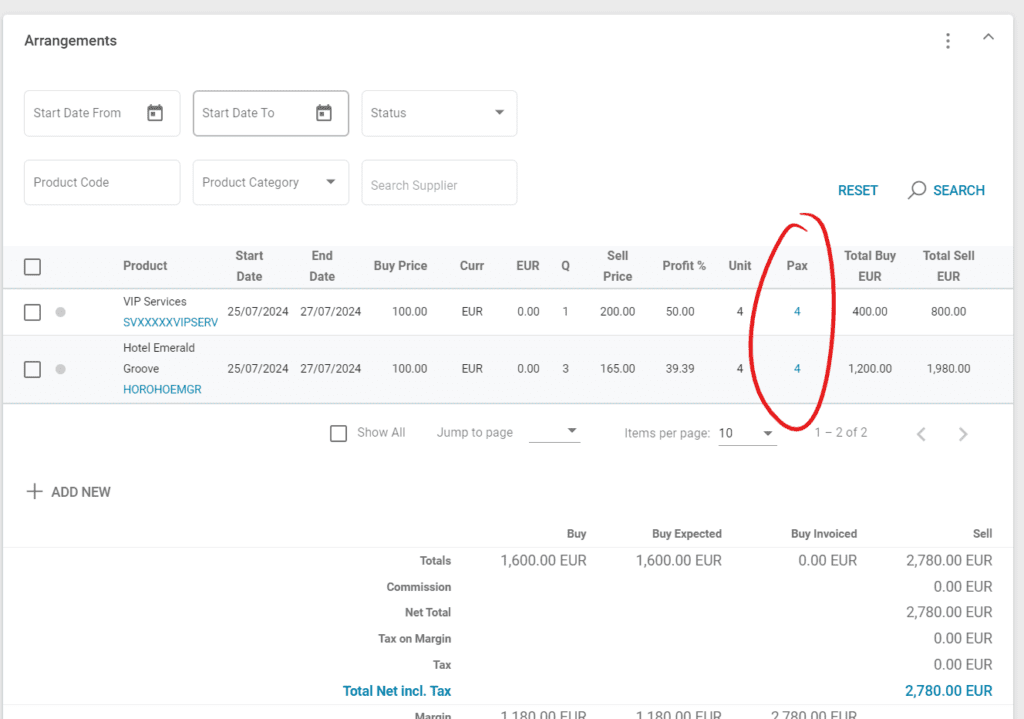
The Traveler and Room Assignments can be seen and edited by clicking on the Pax number in the Arrangements Tab.
Agent Commission Details
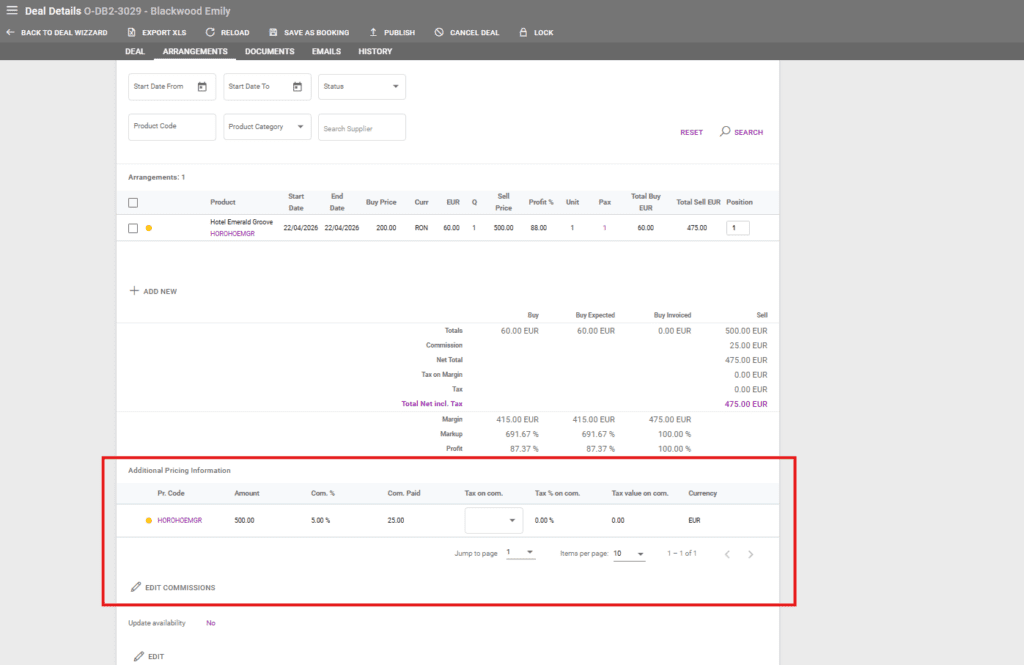
If the deal’s Customer is set as an agent and the booked product has a Sell Commission % set, then an additional section with the agent commissions will be displayed below the Arrangement’s table. Commissions can be modified by clicking on the “Edit Commissions” button. For more information about Agents and Commissions, please check out the dedicated article here.
Update Availability for Arrangements with Allotments
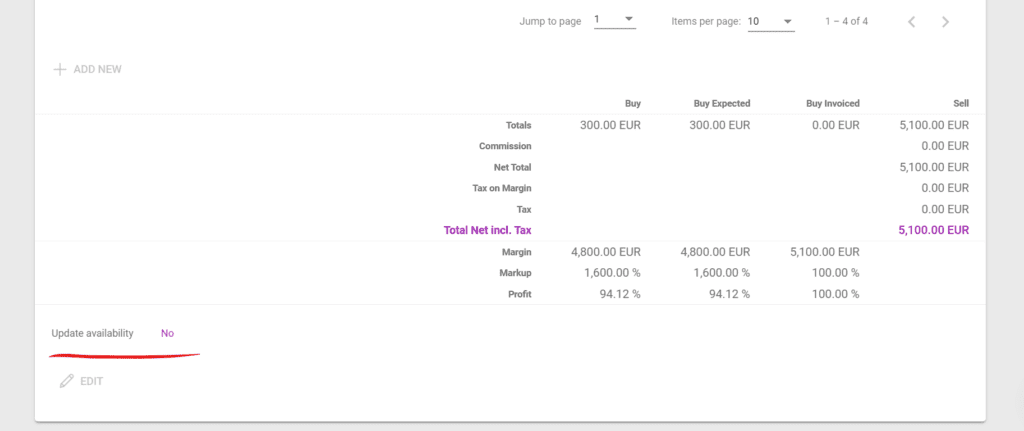
A checkbox can be found on O type Deals at the bottom of the Arrangements Tab for updating the arrangements’ availability if they have allotments set on the Product level.
Change Sell Currency for Deals with no Arrangements
In case the wrong Sell currency was selected for a Deal, it can be changed if there are no Arrangements in it. If arrangements were added to the deal during the booking process, then they can be removed in order to change the deal’s Sell Currency to the correct one, after which the arrangements can be re-added to the deal.
Documents Tab
In the DOCUMENTS tab, we generate and display all the templates personalized for each tenant upon request (Proforma Invoices, Travel Plans, etc.).
Each document can be printed, downloaded, or sent by email from the documents tab.
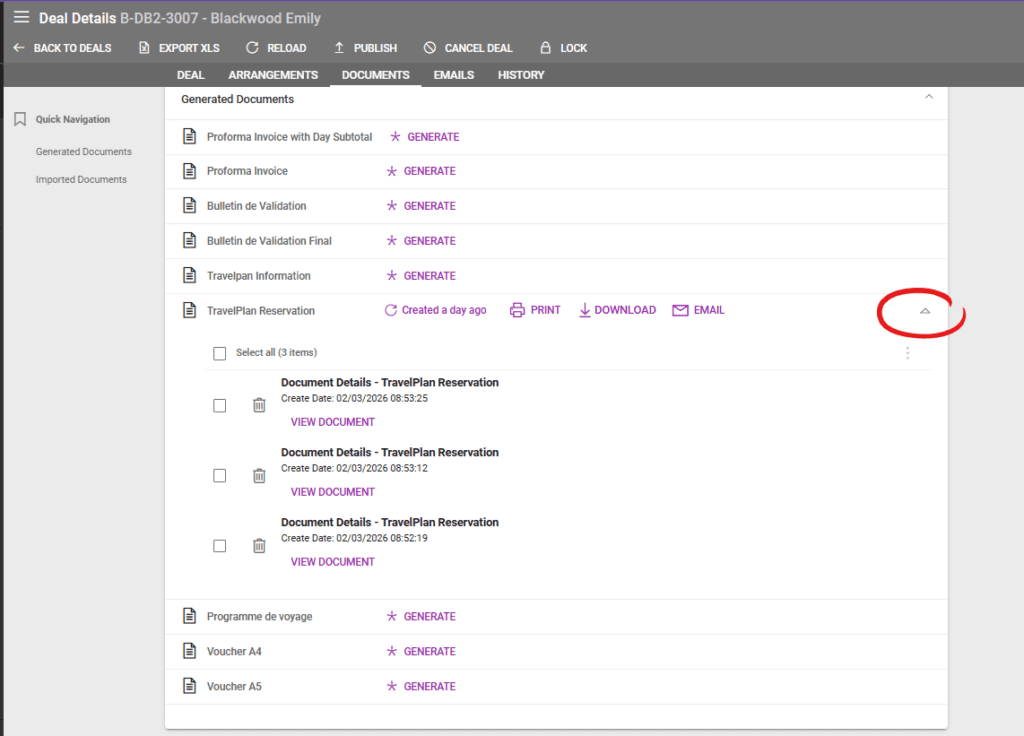
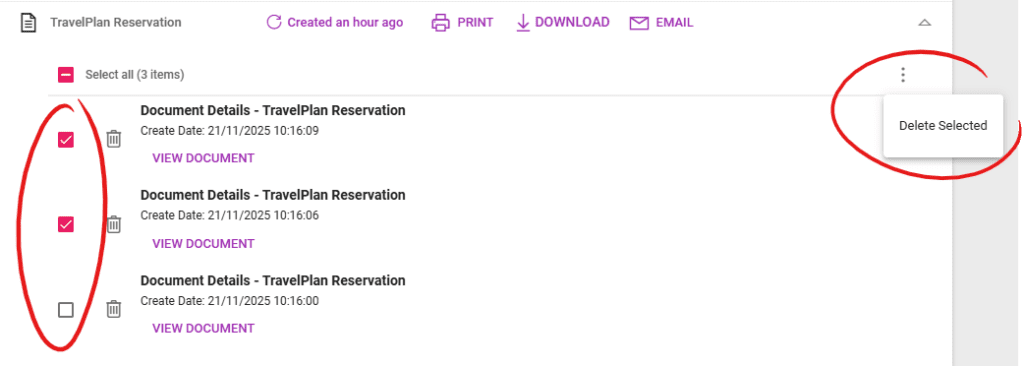
Clicking on the downward arrow at the end of a document’s section opens up the document version section. In here, operators can see all the previously generated document versions along with the create date and view buttons. The document versions can be deleted by clicking on the trash icon, or selected in batch, clicking the three dots on the right side and selecting “Delete Selected”. A “select all” checkbox is available at the very top along with the total item number.
Clicking the “Print” button generates a new version of the respective document in the document version history.
Select and Delete Multiple Document Versions
In the Documents section of a Deal, operators can access all the versions of a document by clicking on the downwards arrow. Checkboxes can be used to quickly select multiple document versions and delete them.
Emails Tab
The Emails tab displays all emails related to the deal that were created or sent. For more information regarding automatic email sending, please check the following article on Email Sending in Victoury.
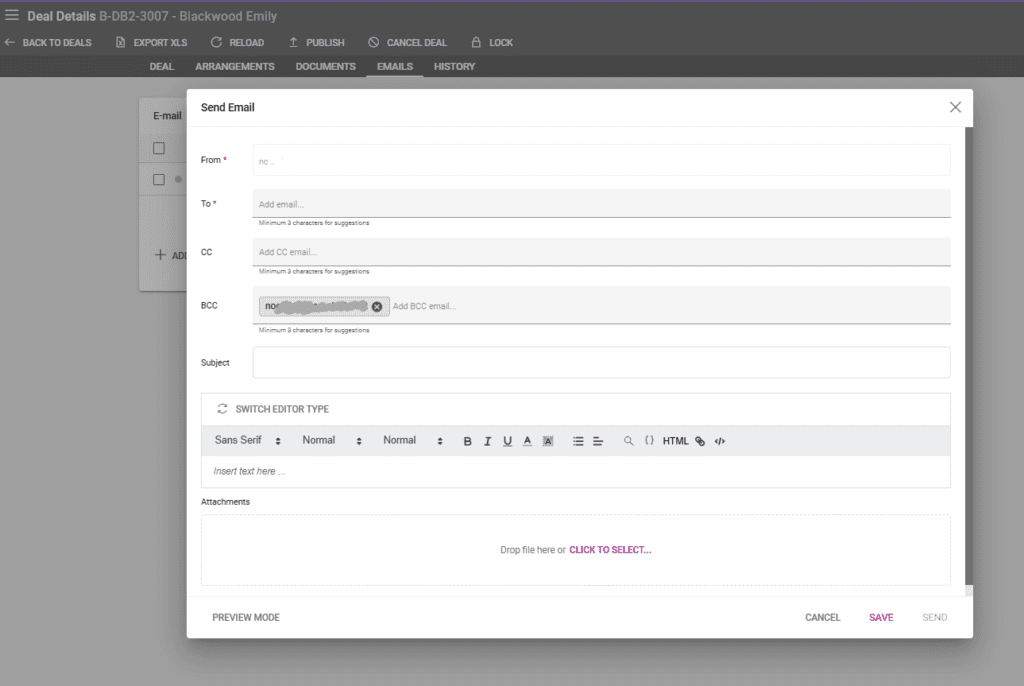
A new email can be created by clicking on the “New Email” button.

Emails can have multiple recipients and the system will automatically suggest existing email addresses while typing. Email addresses can be separated with a comma, enter, space or semicolon.
Once the email contents are complete, clicking on the “Preview Mode” button will display how the email looks like once it is sent. If you are using placeholders, these will be replaced as well. Emails can be sent only while in preview mode, and they can be saved for later sending with the “Save” button.
History Tab
In case you import data from a back-office environment, it is possible to keep a history of entries.